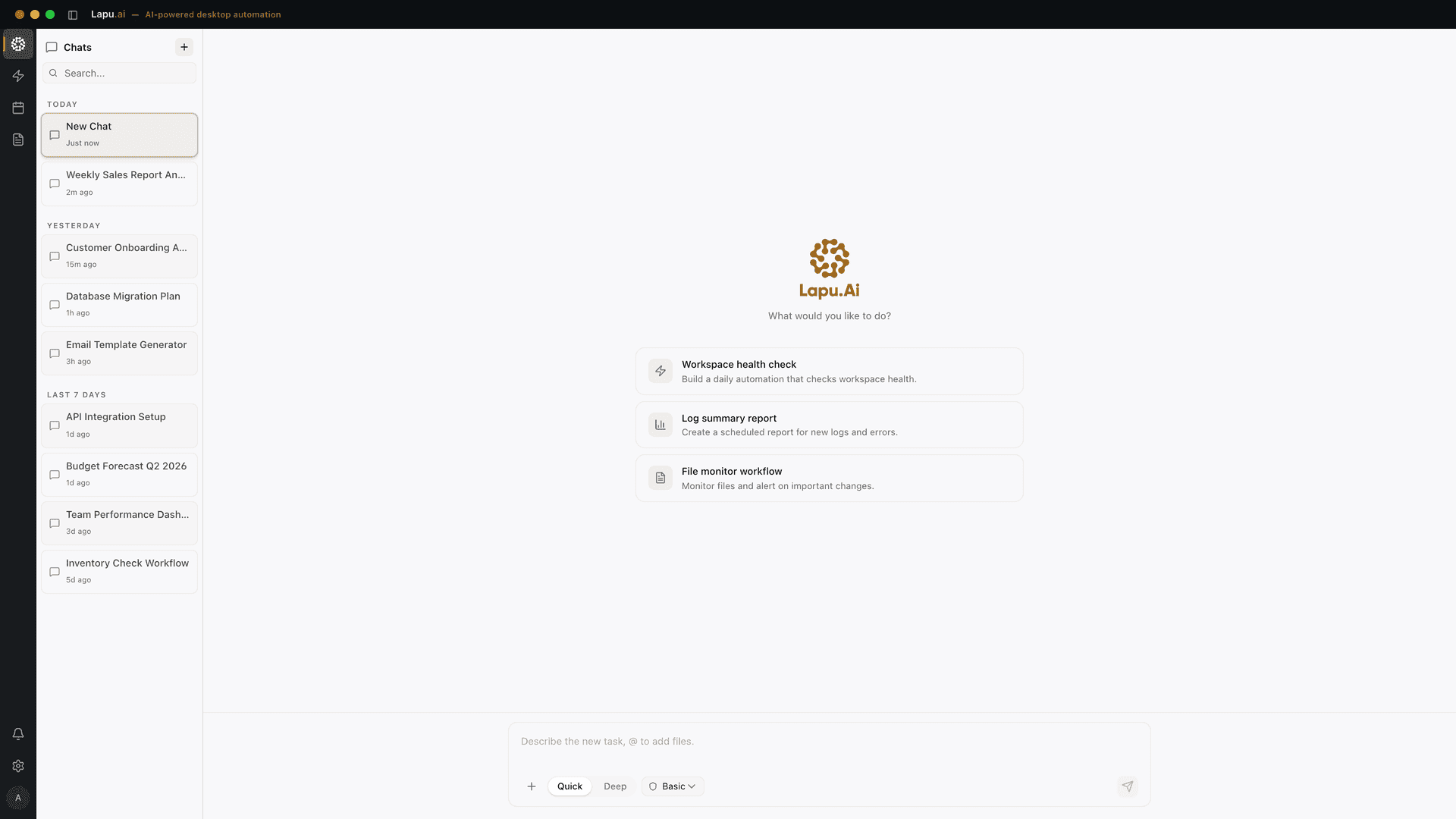
To automate file organization with AI on a desktop, you point a desktop AI agent at a messy Downloads folder (scans, screenshots, generically named files, and stale invoices all mixed together), and describe how you want things sorted. The agent proposes a plan you can review, then moves files into folders by content, not just by name, and renames the ones whose names were uninformative. The result is the structure below, with every step recorded so you can undo any batch.
- Downloads (organized)
- Documents: PDFs, contracts
- Invoices: 2026-03-14-acme-482.pdf
- Photos: images by content
- Presentations: .pptx, .key
- Screenshots: grouped, dated
- Spreadsheets: .xlsx, .csv
That tree is the same set of files after one prompt. No upload, no script to write, no cleanup pass. Download Lapu AI for macOS or Windows and point it at your own Downloads folder, or see the file organization workflow for the product-level walkthrough.
A web chat cannot do this: it has no access to your file system. A native agent on macOS or Windows does, and the workflow is the same on both operating systems. This guide covers the exact loop, the prompt patterns that work, and what to watch out for.
What it means to automate file organization with AI
Automating file organization with AI means handing the decisions about where each file belongs to a model, and the actual file moves to an agent that has permission to write to your disk. Without both halves, nothing happens. A model can produce a list of suggested folders all day; if no software acts on the list, your Downloads folder is still a mess. An agent can move files all day; if no model is deciding what belongs where, you have a fast random shuffler, not an organizer.
The model side has been settled for two years. Frontier large language models read filenames, file metadata, document text, and image content well enough to classify the way a human would. The agent side is what changed in October 2024 when Anthropic shipped computer use as a public beta: the capability that lets a model "look at a screen, moving a cursor, clicking buttons, and typing text" (Anthropic, 2024). The same pattern is now standard across desktop AI agents: a planning loop wraps the model, and the agent uses OS-level APIs to act.
That is what you get from a tool like Lapu AI. The model decides; the agent acts; the OS gates anything sensitive. The result is a workflow where you describe what "organized" looks like in plain English and the work happens in the background, with you reviewing the plan before files actually move.
The scale of the problem is not subtle. IDC research cited by Box estimates "90% of data is unstructured" (meaning files, not database rows), and that "22% of this type of content is replicated because people either can't find it or don't know it exists" (Box, 2023). The duplicate-files problem alone justifies the workflow.
Why chat tools cannot do this
Chat tools (ChatGPT, Claude.ai, Gemini in a browser), cannot organize your files no matter how well they understand the request. They have three structural gaps:
- No file system access. A browser tab cannot read your Downloads folder, list its contents, or move a file. The browser security model exists precisely to prevent that.
- No agent loop. A chat tool answers a question and stops. Organizing 4,000 files is not one question; it is a plan, a series of moves, error handling, and a verification step at the end.
- No persistent permission state. Even if a chat could move one file, it has no way to remember that you approved moves in a particular folder, no audit trail, and no undo.
You can paste a list of filenames into ChatGPT and get back a plausible folder structure. You then still have to do all the moves by hand. Half the work, the boring half, does not get automated.
A native desktop agent closes those gaps. Lapu AI runs as an application on macOS or Windows, talks to the OS through the same APIs that screen readers use (the accessibility tree), and has a permission model that remembers what you have approved in this session. The agent IS the loop; the model is the brain inside it.
The loop a desktop agent runs
A desktop AI agent organizing files follows a six-step loop that repeats until the folder is sorted:
- Scan. List every file in the target folder, including subdirectories if you allow it. Capture metadata: name, size, date, type, and a content sample for non-trivial classification.
- Plan. Send the metadata (plus content samples for unclear cases) to the model with a prompt that includes your stated organizing intent. The model returns a proposed destination for each file.
- Show. Render the plan as a table (original path, proposed path, reason), so you can scan before approving.
- Approve. You either accept the whole plan, accept it with edits, or reject specific moves.
- Act. The agent moves the files in batches, with each move recorded in an audit trail. If a move fails (permission denied, name collision, file in use), the agent stops the batch and reports.
- Verify. After the moves, the agent re-scans the folder, confirms files are where the plan said they would be, and writes the audit trail to disk.
The same loop works whether you are sorting 50 files or 50,000. The only thing that changes is how long step 2 takes. Filename-only classification is fast: hundreds of files per minute. Content-based classification, where the agent has to open and read each file, is slower; expect tens per minute on a Copilot+ AI desktop PC and proportionally less on older hardware.
The two pieces that matter for safety are step 3 (show) and step 5 (act). The show step is what lets you catch a wrong category before files move. The act step is what produces the audit trail you will need if the wrong category slipped through anyway.
Step by step: organizing a real folder
Here is the workflow end-to-end for the canonical example: a Downloads folder with 4,000 mixed files accumulated over a year.
1. Pick the folder and decide the scope.
Start with one folder, not your whole home directory. Downloads is a good first target because it is high-mess and low-stakes. Decide whether the agent should descend into subdirectories or stay flat. For Downloads, flat is usually correct.
2. Write a prompt specific enough to be useful.
Vague prompts produce vague organization. Compare:
- ❌ "Organize my Downloads folder."
- ✅ "Sort everything in ~/Downloads into subfolders by type: PDFs into /Documents, images into /Images, archives into /Archives, installers into /Installers, and anything older than 12 months into /Archive-old. Rename invoices using the pattern YYYY-MM-DD-vendor-amount.pdf if you can extract the data. Skip files smaller than 1 KB."
The specific prompt gives the model categories, a renaming rule, a date threshold, and a skip rule. The model can act on it without guessing. The vague version invites the model to make up categories that may not match how you think. The renaming-from-content trick gets stronger when you pair it with a local PDF parser, see the extract data from invoice walkthrough for the parser, model, and verification steps that produce the vendor and amount tokens this prompt assumes.
3. Run a dry run.
Tell the agent to produce the plan without executing it. This is the show step. The output is a table you can scan or filter. Look for two patterns: files in the wrong category (a "fix this" signal), and files the agent could not categorize (the "Other" bucket). Both are fixable by editing the plan or refining the prompt before approval.
4. Approve the plan.
Approval can be all-or-nothing, all-with-edits, or per-row. For a first run, scan the table, edit any moves you disagree with, then approve. The agent locks the approved plan and begins the act step.
5. Watch the act step.
The agent moves files in batches and reports progress. You can stop at any time: the audit trail captures what has been moved so far, so an early stop is not lossy. If a move fails (a file collision in the destination), the agent pauses and asks how to resolve.
6. Spot-check and keep the trail.
After the run, open two or three destination folders and confirm the files look right. If anything looks wrong, run the undo command: the agent replays the audit trail in reverse. The trail is also worth keeping for compliance reasons if you organized client material; it is the record of what moved when.
A 4,000-file Downloads folder typically takes 10-30 minutes from prompt to verified result with content-based classification, less if you stick to filename and metadata. The slow part is reading PDF content. Filename-only sorting is fast enough to feel real-time.
Three mistakes that make AI organizers worse than manual
Most one-shot AI file organizers, the menu-bar utilities that auto-sort in the background, make the workflow worse than doing nothing, for three reasons.
They skip the show step. Files move silently. By the time you notice the rename, you cannot remember the original name. There is no plan to review and no audit trail to undo.
They run on a fixed taxonomy. A built-in "Documents / Images / Media / Other" buckets is fine for the first 100 files; the next 3,900 are mostly Other. The whole value of AI in this workflow is letting the model invent the right categories for your actual content, which only works if the agent is told what those categories should be.
They have no permission model. A background utility that watches a folder and rearranges it in real time eventually moves a file you cared about. Without per-action permission gates, you find out after the fact. Anthropic's own engineering team makes the case directly: sandboxing reduces friction "by 84% while maintaining security", but only because the same model still asks for explicit permission for anything outside the sandbox (Anthropic Engineering, 2025).
A desktop AI agent that runs the full loop (plan, show, approve, act, verify, log), avoids all three. The trade-off is that it is not invisible. You see the plan and you approve the work. That is the point. For how Lapu AI stacks up here specifically, see our pick for the best AI agent for file organization. Or for the role-focused view, what filing looks like as one of a dozen daily desktop chores, see desktop workflows by role.
macOS vs Windows: what changes
The mechanics of automated file organization are the same on both operating systems. What differs is the API layer underneath:
- macOS. The agent uses the Accessibility API (AXUIElement) for screen reading and the standard POSIX file system calls for moves. Granting Lapu AI access in System Settings → Privacy & Security → Accessibility is a one-time step.
- Windows. The agent uses UI Automation for screen reading and the Win32 file system APIs for moves. Granting access via the standard application install flow is, again, a one-time step.
The model layer and the planning loop are identical across platforms. If you have Lapu AI running on a Mac and a PC, the same prompt produces the same result on both. The hardware can differ: a Copilot+ AI desktop PC routes some of the on-device classification work to its NPU; an Apple Silicon Mac routes the same work to the Neural Engine, but the user experience is the same.
For cross-app workflows where file organization is one step in a longer task (download statements from a bank's web portal, sort them by month, summarize each), the agent treats the OS-specific details as implementation. You describe the work; the agent picks the right API.
FAQ
- Can ChatGPT or Claude.ai organize my files for me?
- Not on their own. Web chat tools have no access to your local file system. They can suggest a folder structure if you paste a list of filenames, but they cannot read the files, move them, or rename them. To actually automate file organization with AI, you need a desktop AI agent that runs on macOS or Windows with permission to read and write the folder you point it at. Lapu AI is one such agent; Claude Cowork and Claude Code are others.
- Is it safe to give an AI agent access to my files?
- It is safe when the agent uses a permission model that requires explicit approval before reads, writes, and moves outside the working folder. Anthropic's own security guidance for Claude Code makes this explicit: by default the tool is read-only and asks for permission before modifying anything, and write access is restricted to the folder where the session was started. Look for the same model in any agent you give file access to. Also confirm the agent keeps an audit trail you can review.
- Does my data leave my machine when an AI agent organizes my files?
- It depends on which model the agent uses. If the agent calls a frontier cloud model (Claude, GPT-4o, Gemini) to classify or rename, the filenames and small content samples are sent to that model's API for the duration of the request. If the agent uses a local model (Llama 3, Mistral, or an NPU-resident small model), nothing leaves the machine. Lapu AI's default is to send only what the model needs to make the decision (typically filename, first few hundred bytes, and metadata), and to support local models for users who need full local processing.
- How many files can an AI agent process at once?
- A desktop AI agent can handle thousands of files in a single session, but the practical limit is the time it takes for the model to look at each file. Filename-only classification can run hundreds of files per minute. Content-based classification (PDFs, images, documents where the agent actually opens and reads the file) runs slower: perhaps tens per minute. The agent batches the work and shows progress so you can stop and review at any point.
- Will the agent delete files or only move them?
- By default a well-designed agent only moves and renames, never deletes. Deletion is a separate permission level that should require explicit per-file confirmation. The reason is asymmetric risk: a wrong move is reversible, a wrong delete may not be. Lapu AI's defaults follow this pattern: the agent proposes a plan, you approve the moves, and any deletion step prompts again separately.
- Can I undo a file organization run if the agent gets it wrong?
- Yes, if the agent kept an audit trail. The audit trail records every file move with original path, new path, and timestamp. An undo command replays the trail in reverse. This is one of the reasons to prefer an agent built around permissioned execution and audit logging over a one-shot script that does the work and disappears. Without the trail, recovery is manual.
- Does this work for cloud folders like iCloud Drive, OneDrive, or Google Drive?
- Yes, as long as the cloud folder is mounted as a normal local directory on your machine. The agent sees it like any other folder. The cloud sync provider handles propagation after the moves. The one caveat: very large files (multi-GB videos) take time to re-sync after a move, so plan around bandwidth if you are reorganizing a heavy cloud folder.
Sources
- Introducing computer use, a new Claude 3.5 Sonnet, and Claude 3.5 Haiku, Anthropic (2024-10-22) · accessed 2026-05-26
- Making Claude Code more secure and autonomous, Anthropic (2025-10-20) · accessed 2026-05-26
- Claude Code security and permissions, Anthropic (2025-10-20) · accessed 2026-05-26
- 90% of your data is unstructured, and it's full of untapped value, Box (2023-08-15) · accessed 2026-05-26