
Lapu AI for Office Workers
Office workers spend most of the week on tasks a desktop AI assistant is built to handle — spreadsheets that need cleaning, reports that need updating, PDFs that need to be turned into an Excel row, invoices to file, forms to fill, and emails to reply to with the same context you type every day. Lapu AI is a desktop AI agent for macOS and Windows that reads the files sitting in your Documents and Downloads folders, drives Excel, Word, Outlook, and the web apps you already use, and produces a per-task audit trail — locally, without uploading your files to a cloud tool. It is built for the non-technical worker: no code, no scripts, no API keys, no Zapier surface area. You describe the task in plain English, the agent asks before it clicks anything irreversible, and the work gets done in the apps you already know.
- 1-click uninstall
- Cancel anytime
- Files never leave your computer
Pain points Lapu AI addresses
- Retyping the same information into three different systems every morning — the vendor into the accounting app, the same vendor into the CRM, the same vendor into the shared spreadsheet — because none of the tools talk to each other and IT will not build an integration for a request this small
- Copy-pasting numbers from a PDF invoice into an Excel tracker line by line, then reconciling the total against the bank export, then filing the PDF into a dated folder — a 15-minute ritual that repeats fifty times a week and produces a 1–4% typo rate that shows up as painful end-of-month discrepancies
- Cleaning up messy exports from the finance system or the CRM before anyone can use them — merging columns, standardizing date formats, splitting the address field, removing the duplicate rows the export process created — every Monday, forever
- Cloud AI assistants cannot read the spreadsheet on your Desktop, the folder your manager just shared, or the Outlook inbox you are looking at right now — so the tasks that actually consume your day cannot be handed to ChatGPT or Microsoft Copilot without uploading files IT has told you not to upload
- Filling long web forms — vendor onboarding portals, expense claim systems, HR benefits enrollment — where every field is a copy from a paper document or a PDF you already have, and there is no import button that would let you skip an hour of clicking
- Writing the same three-paragraph reply to routine emails — status updates, meeting confirmations, invoice acknowledgements — that only differ in a name, an amount, and a date, but still need to be personalized and sent from your account
- Producing the weekly summary the boss expects on Friday: pulling numbers out of two Excel files, screenshotting a chart, dropping it in a Word doc, and writing the two paragraphs of context — the same shape every week, but too fiddly to fully template
Top tasks for Office Workers
1. Turn a stack of PDF invoices into a clean Excel tracker
The AP folder has forty-three PDF invoices from last week that need to be logged in the vendor tracker. Every PDF has the invoice number, date, vendor, amount, and line items in slightly different places. Lapu AI reads each PDF on your desktop, extracts the fields you care about, writes them into the tracker, moves the processed PDFs into a date-stamped subfolder, and flags any invoice where a field could not be read confidently so you review only the exceptions.
"Read every PDF in ~/Documents/Invoices/Inbox. Extract invoice number, invoice date, vendor name, subtotal, tax, total, and PO number. Append one row per invoice to ~/Documents/AP/vendor-tracker.xlsx on the 'Q3-2026' sheet. Then move each processed PDF into ~/Documents/Invoices/Processed/2026-W27/. Show me a summary at the end and flag any invoice where the confidence on the total was below 95% so I can double-check those before you save."2. Fill a long vendor-onboarding web form from a supplier packet
A new supplier sent a PDF packet with their company details, tax ID, banking info, and W-9. The procurement portal wants the same fields entered across a five-page web form. Lapu AI reads the PDF on your machine, opens the portal in a browser, walks through the form filling every field, and pauses before submitting so you can eyeball the summary page.
"Read the supplier packet at ~/Documents/Vendors/acme-2026-onboarding.pdf. Open the procurement portal in a browser and start the 'Add new vendor' flow. Fill every field on all five pages using the packet: legal name, DBA, tax ID, remit-to address, banking, contact. When you reach the review page, do NOT click Submit — pause, screenshot the review page, and hand it back to me for approval before submission."3. Clean a messy CRM or finance export before anyone works with it
The CRM export dropped into the shared drive with mixed date formats, inconsistent country codes, four columns of address in one cell, and a hundred rows that are clearly duplicates. Lapu AI cleans it in place, writes a one-page profile of what it changed, and saves both the cleaned file and the change log next to the original so you have a paper trail.
"Read ~/Downloads/crm-export-2026-06.csv. Split the 'address' column into street, city, state, country, and postcode. Normalize country codes to two-letter ISO. Parse every date column to a real date (US format). De-duplicate rows using email as the key, keeping the row with the most recent 'last activity' date. Save the cleaned version as ~/Downloads/crm-export-2026-06.clean.xlsx and write a one-page change log at ~/Downloads/crm-export-2026-06.changes.md listing every transformation you applied."4. Draft routine email replies from the inbox in your voice
Every morning you write the same forty replies: acknowledging an invoice, confirming a meeting, forwarding a report, sending the standard 'received, will get back to you today' note. Lapu AI reads the inbox, groups the routine mail, drafts replies in your voice using your recent Sent folder as a style reference, and leaves them in Drafts for a one-second review before you send.
"Open Outlook. Read the last 24 hours of unread mail in the Inbox. Group by topic: invoice acknowledgements, meeting confirmations, status update requests, and forwards for signature. Draft a reply for each routine item using messages from my Sent folder for the last 30 days as the voice reference. Save each as a draft in Outlook, do NOT send. When done, give me a one-line summary per draft so I can approve and hit send in a batch."5. Produce the weekly report from two spreadsheets and a chart
Every Friday you build the same one-page report: pull the top-line numbers from the ops spreadsheet, drop the trend chart from the finance sheet, and write two paragraphs of context. Lapu AI reads both files, refreshes the chart, drops it into the Word template, and drafts the narrative using last week's report as the tone reference.
"Read ~/Documents/Weekly/ops-metrics.xlsx and ~/Documents/Weekly/finance-summary.xlsx. Update the tiles on page 1 of ~/Documents/Weekly/report-template.docx with this week's ops numbers. Export the trend chart from cell range B3:H20 of finance-summary.xlsx as a PNG and paste it under the tile row. Draft the two-paragraph context section using ~/Documents/Weekly/report-2026-W26.docx as the tone reference. Save the finished file as report-2026-W27.docx."6. File this week's paperwork into the right folders
By Friday afternoon the Downloads folder has ninety files — signed contracts, invoices, expense receipts, meeting notes, PDFs the boss forwarded. Lapu AI reads each file, figures out what it is from the content, moves it into the right client or department folder, renames it with the standard naming convention, and produces a one-page log of what went where.
"Read every file in ~/Downloads that arrived in the last 7 days. For each one classify: signed contract, invoice (incoming), receipt (my expense), meeting notes, or 'other'. Move each into the matching subfolder under ~/Documents/Filed/2026/ using the naming convention {date}_{client-or-vendor}_{doctype}. Skip the 'other' bucket and leave those in Downloads. Save the move log to ~/Documents/Filed/2026/filing-log-2026-W27.md and pause before moving anything with 'confidential' in the filename."
Related use cases
FAQ
- What is an AI assistant for office workers?
- An AI assistant for office workers is software that automates the everyday desktop tasks a non-technical office role handles: reading PDFs, updating spreadsheets, filling web forms, drafting email replies, and moving files into the right folders. Lapu AI is desktop-native — it runs on your macOS or Windows laptop, reads the files sitting in your Documents and Downloads folders, and drives Excel, Word, Outlook, and web apps the way you would, without you writing code or a formula.
- Do I need to know how to code to use Lapu AI?
- No. You describe the task in plain English — for example, 'open every PDF invoice in this folder, put the amounts in the tracker, and file each PDF by month' — and the agent does it. There is no scripting language, no formula editor, no automation builder to learn. The workflows you save become reusable skills you can launch with a single click the next time the same job comes around.
- Is a desktop AI assistant safer for office documents than a cloud tool like ChatGPT or Microsoft Copilot?
- For files your employer has told you not to upload to a public cloud tool — vendor contracts, HR records, customer PII, finance exports — a desktop AI assistant is materially safer. Lapu AI reads the file locally on your machine and only the specific piece of context needed for the current step is sent to model providers through Lapu AI infrastructure. There is no Lapu AI cloud that copies your Documents folder, no background indexer syncing your inbox, and no third-party workspace holding your files after the task ends. You can also mark specific folders as off-limits so the agent refuses to read them even when you ask.
- Which apps can Lapu AI drive on my computer?
- Anything you drive with a mouse and keyboard. Concretely, that means Excel, Word, PowerPoint, Outlook, and the rest of Microsoft 365; Google Sheets, Docs, and Gmail in the browser; Adobe Acrobat for PDFs; and the web-based portals most companies use for procurement, expenses, HR, and CRM. The agent uses the same UI you use — it does not need a special API integration for the app to work, which is what makes it useful for the long tail of business software that iPaaS tools like Zapier cannot touch.
- Will Lapu AI click Submit on a form or send an email without asking me?
- Not by default. State-changing actions — sending an email, clicking Submit on a web form, moving files, running a shell command — pause for your explicit confirmation the first time you run a workflow. Once you have approved the same action pattern a few times in a saved skill, you can grant it a standing permission for that specific step. Everything the agent does is written to a local audit trail so you can review who did what, when, and with which files after the fact.
- How does Lapu AI compare to Microsoft Copilot for daily office work?
- Microsoft Copilot lives inside individual Microsoft 365 apps and works best when the whole workflow stays in Word, Excel, Outlook, or Teams. Lapu AI is broader in two ways: it reads any file on your disk regardless of format, and it drives cross-app workflows that leave Microsoft 365 — a task that starts in a PDF, updates an Excel file, fills a vendor portal on the web, and ends by filing the receipt into a client folder is one Lapu AI task, whereas in Copilot each step would be a separate manual context switch. Pricing also differs: Copilot for Microsoft 365 is $30 per user per month; Lapu AI's pricing is on the pricing page.
- Can I share a saved workflow with my team without sharing the underlying documents?
- Yes. A skill in Lapu AI is a reusable prompt plus the tool permissions and file-path patterns it needs. The skill definition can be shared with a teammate — when they run it, the agent uses their machine, their files, and their own permissions. That means a well-tuned 'monthly vendor reconciliation' or 'onboard a new supplier' skill gets consistent across the team without the underlying documents ever mixing in a shared cloud workspace.
- What kinds of office tasks are still a bad fit for Lapu AI today?
- Anything that requires reading handwritten notes or scanned receipts at low resolution is still error-prone — do a manual pass. Tasks that depend on interpreting a scanned PDF whose text was never OCR'd will be slow until you OCR the file first. And any workflow where the target app has a strong keyboard-driven data-entry mode that a trained human can do faster than a mouse — some legacy finance apps qualify — is not necessarily a productivity win. When in doubt, run the workflow once with the agent watching you, then decide whether the saved skill actually pays back.
Lapu AI for Office Workers
Free to start. See exactly how Lapu AI works for Office Workers before you download.
- 1-click uninstall
- Cancel anytime
- Files never leave your computer
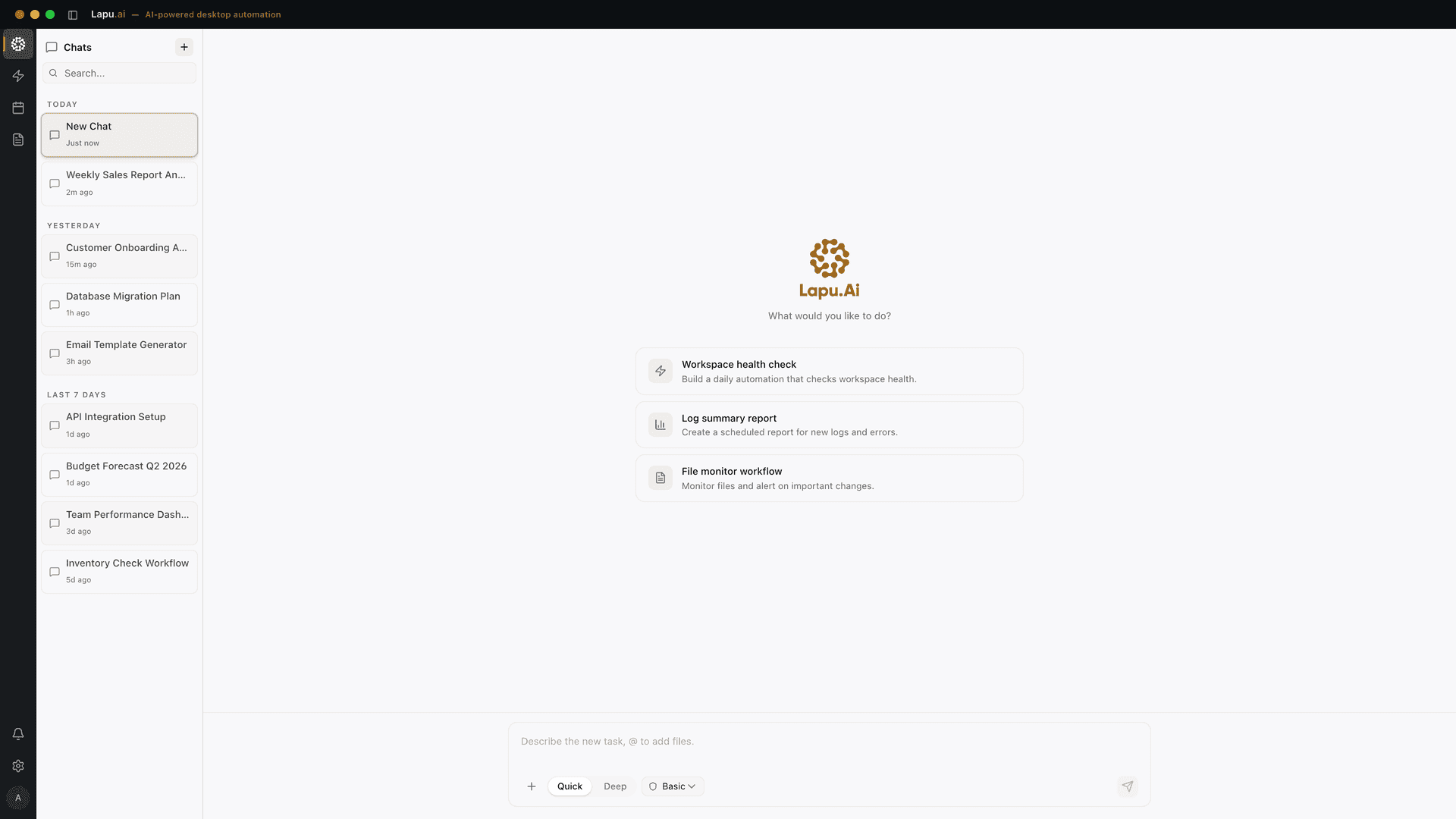
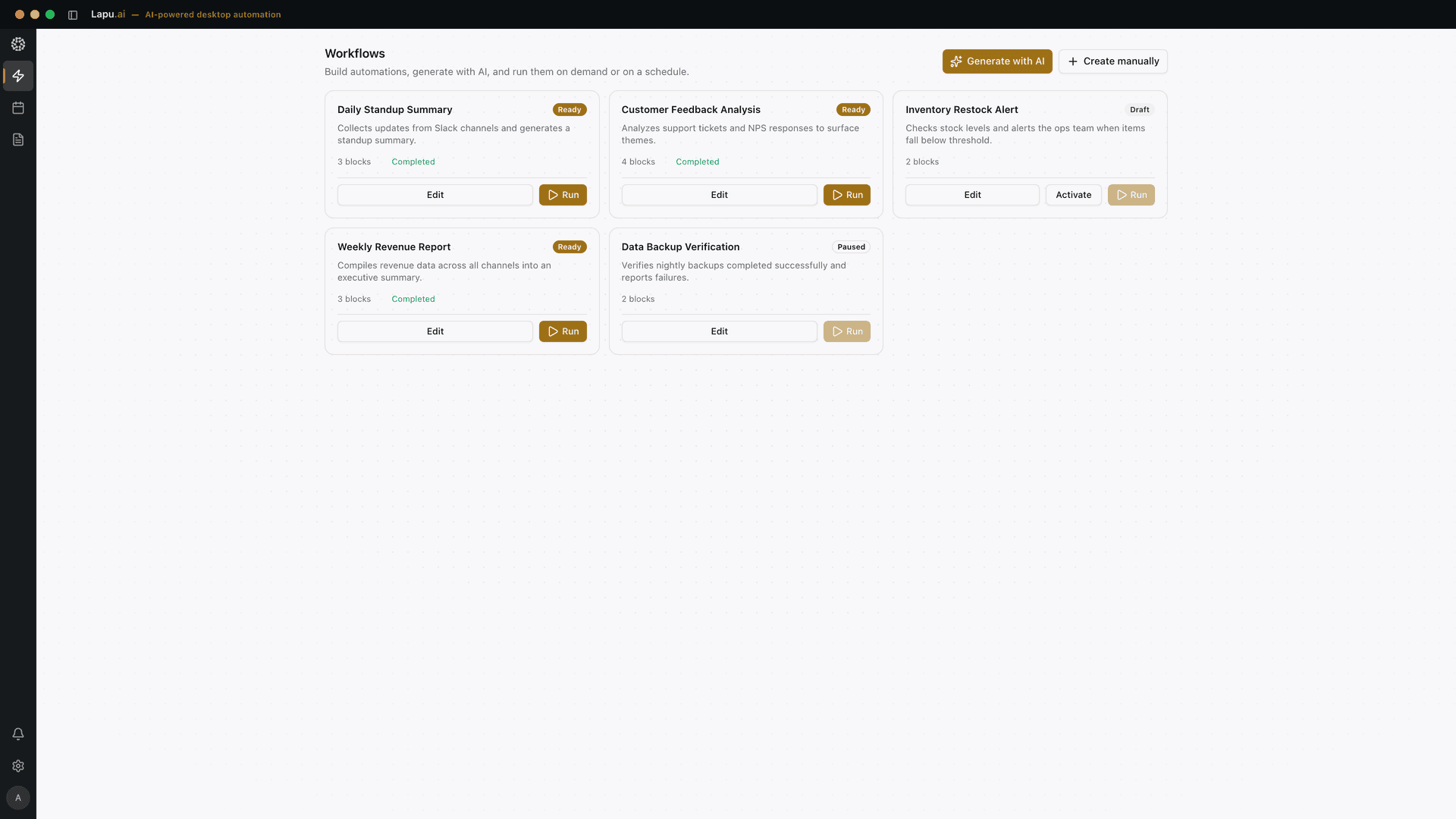
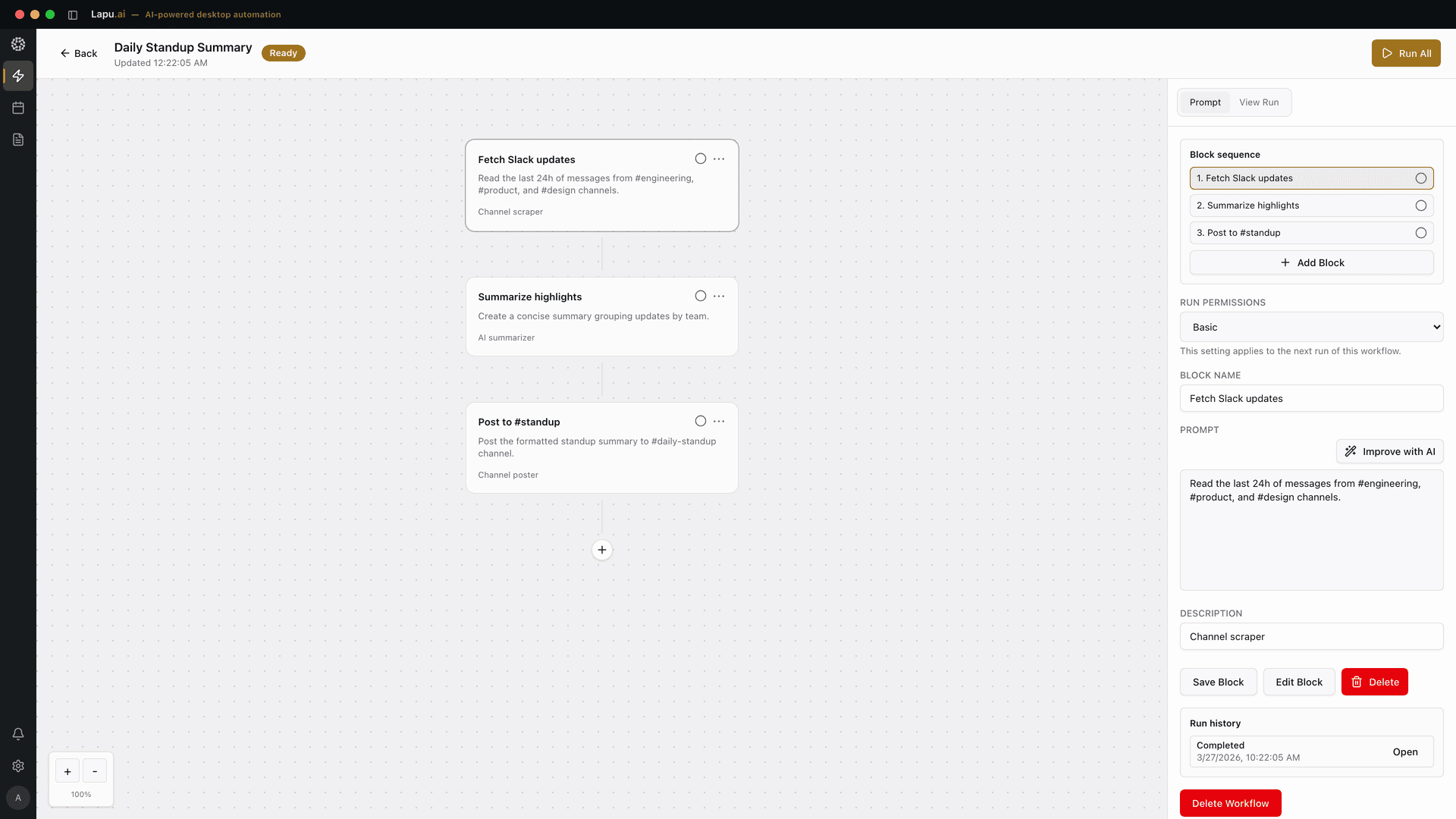
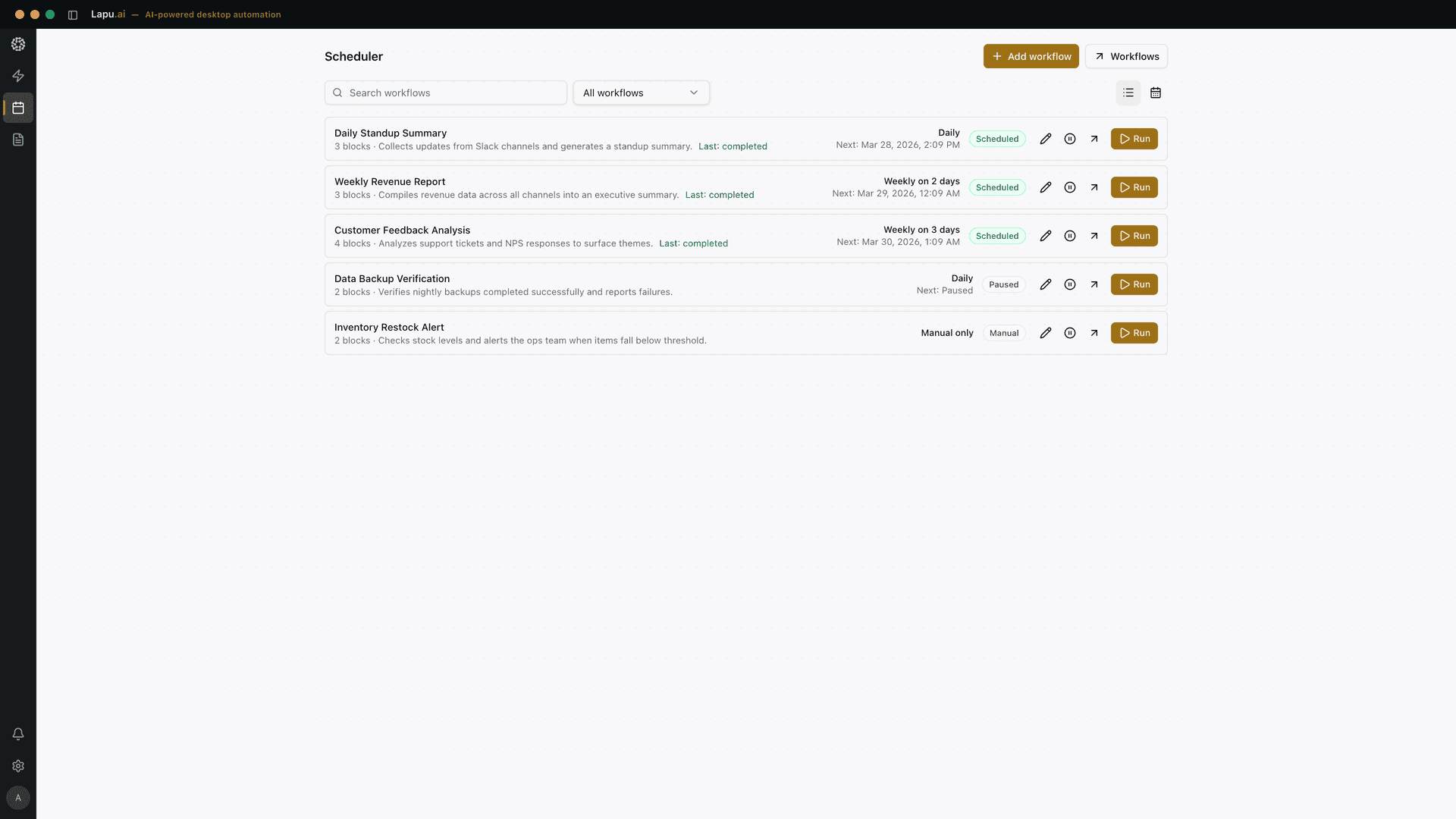
Automate the work between you and outcomes
Lapu AI handles the repetitive work between you and outcomes. One desktop agent, zero tab-switching. Available now on macOS and Windows.
- 1-click uninstall
- Cancel anytime
- Files never leave your computer
Free to start. Cancel in 1 click. Files stay on your machine.