
Automatically organize and rename your files
500 files in your Downloads folder? The agent reads them, understands what they are, sorts them into labeled folders, and renames everything — in minutes, not hours.
- 1-click uninstall
- Cancel anytime
- Files never leave your computer
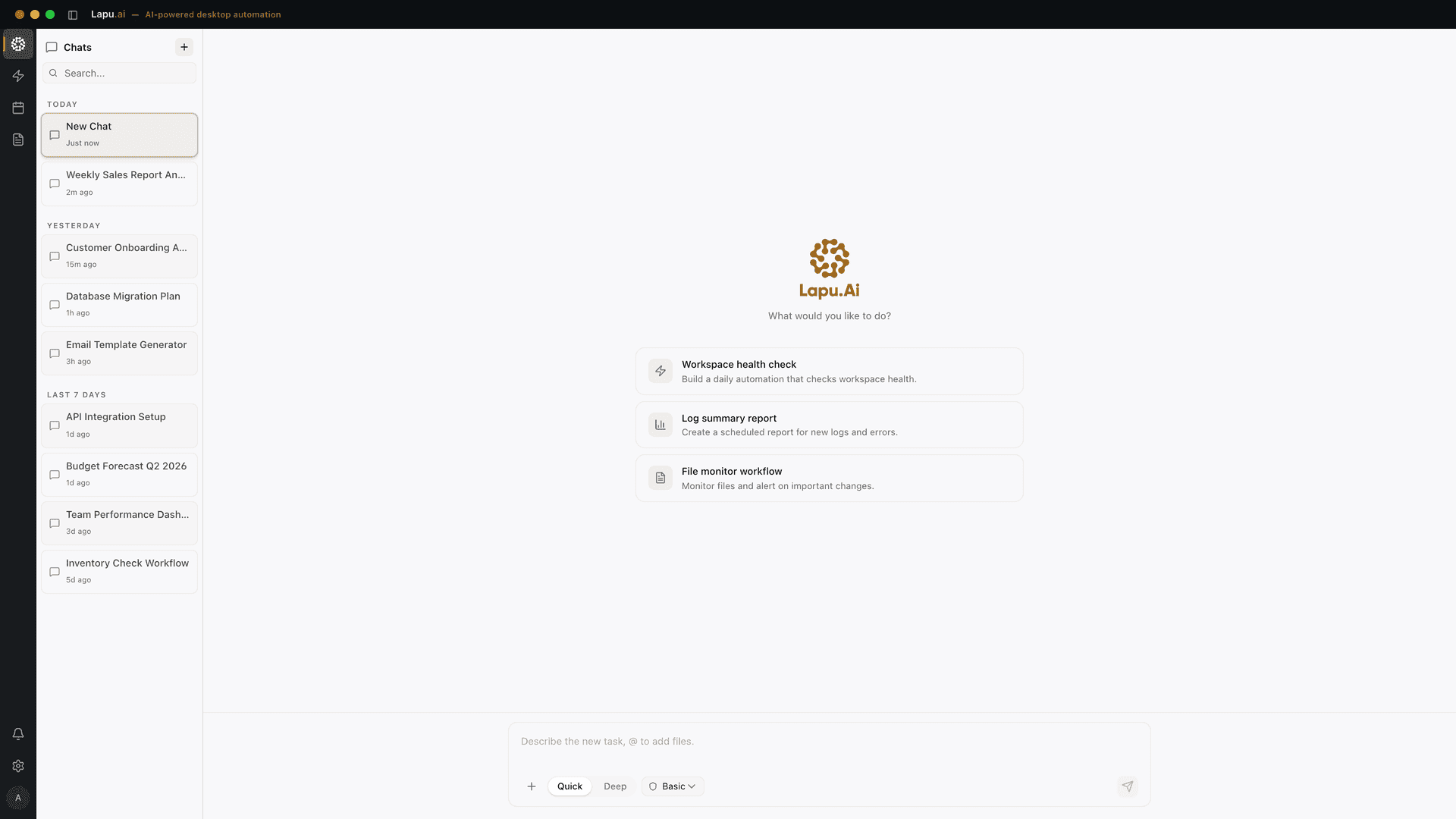
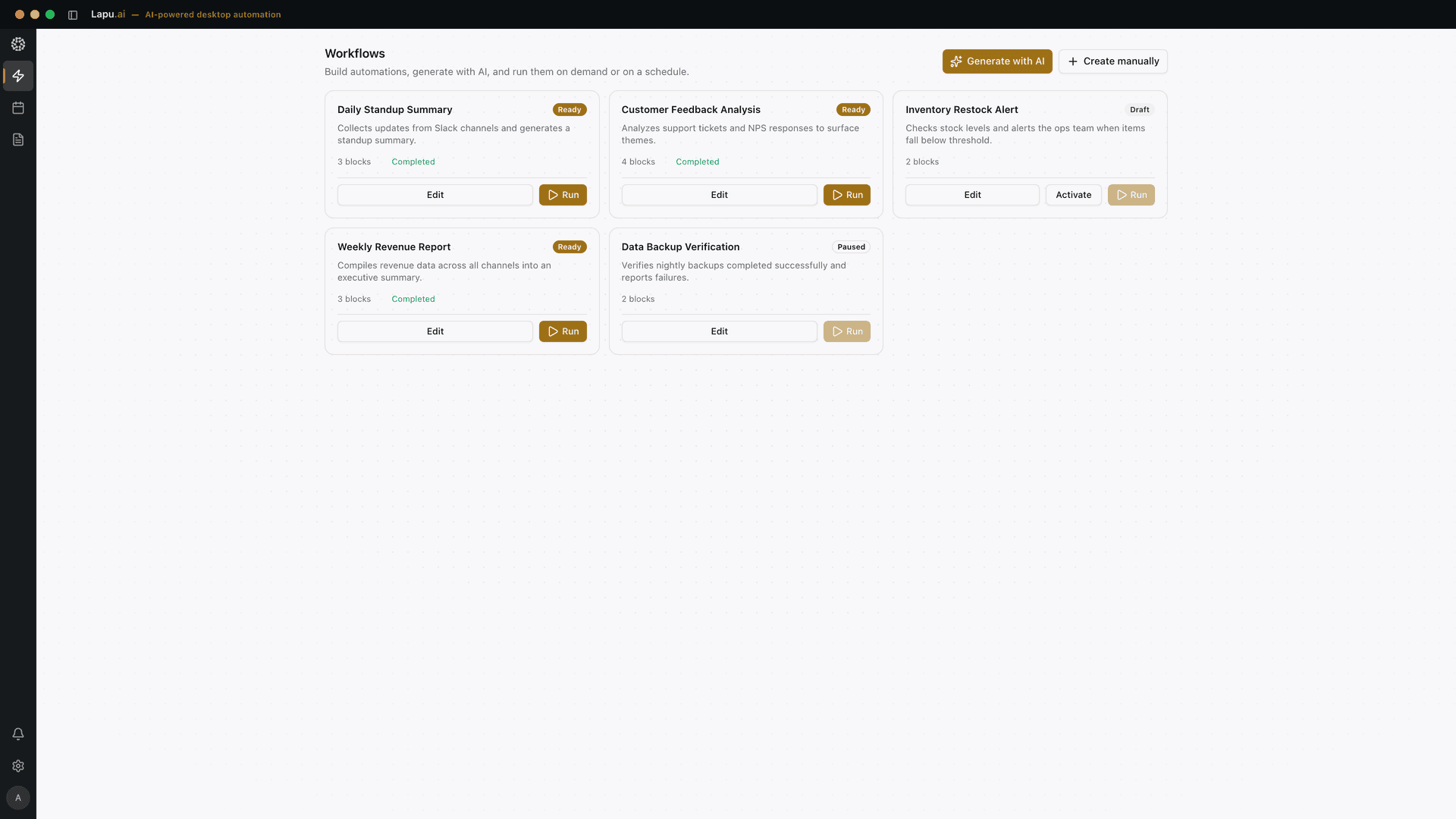
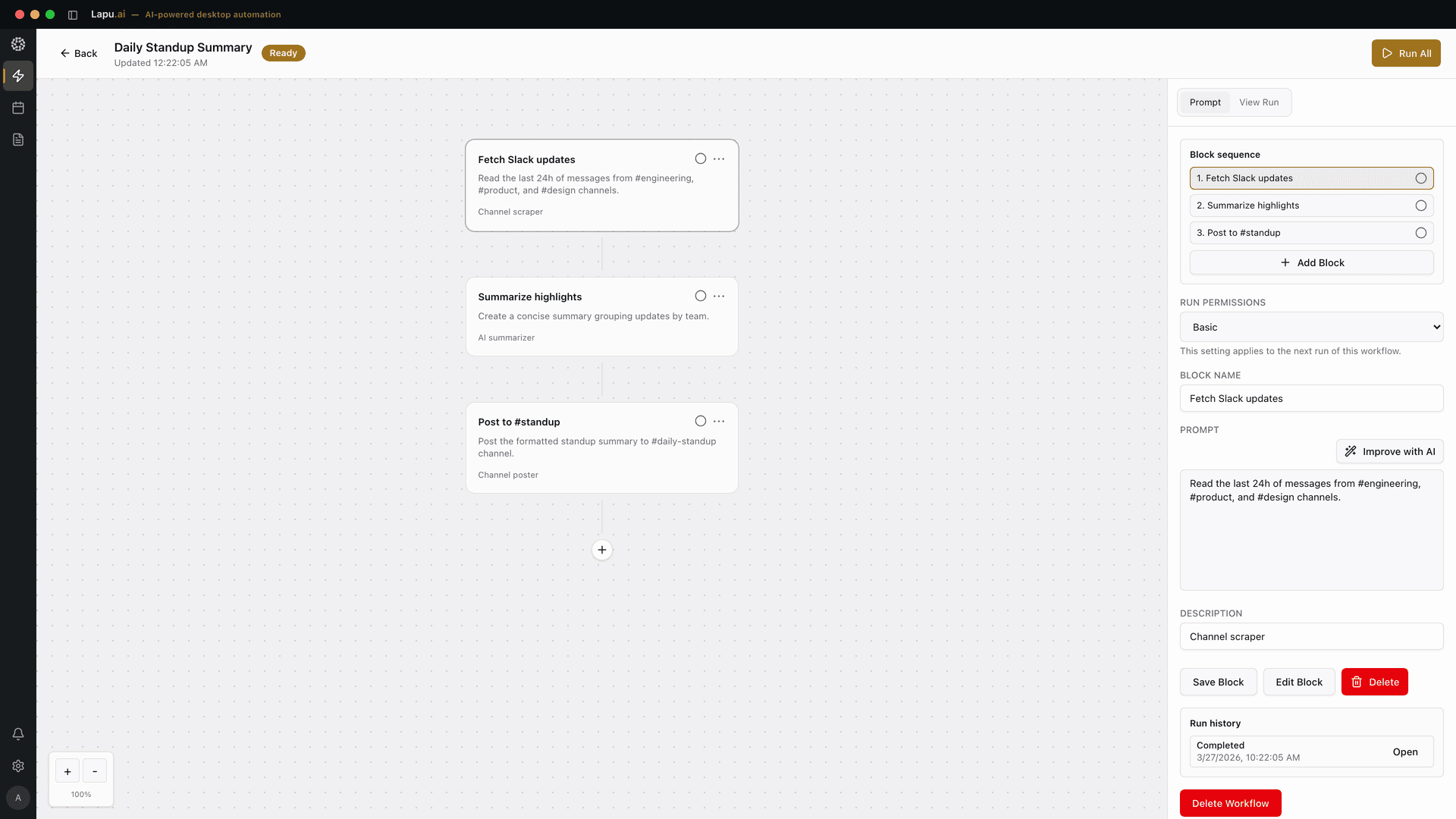
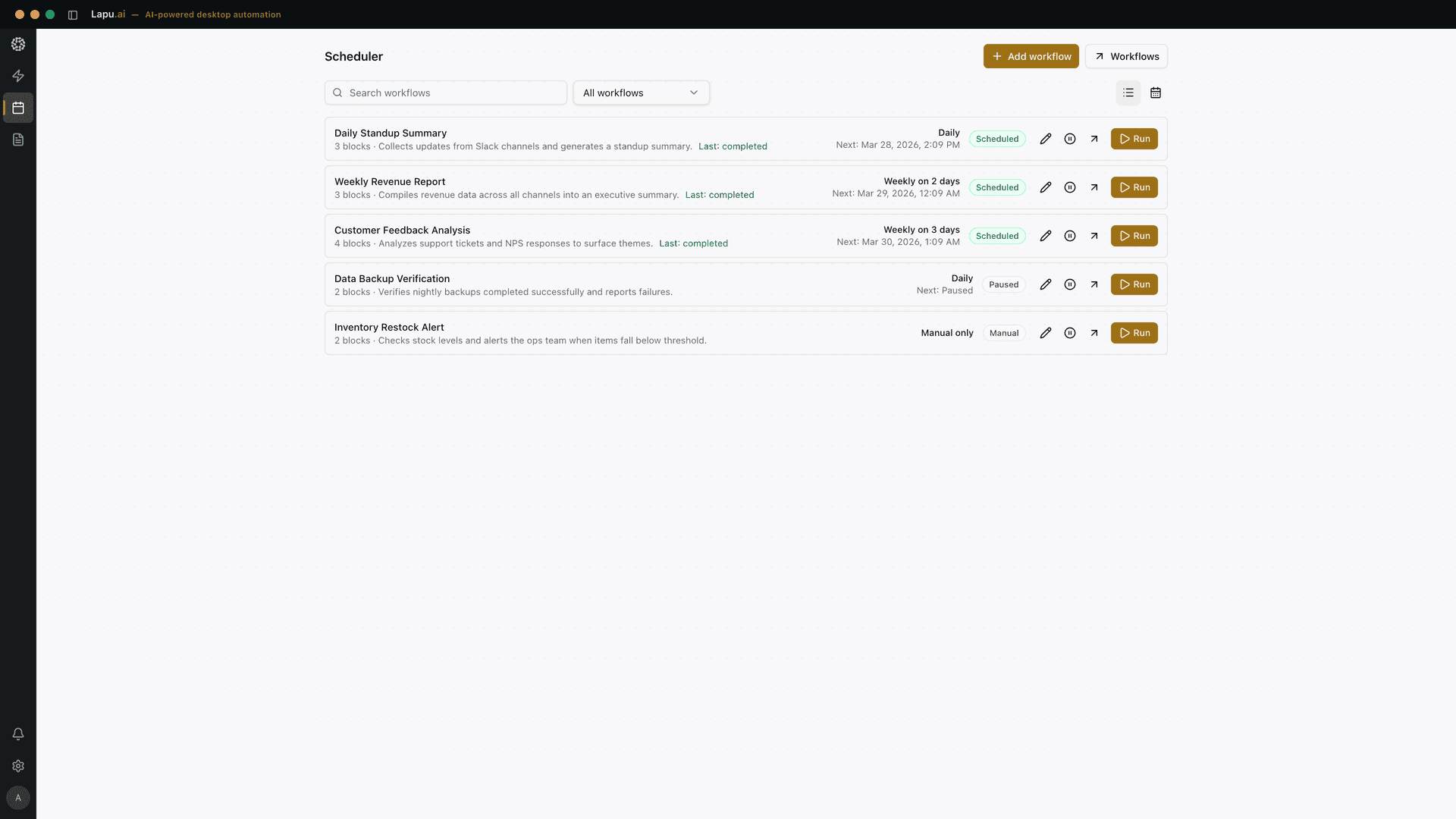
Impact
What changes
The same task, two ways — how it plays out by hand today, and what changes once Lapu AI runs it for you.
Without Lapu AI
A cluttered Downloads folder with 500+ unsorted files. Finding a specific document means scrolling through pages of random filenames or relying on system search.
With Lapu AI
Files categorized into clearly labeled subfolders by type and date. Duplicates identified. A summary log lists every file and its new location.
The challenge
Local file systems accumulate clutter over time. Downloads folders fill with hundreds of unsorted files, project directories contain outdated assets, and important documents get buried in nested folder structures. Manually sorting through files is tedious and error-prone, especially when dealing with thousands of items across multiple locations.
How Lapu AI solves this
Point Lapu AI at a messy folder and it sorts it out: it reads what each file actually is (not just its name), groups files into sensible folders, and renames the cryptic ones. You see the full plan before anything moves, approve it, and end up with a tidy folder plus a log of everything it did. Nothing gets deleted unless you explicitly say so.
Your files stay on your machine. Only relevant context is sent to the AI model for reasoning.
Workflow
How it works
Point the agent at a directory
Tell Lapu AI which folder to organize. The agent uses Glob to scan patterns, File Read for metadata, and Shell (ls, stat) to understand what it is working with.
Review the proposed structure
The agent analyzes file types, names, dates, and content to propose a folder structure and renaming convention. It presents the full plan — which files go where and why — before making any changes.
Approve and execute
Approve individual actions or the entire batch. The agent runs the moves and renames via Shell, then lists the result and confirms all files landed correctly. Deletions always require explicit per-action confirmation.
Under the hood — for the technically curious
Lapu AI scans directories with fast file-pattern matching and reads metadata and content to categorize by type and purpose. For PDFs and Word files it reads the contents through built-in skills, so it sorts smarter than filename rules. Moves and renames run as shell commands, each gated behind your approval, with deletions always requiring explicit per-action confirmation.
Permissions it asks for
- Glob — to scan directories for file patterns
- File Read — to read file contents and metadata for intelligent categorization
- Shell — to list files, check sizes, and execute move/rename commands
- File Edit — to create index files or update references after reorganization
Each is permission-gated — Lapu AI asks before it runs.
Just ask
Say it in plain words
No commands to learn. Tell Lapu AI what you want the way you would tell a coworker.
You
Organize my Downloads folder by file type and date. Group documents, images, and installers into separate subfolders.
You
Find all duplicate files in my Documents directory and list them so I can decide which to remove.
You
Rename all screenshots on my Desktop using the format YYYY-MM-DD_description and move them to a Screenshots folder.
Ready to try this workflow?
Download Lapu AI and run it on your own machine. Free to start — see exactly what it looks like first.
- 1-click uninstall
- Cancel anytime
- Files never leave your computer
FAQ
Common questions
Will Lapu AI delete any of my files?
Never without your explicit approval. The agent can identify candidates for deletion (duplicates, empty files), but actual deletion is classified as a critical-risk action requiring per-invocation confirmation.
Can I undo the file organization?
The agent generates a log of all moves and renames it performed, which can be used to reverse the changes. You can also ask the agent to move files back to their original locations.
Does it work with external drives?
Yes. Lapu AI can access any directory your operating system can read, including external drives, mounted network shares, and cloud sync folders that appear as local directories.
Explore more
Related use cases
Document Processing
Process contracts, invoices, and reports without uploading them anywhere. Built-in skills extract, merge, and convert PDF, Word, Excel, and PowerPoint files on your machine.
See how it worksResearchResearch & Extraction
Search thousands of files in seconds. The agent uses Grep, Glob, and File Read to find exactly what you need, extract the relevant pieces, and compile a structured summary.
See how it worksAutomationScheduled Automation
Set it once, let it run. Turn any conversation into a reusable workflow that fires on a schedule — daily reports, recurring cleanups, and routine data pulls happen without you.
See how it works