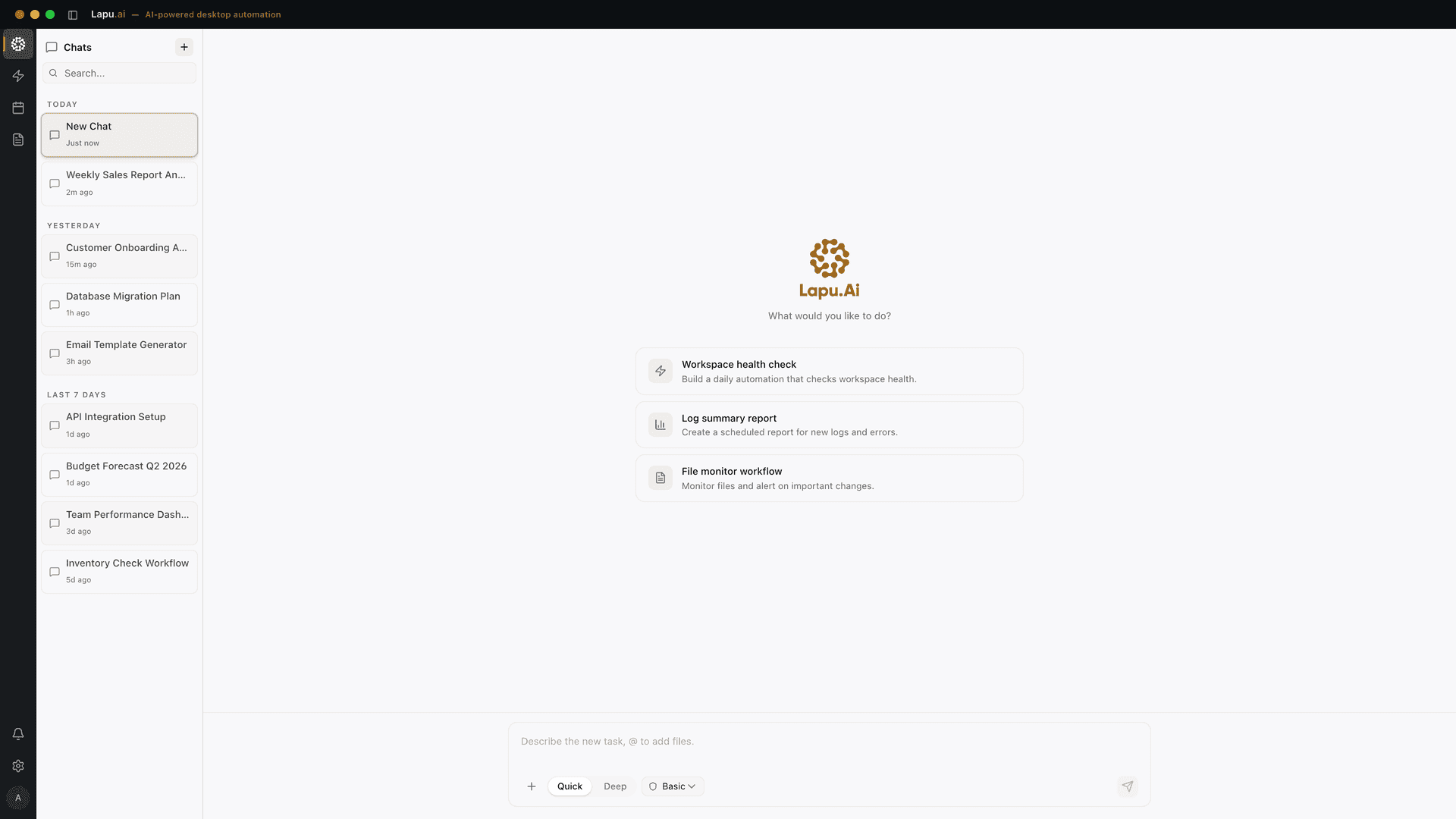
How desktop AI agents work is, under the hood, a single tight loop. You type "find every invoice in Downloads, extract the totals, and paste them into row 47 of Q2.xlsx", a canonical invoice automation job, and a few minutes later it's done, and the entire mechanism is three steps running between a frontier model and your operating system. This post unpacks the loop step by step: how the agent sees the screen, how it decides what to do, how the action reaches your machine, and what the runtime around the loop adds. If you want the category-level "what is this thing" first, start with our desktop AI agent primer; this post goes one level deeper.
| Phase | What happens |
|---|---|
| Perceive | Capture the current state of the screen: a screenshot (pixels), the OS accessibility tree, or both. |
| Plan | Send that context plus the goal, history, and available tools to a frontier model, which returns a single next action (one tool call). |
| Act | The runtime executes that action on the host OS (left_click at (x,y), type a string, run a shell command), then captures a fresh screenshot and loops. |
How desktop AI agents work: the perceive-plan-act loop
Every desktop AI agent (Lapu AI, Anthropic's reference computer-use demo, OpenAI's Computer-Using Agent, Bytebot, Goose, Manus) runs the same three-step cycle. Perceive the current state of the desktop. Plan one next action with a frontier model. Act on the host OS. Then capture the new state and loop. Anthropic's API documentation describes the cycle plainly: Claude "responds with a tool use request" and the application "responds to Claude with the results of evaluating that request." OpenAI's CUA writeup is almost identical wording: a loop that "receives a visual snapshot," "reasons through the next appropriate steps," and "takes actions until it decides the task is completed or human input is needed."
The model is doing one job per iteration: given everything you've seen so far, what is the single next action that moves us toward the goal? It is not planning the entire task up front. It is planning one step, watching what happens, and deciding what to do next: exactly the way a person operating a new app does. That's why agents that work on a fresh codebase often look like they're "figuring out" the UI: they are. They open the menu, see what's inside, then decide.
A short task might be five loop iterations; a long one might be a hundred. Each iteration is one round-trip to the model. The cost of running a desktop agent is mostly the number of iterations times the cost per token of the underlying model, which is why frontier-model providers price computer use per million screen tokens, and why short, well-scoped prompts beat sprawling ones.
loop {
  state = capture_screen()           // screenshot, a11y tree, or both
  context = state + goal + history
  action = model.next_action(context, available_tools)
  if action.requires_permission:
    if not user.approve(action): break
  result = host_os.execute(action)   // click, type, run shell, etc.
  history.append((action, result))
  if model.thinks_done(history): break
}
That's the whole thing. The interesting engineering is what each line does in practice, and especially what the runtime, the layer between the model and your operating system, adds around it.
Step 1: Perceive: screenshots, accessibility trees, or both
The first job in every loop iteration is to give the model a useful picture of the current desktop. There are two ways, sometimes combined.
Pixel control. Capture a full-screen screenshot at native resolution and send it to a vision-language model. The model identifies buttons, fields, text, and computes pixel coordinates for the next click. This is what Anthropic's computer use launch describes when it says Claude can "look at a screen, move a cursor, click buttons, and type text." Anthropic's docs note that training the model to "count pixels accurately was critical: without this skill, the model finds it difficult to give mouse commands." Pixel control works on every app, including canvas-only software (Figma, Photoshop, PDFs, games), but it's brittle: a UI redesign, a high-DPI scaling change, or a popover that shifts the layout by 12 pixels can make yesterday's coordinates point at nothing.
Accessibility-tree control. Read the structured element list that macOS (AX API) and Windows (UI Automation) maintain for screen readers and assistive technologies. Each element exposes a role (button, text field, menu item), a label, and an on-screen rectangle. The agent doesn't have to compute pixel coordinates. It asks the OS "where is the button labeled Save?" and gets a precise answer. Accessibility-tree control is resolution-independent, survives most layout shifts, and is dramatically cheaper in tokens because the agent sends structured data instead of a 4K screenshot. The cost: any app that doesn't expose its UI through the OS accessibility APIs is invisible. Most modern native apps and browsers do; many older or game-engine apps don't.
Hybrid. Production desktop agents typically run the accessibility tree first and fall back to pixels when an element isn't exposed or when the result needs visual confirmation. Lapu AI uses the accessibility tree for the first pass on every macOS and Windows app it supports, and reaches for pixel vision when it has to read a chart, a PDF, or a Figma canvas.
| Approach | Sees | Strengths | Weaknesses |
|---|---|---|---|
| Pixel control | Every app, every pixel | Universal coverage | Brittle to UI/DPI changes; expensive tokens |
| Accessibility tree | Apps that expose AX/UIA | Precise, resolution-independent, cheap | Invisible apps (canvas, games, some PDFs) |
| Hybrid | All apps; both signals | Best of both | More engineering; OS-specific |
Step 2: Plan: tool use and the frontier model
With the current screen state captured, the runtime hands the model three things: the goal, the history of what's happened so far in this task, and a list of tools the agent is allowed to call this turn. The model returns exactly one next action, almost always one tool call. This is the same tool-use mechanic that frontier models use for any agentic task; computer use is just a specific set of tools.
Anthropic's computer use tool docs list the canonical action vocabulary: screenshot, mouse_move, left_click, right_click, middle_click, double_click, triple_click, left_click_drag, key (a keyboard shortcut), type (a string), cursor_position, scroll, wait. The tool is paired with bash and text_editor tools for non-UI work; the model picks whichever fits the next step. A real desktop runtime adds more (open_application, read_clipboard, request_permission, read_file, application-specific tools), and gates each one behind a permission category.
The frontier model is doing two jobs at once. It is reading the perception state and grounding the goal ("the file I need is the one labeled Q2.xlsx, second from the top"), and it is deciding strategy ("if the macro fails, I should try the menu route instead"). The strategy part is what makes it an agent rather than a script. A script knows the sequence of actions; an agent figures it out as it goes.
Two model-side details matter for the runtime engineer. First: the model is stateless across loop iterations except for the context the runtime feeds back in. A long task means a growing conversation history, which means rising token cost and eventual context-window limits. Production runtimes summarize old history aggressively. Second: the model can refuse. Anthropic's safety training makes Claude decline tasks it judges harmful, entering credit card details on a suspicious site, mass-deleting files, sending bulk email. OpenAI's CUA adds confirmation prompts at sensitive moments and a "takeover mode" where the user finishes a step manually. Neither of these is a substitute for OS-level permissions; they're an extra layer.
Step 3: Act: clicks, keystrokes, and shell commands
The runtime takes the model's chosen action and executes it on the host OS. For a click action left_click(x=842, y=413), the runtime calls into the native input API (CGEventCreateMouseEvent on macOS, SendInput on Windows), and the cursor moves on your screen. For a type action with the string invoice_2026.pdf, it injects keystrokes the same way the OS itself does. For a shell action like pdftotext invoices/0237.pdf -, it spawns a subprocess and captures stdout. These are not browser-DOM events or simulated clicks inside a sandbox. They are the same OS-level events that your mouse and keyboard generate. That's why we say "the agent runs your computer."
Anthropic's reference implementation runs the same loop, but inside a Docker container with a virtual X11 display: Xvfb renders a desktop the model can see, and xdotool executes the model's clicks against that virtual desktop. That setup is great for evaluating the capability and terrible for actually doing work, because the file you want to process isn't inside the container. Lapu AI inverts this: the runtime is native to macOS and Windows (see the macOS and Windows overview for the platform side), so the agent acts on your real files and apps, and isolation comes from a permission system instead of a virtual machine.
After every action, the runtime captures the new state and the loop returns to step 1. If the action failed (a click missed, a process exited non-zero, a permission was denied), the failure goes back to the model in the next turn's context, and the model decides whether to retry, try a different path, or stop and ask. Anthropic's writeup notes that "the model would even self-correct and retry tasks when it encountered obstacles": that's not a feature, it's the loop itself.
The runtime is the product: permissions, audit, and handoff
The frontier model is roughly the same across most serious desktop agents. The runtime around the loop is where products diverge. Three runtime decisions matter most.
- Permission categories. What sensitive actions require explicit user approval, and at what granularity. Lapu AI gates filesystem writes outside the working directory, every shell command, network requests to non-allowlisted hosts, and any action that moves money or sends mail. The model proposes; the runtime asks; the user approves once per task, per category, or never.
- Audit trail. A local, append-only log of every tool call, every screenshot, every permission prompt, and every result. The audit log is what makes a desktop agent reviewable after the fact, and what makes it acceptable to use on work data. See our audit-trail explainer for the field-level structure.
- Handoff and takeover. What happens when the model isn't sure, when a sensitive step needs human eyes, when the user wants to step in. A well-designed runtime pauses cleanly, surfaces the model's reasoning and the proposed action, lets the user run that one step manually, and resumes the loop afterward.
These three are not glamorous, but they're the difference between a demo and a tool you'd actually run on your work machine. The permission model in particular is where the agent-security pillar earns its keep.
Why the desktop loop is harder than the browser loop
Same three steps, different difficulty curves. On the OSWorld benchmark (369 real computer tasks running on Ubuntu, Windows, and macOS), the 2024 paper found the best model completed 12.24% of tasks vs 72.4% for humans. The benchmark's authors traced the gap to two skills: "GUI grounding" (identifying the right element on screen) and "operational knowledge" (knowing how to use unfamiliar apps). Both get worse off-browser.
The numbers have improved since. WorkOS's 2025 comparison put Anthropic's Computer Use at roughly 22% on OSWorld and OpenAI's Computer-Using Agent at 38.1%. Both jump dramatically on browser-only benchmarks, CUA hits 87% on WebVoyager, because the browser is a much smaller action space and the DOM gives the agent a perfectly clean perception channel. The desktop has no DOM; it has whatever each app's developer decided to expose, plus a screenshot.
So in 2026, trust desktop agents for repetitive, well-defined work where you can verify the result: file organization, PDF-to-Excel extraction, the local recipe to extract tables from PDF, inbox triage, multi-step app workflows, and stay in the loop for anything destructive, novel, or expensive. The loop will run; the question is whether you're watching when it does.
If you want to try the loop on your own machine, download Lapu AI for macOS or Windows. The first thing you'll see is the permission prompt: that's the runtime asserting itself. The second thing is the agent reading your screen. Then the loop starts.
FAQ
- How do desktop AI agents work in plain English?
- A desktop AI agent loops three steps. First it perceives the screen, either as a screenshot (pixels) or as an accessibility tree (the structured element list the operating system maintains for screen readers), or both. Second it plans: it sends that context plus your goal and a list of available tools to a frontier model, which returns one next action. Third it acts: the runtime executes that action on the host OS, a left_click at specific coordinates, a typed string, a shell command, an OS keyboard shortcut. Then it captures a new screenshot and repeats. The loop ends when the model decides the goal is met, or it hits a step that requires explicit human approval. The model is the brain; the runtime is the body.
- What is the agent loop?
- The agent loop is the perceive-plan-act cycle that runs between the model and the desktop. Anthropic's API docs call it the repetition where 'Claude responds with a tool use request and your application responds to Claude with the results of evaluating that request.' OpenAI describes its Computer-Using Agent (CUA) the same way: 'CUA runs through a loop that receives a visual snapshot of the computer's current state; then reasons through the next appropriate steps using context-informed chain-of-thought; and finally takes actions until it decides the task is completed or human input is needed.' Each turn through the loop is one tool call. A complex desktop task (open a folder, find a file, extract a value, paste it into a spreadsheet, email the result) might take 20 to 100 loop iterations.
- How does an AI agent see the screen?
- Two ways, sometimes both at once. The pixel approach captures a screenshot at native resolution and feeds it to a vision-language model, which identifies elements and computes click coordinates. Anthropic's computer use is pixel-first: their engineering writeup describes 'counting how many pixels vertically or horizontally to move a cursor in order to click in the correct place.' The accessibility-tree approach reads the structured list of UI elements that macOS and Windows already maintain for assistive technologies, each element has a role (button, text field), a label, and an on-screen rectangle. Pixel control works on every app but is brittle when layouts shift. Accessibility-tree control is precise and resolution-independent but only sees apps that expose their UI through the OS APIs. Production desktop agents typically use the accessibility tree first and fall back to pixels for canvas apps, games, and PDFs.
- Why does a desktop AI agent need a permission system?
- Because the same loop that lets it open a folder also lets it delete one. A frontier model is non-deterministic. It may misread a button, misinterpret a goal, or get prompt-injected by something on screen. A desktop agent without permissions is one rogue tool call away from rm -rf or sending an email to the wrong list. A permission system gates the categories of action the agent is allowed to take and forces a confirmation for sensitive ones: writing to system directories, running shell commands, sending mail, touching encrypted files, making API calls that cost money. The model decides what to try; the OS-level permission layer decides what actually executes. Lapu AI gates each sensitive category with an explicit prompt and writes a local audit trail of every tool call, every screenshot, and every approval.
- How do desktop AI agents compare to browser AI agents under the hood?
- The loop is the same shape; the runtime is different. A browser agent (OpenAI Operator, ChatGPT Agent, Browser Use, Comet) runs the perceive-plan-act loop against a single Chrome instance, usually a remote one in the vendor's cloud. It sees the DOM and the page screenshot, takes browser actions (click, type, scroll, navigate), and never touches your filesystem. A desktop agent runs the same loop against your real macOS or Windows session. It sees any app, takes any OS action, and touches your real files. That's why browser agents are easier to sandbox and benchmark (the action space is smaller) and desktop agents are harder but more useful for work that lives outside a browser tab. The [OpenAI Presence alternative comparison](/desktop-ai-agent) covers the voice-runtime variant of the same cloud-vs-desktop split.
- How good are desktop AI agents in 2026?
- On the OSWorld benchmark (369 real computer tasks across Ubuntu, Windows, and macOS), the original 2024 paper found the best AI system completed only 12.24% of tasks vs 72.4% for humans, with the main weaknesses being GUI grounding and operational knowledge. By 2025, Anthropic's Computer Use scored around 22% and OpenAI's CUA around 38% on OSWorld, per WorkOS's comparison. Newer 2026 systems have closed much of the gap on web-only benchmarks (CUA hits 87% on WebVoyager) but full-desktop work is still the harder problem. The takeaway: trust desktop agents for repetitive, well-defined work where you can verify the result (file sorting, data extraction, form filling, sequenced multi-app workflows), and stay in the loop for anything destructive or novel.
Sources
- Introducing computer use, a new Claude 3.5 Sonnet, and Claude 3.5 Haiku, Anthropic (2024-10-22) · accessed 2026-06-11
- Computer use tool: Claude API documentation, Anthropic (2025-11-24) · accessed 2026-06-11
- Computer-Using Agent, OpenAI (2025-01-23) · accessed 2026-06-11
- Anthropic's Computer Use versus OpenAI's Computer Using Agent (CUA), WorkOS (2025-02-10) · accessed 2026-06-11
- OSWorld: Benchmarking Multimodal Agents for Open-Ended Tasks in Real Computer Environments, Xie et al. (2024-04-11) · accessed 2026-06-11