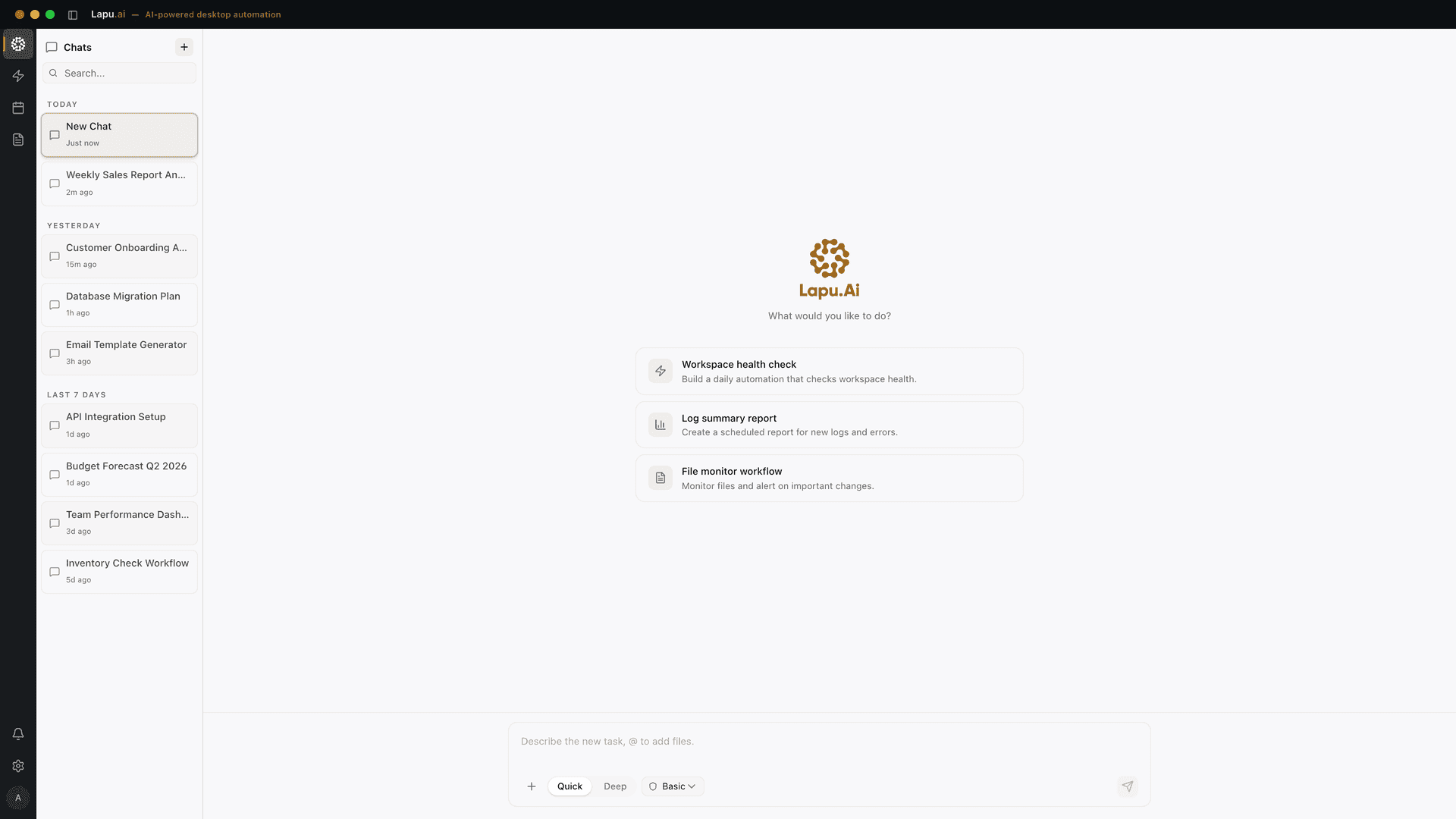
The desktop AI agent vs browser AI agent split comes down to reach. A desktop agent acts on your files, your shell, your installed apps, and your browser. A browser agent acts on a remote browser in the cloud. The six-difference matrix below shows the split layer by layer. If your work lives in your files and your apps, the desktop agent is the only one that can touch it. Download Lapu AI for macOS or Windows to try the desktop side, or see the desktop computer-use agents comparison for how the desktop tier sorts internally.
Choosing between a desktop AI agent and a browser AI agent comes down to one question: when the agent clicks, whose mouse is moving? On a desktop agent, your cursor on your machine. On a browser agent, a cursor inside a Chrome instance on someone else's server. Everything else (what it can read, what it can edit, how login works, what failure looks like), falls out of that one difference. This post lays out the line.
Desktop AI agent vs browser: the one question that decides it
The two categories are often described as if they're variations on the same idea. They are not. A desktop AI agent runs on your macOS or Windows machine and acts on your real files, applications, and shell. A browser AI agent (OpenAI's Operator and its successor inside ChatGPT Agent, Browser Use, Comet, Mariner) drives a web browser, almost always a remote one inside a vendor's cloud. The user-facing UX can look similar (a chat, a goal, an "agent working…" indicator), but the runtime is in different places, and the blast radius of a click is in different places too.
That difference cascades. A desktop agent can open a local PDF that you never uploaded anywhere, read it, and paste a row into the spreadsheet you have open. A browser agent cannot: the file isn't on the cloud machine. A browser agent can spawn fifty parallel browser sessions on a server to compare prices across vendors. A desktop agent cannot: your laptop can't run fifty Chromes. So the choice is not about which is "better"; it's about which problem you're solving.
What each category actually is
Desktop AI agent. A desktop application, installed on macOS or Windows, that takes a goal in plain English and uses a frontier model to drive multi-step work on the user's own machine. Anthropic shipped the underlying capability publicly with Claude 3.5 Sonnet's computer use launch in October 2024, framing it as a model that can "use computers the way people do: by looking at a screen, moving a cursor, clicking buttons, and typing text." Anthropic's companion engineering post describes the mechanic concretely: "Claude looks at screenshots of what's visible to the user, then counts how many pixels vertically or horizontally it needs to move a cursor in order to click in the correct place." A desktop AI agent wraps that capability in a permission system, an audit log, and a host-OS runtime, so the click really does land on your screen. The category framing (chat apps, IDE coding tools, full agents) is laid out on Lapu's desktop runtime overview.
Browser AI agent. An agent whose entire world is a web browser. Some run locally as libraries (the open-source browser-use project, for example, "makes websites accessible for AI agents" and turns "any LLM into a full browser automation agent". It controls Chrome via Playwright or CDP on your machine). Most consumer products run the browser on a server. OpenAI's Operator, covered by MIT Technology Review at launch, "is a web app that can carry out simple online tasks in a browser, such as booking concert tickets or filling an online grocery order," and "because it's running in the cloud, Operator can carry out multiple tasks at once." Either way, the agent sees only what the browser shows it. Your filesystem doesn't exist.
A useful tell: when a vendor's documentation talks about "your tabs," it's a browser agent. When it talks about "your files," "your terminal," or "permission to access your Documents folder," it's a desktop agent.
The six real differences
| Dimension | Desktop AI agent | Browser AI agent |
|---|---|---|
| What it can read | Your real files, app state, terminal output | Whatever a web page renders in the DOM |
| What it can edit | Any app on your machine: IDE, spreadsheet, mail client, design tool | Form fields, buttons, scrollable areas in the open tab |
| Where it runs | Natively on macOS or Windows, on your hardware | Usually a Chrome instance inside a vendor sandbox in the cloud |
| Where your data lives during the task | On your machine; only the slice the model needs crosses the network | On the vendor's servers for the duration of the session |
| How login works | Uses your existing system sessions (Keychain, browser profile, app-level auth) | A fresh remote browser; you're typically asked to log in inside it or take over for 2FA |
| How failure looks | A wrong click happens on your screen. You see it and can stop it | A wrong click happens on a remote VM you can only observe through periodic screenshots |
Two of these deserve a closer look.
Login and 2FA. Browser agents have a structural problem here: the cloud browser has none of your sessions. Every meaningful task starts with a login the agent can't complete by itself. OpenAI's mitigation, per the MIT Technology Review coverage, is that the agent "will hand back control to the user when accounts and payment details are needed": a sensible safety move that also caps how much work the agent can actually finish on its own. A desktop agent doesn't have this problem: it inherits the sessions you've already authenticated, the same way any other app on your machine does.
Failure visibility. A wrong click on your own desktop is something you can watch in real time and intervene on. A wrong click in a cloud browser is something you find out about a few hundred milliseconds later, in a screenshot. The shorter the feedback loop, the less damage a bad action does. That's not an argument that one is better than the other: it's an argument that they fail differently, and you should pick based on which failure mode you can tolerate for the task at hand.
Where each wins and loses
Browser agents are better for:
- Public web workflows where the data on screen is non-sensitive, booking, shopping, comparison shopping, scraping public catalogs.
- Workloads that benefit from parallelism: fifty product pages across ten vendors, run concurrently on a server fleet.
- Anything you'd rather not have running on your laptop while you're trying to do other work: long, slow web-research sessions.
- Tasks behind no auth or behind logins you're comfortable handing to a vendor sandbox.
Desktop agents are better for:
- Anything that needs to read a local file you haven't uploaded: PDFs, spreadsheets, CSVs, code repos.
- Anything that needs a native app: IDE, design tool, video editor, accounting software, anything outside a browser tab.
- Anything that needs the shell: running tests, building software, kicking off a script.
- Sensitive accounts (banking, payroll, prod databases) where you don't want the credential cache living in a vendor sandbox.
- Workflows where you want a local audit trail you control, not a server-side log you have to request access to.
The honest takeaway from the /blog/desktop-computer-use-agents-compared roundup is that the line between the two categories isn't a marketing distinction: it's a runtime distinction, and most "agent" products land squarely on one side or the other.
The hybrid case: when you want both
Many real workflows want both. Pull invoices from a vendor portal in the browser, save the PDFs to a folder, then categorize and rename them locally based on contents. The browser is the right tool for the first half; the desktop is the right tool for the second.
This is one of the structural reasons a desktop AI agent that can also drive your local browser ends up more useful than either pure category alone. Lapu AI, for example, can open Chrome on your machine, log in using your real session, do the web part of the task there, then continue with the file-handling part using the local file system, without ever moving the data to a vendor cloud. That's not magic; it's just that the desktop runtime includes "the browser on your laptop" as one of the apps it can drive, which a cloud browser agent cannot reciprocate.
If you only have one category to pick: a desktop AI agent strictly dominates a browser agent for any workflow that touches local data, and merely loses on parallelism for purely-web workflows. For most knowledge-work jobs, the local data is the point.
How to pick without overthinking it
Three checks, in order:
- Does the task involve any local file, native app, or shell command? If yes, you want a desktop AI agent. A browser agent literally cannot reach that data.
- Does the task involve a credential or session you don't want held in a vendor sandbox for the duration of the work? If yes, desktop. The cloud browser holds the session; the desktop agent uses yours.
- Is the task pure web, repeatable, parallelizable, and not sensitive? A browser agent is genuinely a good fit, and often cheaper to run because it lives on a server.
That's the whole framework. There's a fourth check most people skip: does the agent ask before sensitive actions, and can I see a log afterward? A desktop AI agent without permissioned execution is unsafe by construction; a permissioned one (that pauses for confirmation before deleting, sending, or paying) is the form most people actually want. That permission model is also what makes the local audit log meaningful in the first place.
For the long version of how a local agent's runtime fits together (the agent loop, the tool surface, where the model call leaves the machine), see how Lapu AI works. If you've already decided you want a desktop runtime, downloading Lapu AI gets you a working install on macOS or Windows in a couple of minutes. If you mostly need a browser agent, OpenAI's Operator (now ChatGPT Agent) and the open-source Browser Use project are the two most credible options today; we'd rather lose that fight cleanly than pretend a desktop agent is the right tool for every job.
FAQ
- What is the difference between a desktop AI agent and a browser AI agent?
- A desktop AI agent runs natively on your computer (macOS or Windows) and acts on the same files, apps, and shell you use yourself. A browser AI agent drives a web browser, typically a remote one running in the cloud, and acts on whatever a website's DOM exposes. The desktop agent's blast radius is your whole machine; the browser agent's blast radius is one Chrome tab. Both can be useful, but they're not interchangeable: only the desktop agent can read a local PDF or open an Xcode project, and only the browser agent can run a hundred parallel sessions across SaaS sites without using your laptop.
- Is OpenAI Operator a desktop AI agent?
- No. Operator (and its successor inside ChatGPT Agent) is a browser AI agent that runs in the cloud. According to MIT Technology Review's coverage of the launch, Operator is 'a web app that can carry out simple online tasks in a browser, such as booking concert tickets or filling an online grocery order,' and because it runs on OpenAI servers it 'can carry out multiple tasks at once.' It cannot see your local files, cannot run a shell on your laptop, and cannot drive native apps like Excel, Final Cut, or your IDE. A [native desktop AI agent](/desktop-ai-agent) takes the opposite path: it runs on your macOS or Windows machine and acts on the files and applications already there.
- Can a browser agent do what a desktop agent does?
- For anything that lives entirely on the web (public booking sites, e-commerce, lead-gen forms, simple SaaS workflows), yes, and often more cheaply because the browser agent can run dozens of sessions in parallel on a server. For anything that touches your filesystem, a native macOS or Windows app, your terminal, an authenticated session you already have open, or a payment account you don't want held in a vendor sandbox: no. The browser agent never sees your machine.
- Which is safer to use, a desktop AI agent or a browser AI agent?
- Neither is automatically safer; they have different threat models. A browser agent is sandboxed away from your filesystem but routes whatever it sees on the screen, including any sensitive page content, through the vendor's infrastructure. A desktop agent has full access to your machine but, if it has a real permission system and a local audit trail, you can actually see and gate every action. The 'safer' choice is whichever one matches what you're doing: a browser agent for public web tasks where the data on screen is non-sensitive, a desktop agent for anything that touches your real files or credentials, provided it asks before acting and logs what it does.
- Why does Anthropic's computer-use demo ship in a Docker container?
- Anthropic's reference implementation runs Claude inside a Dockerized Linux desktop with X11 and VNC because it's a demo, not a product, the container isolates the model from the developer's host machine and gives a reproducible environment to evaluate the capability. Production desktop AI agents like Lapu AI take the opposite approach: they run natively on the host OS so they can actually access your real files, but they replace Docker's isolation with a permission system that gates every sensitive action and an audit trail that records every step. The container is for safety during a demo; the permission model is for safety during real work.
- Can I use a desktop AI agent without uploading my files to the cloud?
- Your files do not leave your machine, but the model usually does. Most desktop AI agents in 2026 still call a frontier model (Claude, GPT, Gemini) over the network because those models are too large to run on consumer hardware. What stays local is the agent itself: the file reads, the shell commands, the screenshots, the permission prompts, and the audit log. Only the slice of context the model needs to plan the next step crosses the network, not the whole file. A browser agent, by contrast, executes the entire task in the cloud.
Sources
- Introducing computer use, a new Claude 3.5 Sonnet, and Claude 3.5 Haiku, Anthropic (2024-10-22) · accessed 2026-06-03
- Developing a computer use model, Anthropic (2024-10-22) · accessed 2026-06-03
- OpenAI launches Operator: an agent that can use a computer for you, Will Douglas Heaven, MIT Technology Review (2025-01-23) · accessed 2026-06-03
- browser-use: make websites accessible for AI agents, Browser Use (2024-11-01) · accessed 2026-06-03
- Anthropic computer-use reference demo (Dockerized Linux desktop), Anthropic (2024-10-22) · accessed 2026-06-03