
Automate Microsoft 365 with Lapu AI
Microsoft 365 is the office suite most knowledge work flows through — Word, Excel, PowerPoint, Outlook, OneNote, and OneDrive on macOS and Windows. Lapu AI's desktop agent for macOS and Windows automates the whole suite the way you do: opening documents, reading and writing .docx, .xlsx, and .pptx files, drafting and filing email in Outlook, and moving data between the apps. The agent runs on your computer with permissioned execution, so it can touch local Office files, drive each desktop app through OS automation, and stitch a cross-app workflow together — no Microsoft 365 Copilot license, no Power Automate flow, no Graph API project to maintain.
- 1-click uninstall
- Cancel anytime
- Files never leave your computer
Top Microsoft 365 workflows
1. Turn a Word brief into a PowerPoint deck
You finished a 6-page brief in Word and need a 10-slide deck for tomorrow's review. Lapu AI reads the .docx, picks the section headings as slide titles, drafts speaker notes from each section body, applies your saved PowerPoint template, and saves the deck next to the source brief — without opening either app.
"Read ~/projects/q3-review/brief.docx, build a 10-slide deck using my template at ~/templates/brand-deck.pptx with each H1 as a slide title and a 3-bullet summary in the body. Add the full paragraph as speaker notes. Save as ~/projects/q3-review/brief.pptx."Tools used: file:read, doc:word, doc:powerpoint, file:write
2. Reconcile an Outlook invoice thread into an Excel ledger
A vendor sends a monthly statement to Outlook. Lapu AI opens the Outlook desktop app, finds the most recent statement thread, downloads the attached .xlsx, reconciles the line items against your local ledger in Excel, and writes a Word memo flagging mismatches. The general job is broken down under automated invoice processing.
"Open the Outlook desktop app, find the most recent message from billing@acme.com with an .xlsx attachment, save it to ~/finance/inbox/, then open ~/finance/ledger.xlsx and reconcile each line by invoice_id. Write a memo at ~/finance/memos/<date>-acme-recon.docx listing matched, missing, and amount-mismatched rows."Tools used: browser:control, file:read, doc:excel, doc:word, file:write
3. Mail merge from a local CSV without Power Automate
You have a CSV of 60 prospects and a Word template with merge fields. Lapu AI reads the CSV, fills the template per row, saves each letter as a personalized .docx in a target folder, and queues a matching Outlook draft for review before send. Keying values from a spreadsheet into a template is the core of AI data entry.
"Read ~/outreach/q3-list.csv. For each row, open ~/outreach/template.docx, replace {first_name}, {company}, and {city}, and save as ~/outreach/letters/{company}.docx. Then draft a matching email in Outlook with that letter attached, addressed to the row's email column. Do not send — pause for me to review."Tools used: file:read, doc:word, browser:control, file:write
4. Refresh a recurring PowerPoint dashboard from new Excel data
Your monthly business review deck has charts driven by an Excel workbook. Lapu AI replaces the 'Data' sheet with the latest export, recalculates pivots, refreshes the linked charts in PowerPoint, and saves a dated snapshot of both files. The spreadsheet half is covered under AI agents for Excel automation.
"Open ~/decks/mbr/data.xlsx, replace the 'Data' sheet with the contents of ~/exports/sales-<this month>.csv, refresh all pivot tables, then open ~/decks/mbr/deck.pptx, refresh the linked charts on slides 3-7, and save both files with the suffix -<YYYY-MM> in ~/decks/mbr/snapshots/."Tools used: file:read, doc:excel, doc:powerpoint, file:write
5. Triage Outlook into one-page daily brief
Each morning you scan Outlook for items that actually need action. Lapu AI opens the Outlook desktop app, reads unread messages where you are the last non-you sender, classifies each by intent (reply, decide, FYI), and writes a one-page brief to a Word doc in your notes folder.
"Open the Outlook desktop app, read every unread message in the Inbox where I am the last non-me sender, classify each as 'Reply', 'Decide', or 'FYI', and write a brief at ~/notes/daily/<date>.docx with sections for each category. Include the sender, subject, and a one-sentence summary per row."Tools used: browser:control, doc:word, file:write
6. Convert a folder of legacy .doc files into a clean .docx archive
A shared drive has 300 legacy .doc files with inconsistent names. Lapu AI walks the folder, opens each in Word, saves as .docx, renames using the document title from the first heading, and writes a manifest CSV mapping old name to new path. Bulk jobs of this shape sit under AI document automation.
"Walk ~/Documents/legacy-archive/, open each .doc in Word, save as .docx, read the first H1, rename to '{H1}.docx', and move into ~/Documents/archive-2026/. Write ~/Documents/archive-2026/manifest.csv with columns: old_path, new_path, title, modified_at."Tools used: file:read, doc:word, shell:exec, file:write
7. Build a weekly status report across Outlook, Excel, and Word
Every Friday you assemble a status report from sent emails (what shipped), an Excel tracker (what's open), and your meeting notes folder. Lapu AI reads each source, summarizes the week, and saves the report as a Word doc plus a PowerPoint cover for Monday's standup.
"For the week ending today: read this week's sent items in Outlook, read ~/team/tracker.xlsx for In-Progress rows, scan ~/notes/meetings/ for files modified in the last 7 days, and write a status report at ~/team/status/<date>.docx with Shipped, In Progress, and Blockers sections. Generate a 1-slide cover .pptx with the same headline."Tools used: browser:control, file:read, doc:excel, doc:word, doc:powerpoint, file:write
How it works
- 1
Choose the path: file edits or driving the app
For most bulk work — reading and writing .docx, .xlsx, .pptx, and reading .pdf — Lapu AI edits the file directly using the Office Open XML format that Word, Excel, and PowerPoint have used since 2007. For tasks that require a live app (rendering quirks, Outlook send, chart refresh, comparing tracked changes), the agent drives the Office desktop app through OS automation — UI Automation on Windows and the Accessibility API plus AppleScript on macOS.
- 2
Read local files, never upload your documents
Lapu AI reads .docx, .xlsx, .xlsm, .pptx, .pdf, and .csv files from your filesystem. Documents stay on your machine — the agent never uploads them to a Lapu AI cloud. When a task needs to reason about the content, only the relevant section is sent as context to AI model providers, not the entire document.
- 3
Plan the cross-app workflow before editing
For any edit that touches Word, Excel, PowerPoint, or Outlook, the agent first writes a plan: which files it will read, which apps it will drive, which cells or paragraphs it will change, and the new file paths. You approve the plan, then watch as it executes. Microsoft's own Copilot agents follow a similar plan-then-act pattern; Lapu does it across apps and against your local files.
- 4
Preserve formatting, formulas, macros, and templates
When editing .xlsm macro-enabled workbooks, the agent preserves existing VBA macros rather than stripping them. When editing .docx and .pptx, it preserves styles, themes, and your custom templates. Cross-platform syntax (SUMIFS, XLOOKUP, FILTER in Excel; Word's native styles; PowerPoint master layouts) means files behave identically whether opened on macOS, Windows, or the web.
- 5
Save with a local audit trail
Every document edit, email send, and file move is recorded — which file or message, what changed, what the result was, and the model's reasoning. The audit trail lives on your machine and is retained for up to 90 days. For destructive edits (overwriting an existing file, sending an email), the agent always saves a backup or asks for explicit approval first.
Permissions required
- file:read — to open .docx, .xlsx, .xlsm, .pptx, .pdf, and .csv files from your filesystem
- doc:word — built-in skill: read paragraphs and styles, write content, apply templates, preserve tracked changes
- doc:excel — built-in skill: read cells and ranges, write formulas, build pivot tables, refresh charts
- doc:powerpoint — built-in skill: read slides and notes, generate decks from outlines, apply masters, replace placeholders
- file:write — to save modified documents back to disk (the agent prefers writing to a new file unless you tell it to overwrite)
- browser:control — to drive the Outlook desktop app, the Outlook web app in a logged-in tab, or other Office apps for UI-only tasks (chart refresh, mail send, Excel-specific export dialogs)
- shell:exec — optional, for batch operations like find/mv on large folders of Office files or running Python scripts that complement document processing
FAQ
- Do I need a Microsoft 365 Copilot license to use Lapu AI with Office?
- No. Microsoft 365 Copilot is a separate paid add-on from Microsoft — roughly $30 per user per month for enterprise and a base-license requirement on top. Lapu AI is independent: its desktop agent edits .docx, .xlsx, and .pptx files directly using the open Office Open XML format and drives each Office desktop app through OS automation when needed. You only need a working copy of Microsoft 365 (any supported version on macOS or Windows) or just the files themselves.
- How is this different from Microsoft 365 Copilot or Copilot Studio agents?
- Copilot lives inside the active document and is paid per user per month. Copilot Studio agents run as published flows tied to your tenant. Lapu AI's desktop agent works across your whole machine — it can open multiple Office documents, read CSVs and PDFs as inputs, drive the Outlook desktop app, hit your CRM in a browser tab, and write the consolidated result back to a folder. Copilot lives inside one app at a time; Lapu lives on your desktop.
- Does Lapu AI work with both the Microsoft 365 web apps and the desktop apps?
- Both. For bulk file work (cleanup, generation, conversion), Lapu AI reads and writes the .docx, .xlsx, and .pptx files directly via their Office Open XML structure — no app needs to be open. For tasks that require a live app (Outlook send, chart rendering, comparing tracked changes), it drives the Microsoft 365 desktop apps on macOS and Windows. The Office web apps are usable but slower because every interaction is a browser click.
- Will Lapu AI break my macros, templates, or tracked changes?
- No. The agent preserves existing VBA macros in .xlsm workbooks rather than stripping them, keeps Word styles and templates intact, and preserves PowerPoint masters and themes. For destructive edits — overwriting a file, deleting a slide, accepting tracked changes — the agent always saves to a new file or asks before overwriting.
- Is my Office data sent to Lapu AI's cloud?
- No. The agent reads and writes Office files directly on your filesystem. They never go to a Lapu AI server. When the agent needs to reason about a paragraph, a cell, or a slide, only the relevant context is sent to your selected AI model provider — never the full document as bulk storage. For organizations under data-residency or M365 tenant-restriction rules, this is the main reason to pick Lapu over a SaaS document AI.
- Does Lapu AI work with Microsoft 365 on macOS as well as Windows?
- Yes. Lapu AI ships native builds for macOS and Windows, and Microsoft 365 runs on both. The agent drives Office through UI Automation on Windows and the Accessibility API plus AppleScript on macOS, so the same cross-app workflows run on both operating systems. Some Office automation surface differs by platform (Windows Outlook exposes COM and the Outlook Object Model; Mac Outlook exposes AppleScript) and the agent picks the right path per OS.
- Can Lapu AI send Outlook email without my approval?
- Only if you explicitly grant unattended-send permission for the session. By default, send is a single-shot confirm — the agent prepares the draft in the Outlook desktop app, opens the compose window, and waits for your click. You can pre-approve reading and drafting for a long batch while keeping send as a per-message confirm.
- Can Lapu AI handle very large Word, Excel, or PowerPoint files?
- Yes, with the right approach. For large workbooks (100K+ rows) the agent reads in chunks rather than loading every row into model context, using the same Office Open XML libraries that openpyxl and python-docx do. For long Word documents and heavy PowerPoint decks, it processes section-by-section or slide-by-slide. Expect the agent to suggest CSV intermediates or a chunked plan when files exceed a few hundred thousand rows.
- When should I NOT use Lapu AI for Microsoft 365 work?
- Use Power Automate if you're deep in the Microsoft 365 stack and want flows that trigger on Outlook events, Teams messages, or SharePoint changes without a desktop session. Use Microsoft Graph API if you need server-side automation across an entire tenant for thousands of users. Use Copilot Studio if you're building governed agents that your IT department will manage. Lapu AI is built for interactive, permissioned, desktop-first Office work — not background production pipelines.
Related
Use Microsoft 365 faster with Lapu AI
Free download for macOS and Windows. See how Lapu AI drives Microsoft 365 before you install.
- 1-click uninstall
- Cancel anytime
- Files never leave your computer
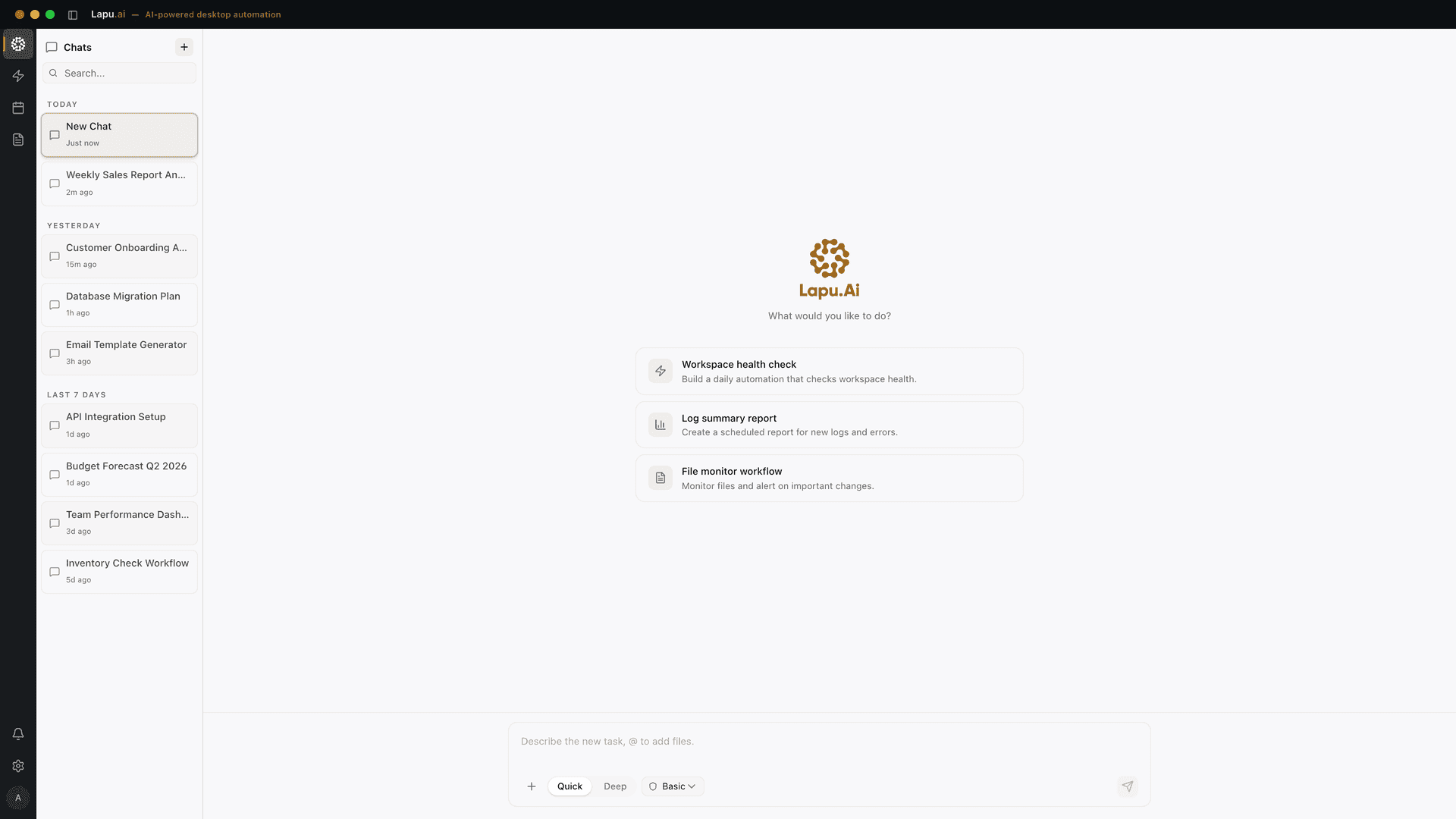
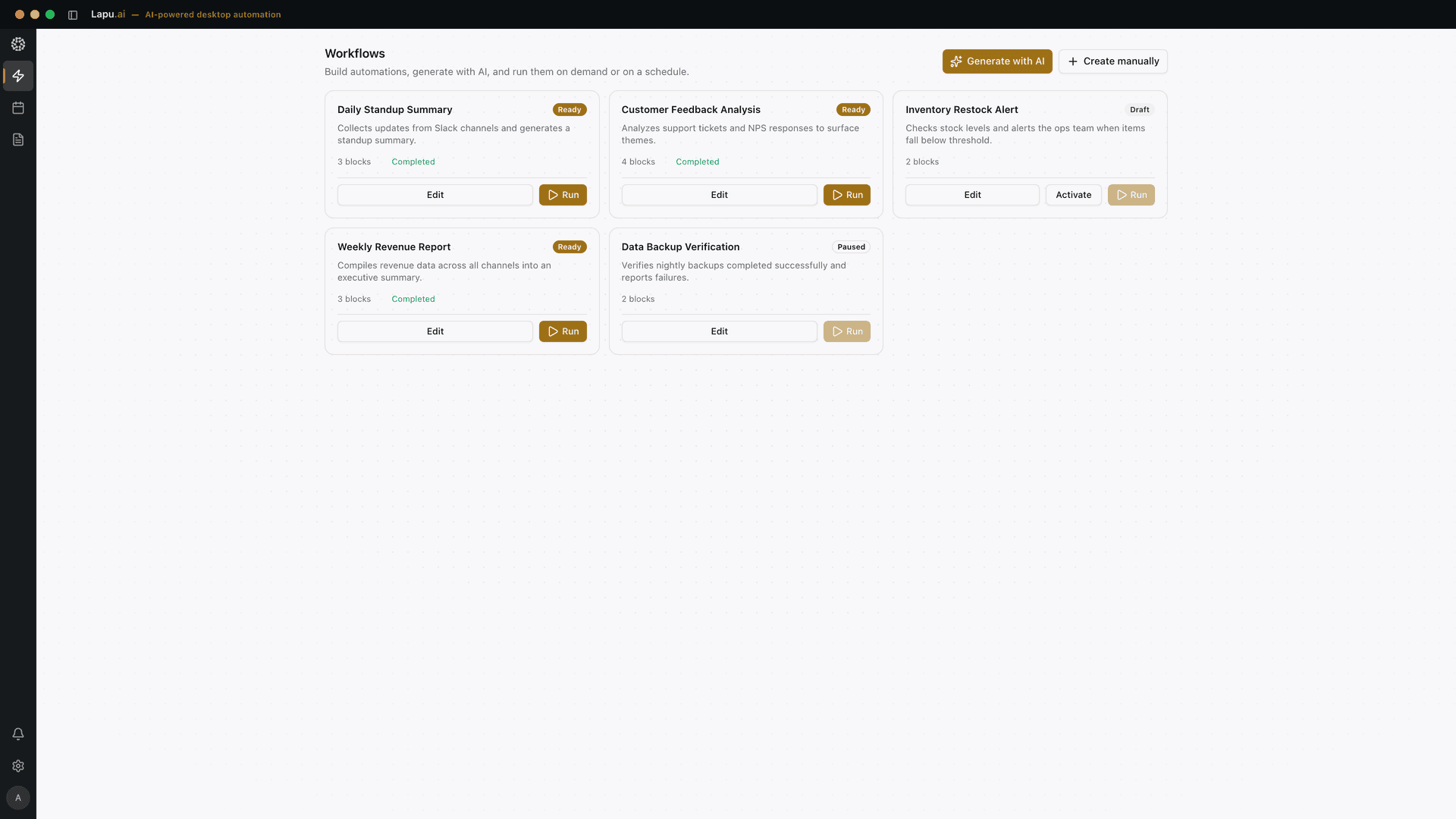
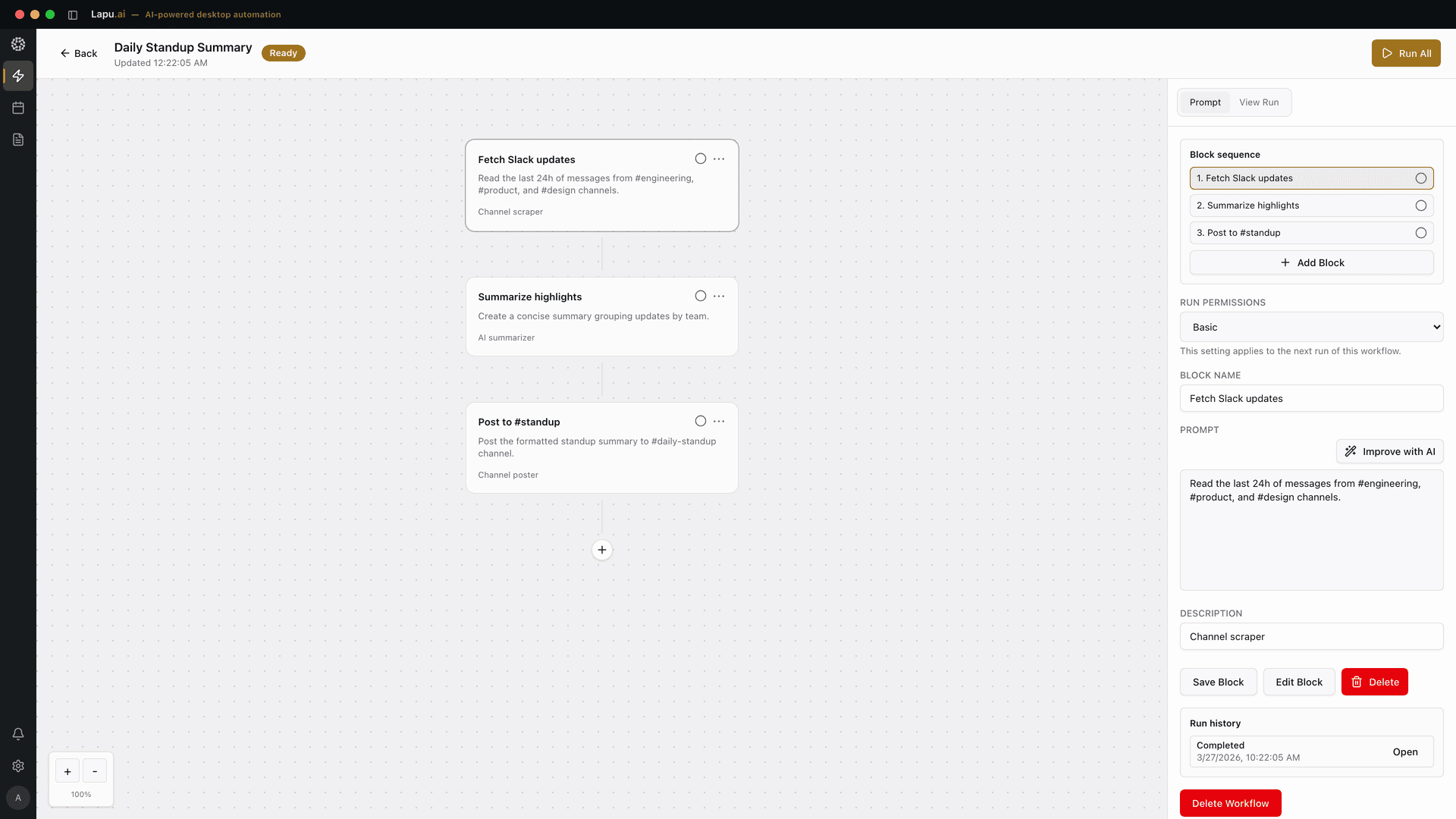
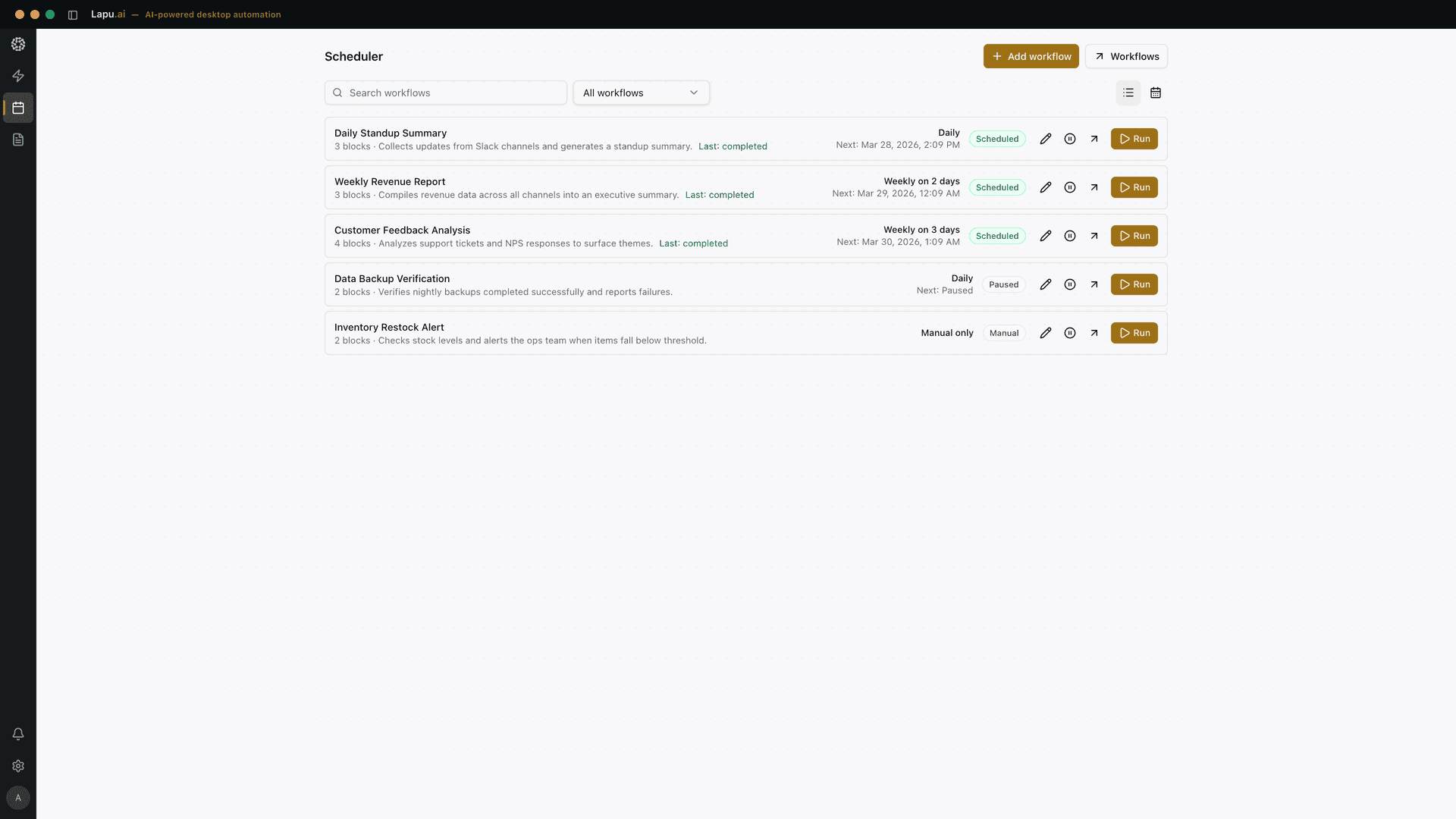
Automate the work between you and outcomes
Lapu AI handles the repetitive work between you and outcomes. One desktop agent, zero tab-switching. Available now on macOS and Windows.
- 1-click uninstall
- Cancel anytime
- Files never leave your computer
Free to start. Cancel in 1 click. Files stay on your machine.