
The best AI agent for Invoice Automation in 2026
Extract PDF invoices into Excel, no upload, permission-gated, with an audit trail.
- 1-click uninstall
- Cancel anytime
- Files never leave your computer
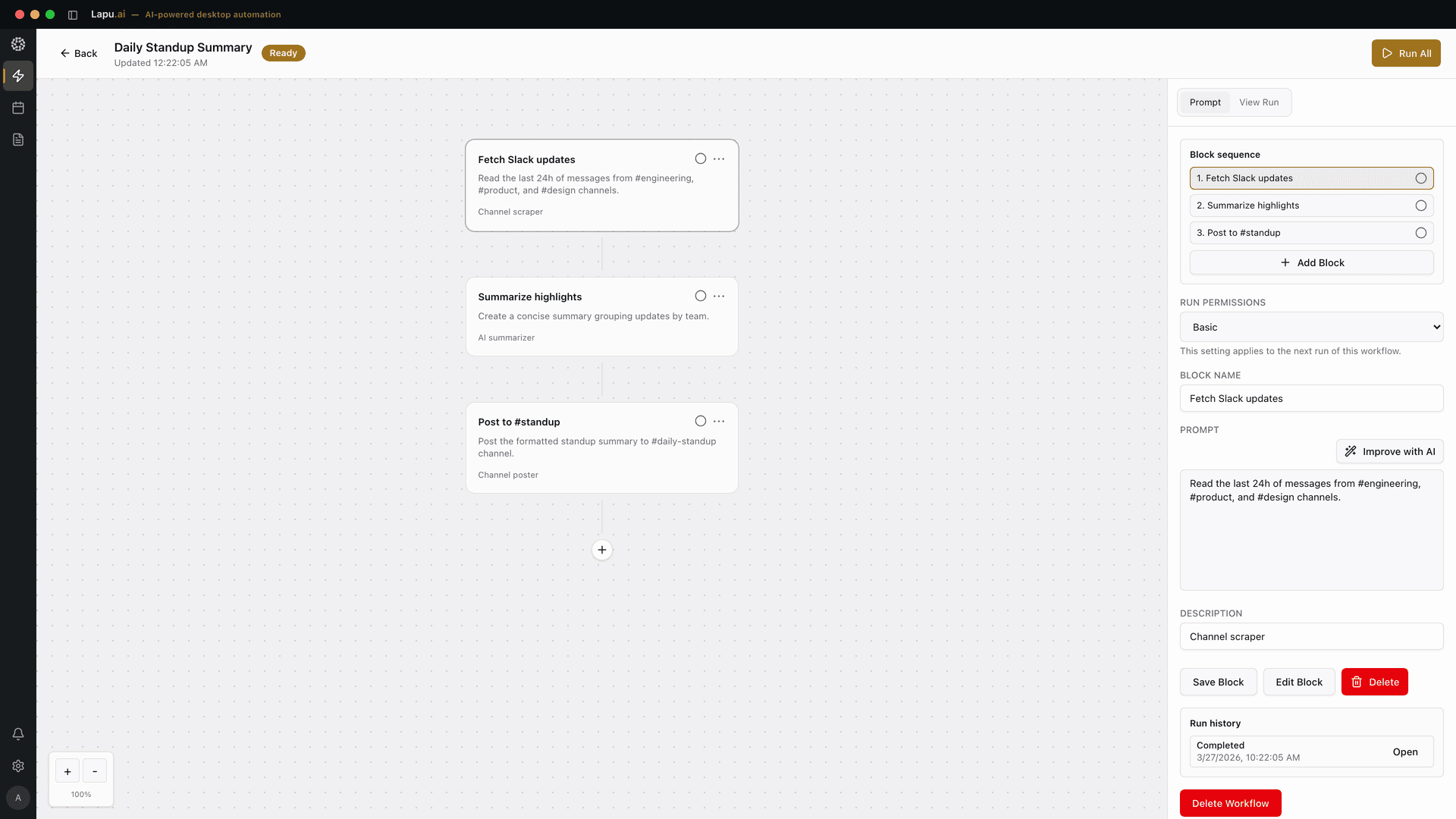

What Invoice Automation means
Invoice processing is the work of turning a pile of supplier invoices (PDFs in an inbox, scans in a Downloads folder, a vendor statement that arrived as a 40-page attachment), into structured data your accounting can actually use: vendor name, invoice number, date, due date, line items, quantities, unit prices, tax, and total, sitting in a spreadsheet or posted to your ledger. Invoice automation is the same job done for you rather than by hand: an invoice automation solution reads each file, extracts the fields, validates the math, and files the result, and invoice processing automation and invoice management automation are the labels for stretching that across a recurring, multi-step flow a team runs every week. The job has a recurring shape no matter the volume: read the invoice, find each field, separate invoice-level data (vendor, total) from the line items, validate that the line items sum to the printed total, flag anything that looks wrong (a duplicate, a date that does not parse, a currency mismatch), and write the result somewhere downstream. Where it gets hard is the variety: every supplier formats their invoice differently, scanned invoices need OCR before anything can be read, a freight or utility invoice buries the total under surcharges, and a tax line is easy to misread as a line item. The category splits along one axis that matters for small teams handling sensitive supplier and banking data: does the tool require you to upload every invoice to a third-party cloud, or can it read the file where it already lives on your machine. Hosted OCR platforms (Klippa, Nanonets, Docparser, Parseur) are excellent at high-volume extraction but route every document through their servers. A generic PDF-to-Excel export (Adobe Acrobat) keeps the file local but has no idea what an invoice is. It dumps the whole page and misaligns columns. A desktop AI agent like Lapu AI sits in the gap: it reads the invoice PDF on disk, extracts the fields into a clean Excel table, asks permission before it writes or posts anything, and keeps an audit trail, without the document ever leaving the machine for storage. Concrete jobs a good invoice-processing agent should handle: extract a month of supplier PDFs into one Excel sheet with a row per invoice and a tab of line items; validate that each invoice's line items sum to its total and flag the mismatches; dedupe invoices that arrived twice; reconcile a vendor statement against what you already paid; and turn a scanned, photographed receipt into a clean expense row.
| A | B | C | D | E | |
|---|---|---|---|---|---|
| 1 | date | invoice_no | vendor | amount | category |
| 2 | 2026-05-02 | INV-1041 | Acme Supplies | 1240 | Office |
| 3 | 2026-05-04 | INV-1042 | Northwind Telco | 389.5 | Utilities |
| 4 | 2026-05-09 | INV-1043 | Globex Hosting | 120 | SaaS |
| 5 | 2026-05-15 | INV-1044 | Acme Supplies | 2008.74 | Office |
| 6 | 2026-05-22 | INV-1045 | Initech Couriers | 75.2 | Shipping |
| 7 | =SUM(D2:D6) |
- Each invoice
- Read: PDF / scan
- Find each field: OCR if scanned
- Separate: invoice vs lines
- Validate: lines = total?
- Flag: dupes, bad dates
- Write out: row in Excel
- Read: PDF / scan
What to look for
- Extracts invoice data without uploading the file: reads the PDF, scan, or image where it lives on your disk and pulls vendor, invoice number, date, due date, line items, tax, and total, instead of requiring every supplier document to be sent to a third-party OCR cloud first
- Understands invoice structure, not just text: separates invoice-level fields (vendor, total, due date) from the repeating line-item table, distinguishes an invoice date from a due date, and does not mistake a tax or surcharge line for a product line, rather than dumping the whole page into misaligned columns
- Validates and flags before it trusts a number: checks that line items sum to the printed total, detects duplicate invoices, and surfaces anything it could not read confidently for human review, so a wrong total or a double-paid invoice is caught before it reaches your ledger
- Writes the result into the spreadsheet or system you already use (a clean Excel table, a CSV your accounting imports, or a row appended to an existing tracker), preserving formulas and formats, rather than locking the output inside the tool
- Permission-gated for anything consequential: overwriting a file, posting to an accounting system, sending a payment file, or emailing a supplier requires explicit approval, and nothing irreversible happens on the first run without a visible preview
- Keeps an audit trail of every extraction (which file, which field, which value, the page it came from, and the model that read it), so a finance reviewer can check, replay, or roll back a batch, which is the artifact an audit or a disputed invoice actually needs
Top tools compared
1. Lapu AI
High fitBuilt for desktop-native invoice processing on the files where they already live, the PDF in your inbox download, the scanned receipt on your Desktop, the folder of supplier statements your accounting dropped in Dropbox. Point the agent at a file or a folder, describe the job in plain English: 'extract every invoice in ~/Downloads/may-invoices into ~/finance/may.xlsx, one row per invoice with vendor, number, date, due date, and total, plus a line-items tab, and flag any invoice whose lines don't sum to the total', and it reads each PDF on disk, runs OCR on the scans, extracts the fields, validates the math, and writes the result into the actual Excel file. The invoice never leaves the machine for storage; only the minimal context the model needs to read a specific field is sent. Every consequential step (overwriting the workbook, posting to an accounting system, emailing a supplier) is gated by an explicit permission prompt the first time the workflow runs, and the audit trail records the field, the value, the source page, and the model so a finance reviewer can replay or roll back a batch. It bridges naturally into the rest of the spreadsheet job: see PDF to Excel with AI on the desktop for the extract step and extract data from PDF with AI without third-party services for the local parser-and-model stack, then the best AI agent for Excel automation for the pivots and reconciliation that follow. Where it shines: small-business and operations workflows and operators who handle sensitive supplier and banking data and cannot upload it to a hosted OCR cloud; mixed batches of PDFs, scans, and photographed receipts; jobs that end in your own Excel rather than a vendor's dashboard. Where it is weaker: it is not a centrally-administered, 24/7 unattended AP platform with PO matching and ERP posting at six-figure volume, for that scale of touchless processing, Nanonets or Klippa are the right shape.
Learn more →2. Klippa SpendControl / DocHorizon
Medium fitDedicated invoice OCR and accounts-payable platform. Extracts SKU-level line items, quantities, unit prices, tax (including VAT), and totals from invoices across 100+ countries into JSON, CSV, and other structured formats, with two-way PO matching, duplicate and fraud detection, multi-currency handling, and integrations into ERP, accounting systems, mailboxes, and cloud drives. Where it shines: teams that need high-accuracy extraction at volume with PO matching and a managed pipeline, and that are comfortable routing documents through a hosted platform. Where it falls short for this task: it is a cloud product, invoices are sent to Klippa's servers for processing, which is a non-starter for a buyer whose supplier or banking data cannot leave the building without a third-party processor agreement, and it targets an AP-team workflow rather than a single operator who just needs a folder of PDFs in Excel today. Pricing is tiered by annual invoice volume and quoted on request.
Learn more →3. Nanonets
Medium fitAI document-processing platform with a dedicated AP Agent that extracts invoice data, validates against purchase orders, matches vendors, routes approvals, and posts to your ERP. Pricing is usage-based (roughly $0.02 per simple operation, $0.10 per standard AI step, $0.30 per complex AI step, with a typical invoice running several steps), and the first 100 invoices are free. Where it shines: enterprises and high-volume AP teams that want touchless, end-to-end processing with PO matching, approval routing, and ERP posting, and that have the volume to justify a managed platform. Where it falls short for this task: documents are processed in Nanonets' cloud, so the data-residency objection applies, and the platform is built around an AP team's workflow and ERP, not a small business that wants a clean Excel file on its own laptop. The per-step usage pricing is efficient at scale but adds up to a real bill at the volume where it makes sense.
Learn more →4. Docparser
Medium fitRule-based document parser that uses zonal OCR and pattern matching to extract data from PDFs, Word files, and images, with invoice support through user-defined parsing rules; its SmartAI mode can auto-generate initial rules from a sample. Plans run from a free tier (30–150 pages/month) through Starter at $39/month, Professional at $74/month, and Business at $159/month. Where it shines: predictable, repeating invoices from a stable set of vendors where you set up a template once and feed it the same layout every month, affordable at low volume and deterministic. Where it falls short for this task: it is cloud-based (uploads required), and the rule-per-vendor model means each new supplier format needs a new template, so a one-off batch of invoices from suppliers you have never seen still needs setup work the agent cannot skip.
Learn more →5. Parseur
Medium fitTemplate-free AI document parser aimed at emailed and PDF invoices. Unlike rule-based tools it does not require manual template building or zone mapping for standard layouts, instant AI extraction handles diverse formats out of the box, and pricing is volume-tiered starting around $49/month after a free tier of 30 documents. Where it shines: teams whose invoices arrive by email in many different layouts and who want fast setup without maintaining a template per vendor; a clean fit for an inbox-driven AP inflow. Where it falls short for this task: it is a hosted cloud product, so invoices are uploaded for processing, and it is optimized for the email-to-structured-data pipeline rather than for reading a folder of sensitive PDFs locally and writing straight into your own Excel workbook.
Learn more →6. Adobe Acrobat (Export to Excel)
Low fitAcrobat's built-in 'Export PDF to Excel' converts a PDF's tables into a spreadsheet, and unlike a hosted parser it can run entirely on your own machine. Its OCR handles scanned documents better than Excel's built-in import. Where it is genuinely useful: a one-off, clean, native (non-scanned) PDF where you just want the table out and you already own Acrobat. Where it falls short for this task: it has no understanding of what an invoice is. It exports the whole page, cannot selectively pull specific fields, frequently misaligns columns, and fails to separate invoice-level data (vendor, total, due date) from the line items or to tell an invoice date from a due date. There is no batch processing of a folder, no validation that line items sum to the total, and no duplicate detection. It is a generic table-export, not invoice processing, which is why the result usually needs heavy manual cleanup before accounting can use it.
Learn more →
What changes
Without Lapu AI
An AP clerk opens each vendor PDF, re-types line items into Excel, fixes the number formatting, and deletes the footer total by hand, or uploads sensitive invoices to a web converter and hopes the columns come back clean.
With Lapu AI
Lapu AI extracts every line item, recovers the columns, replaces the printed total with a live SUM, and writes a clean workbook locally, with a review step before the file is saved and nothing uploaded.
15-40 minutes per batch saved on every run.
Why Lapu AI is built for Invoice Automation
Invoice processing is one of the clearest cases for a desktop-native agent over a cloud OCR platform, not because the cloud tools extract badly (Klippa, Nanonets, Docparser, and Parseur are all strong at extraction) but because of where the invoices and the trust live. Supplier invoices carry bank details, pricing, and counterparty data that a small business often cannot send to a third-party processor without a contract its finance or legal team has not signed. The output also belongs in the spreadsheet the business already runs its books from, not in a vendor's dashboard. Lapu AI runs on the buyer's machine: it reads the invoice PDF or scan where it sits on disk, extracts vendor, number, date, due date, line items, tax, and total, validates that the lines sum to the printed total, flags duplicates and anything it could not read confidently, and writes a clean row into the actual Excel file, with the document never leaving the machine for storage. The same agent that extracts the invoice can run the reconciliation that follows: see the best AI agent for Excel automation for the pivots and matching, the best AI agent for data cleanup for deduping the resulting vendor list, and PDF to Excel with AI on the desktop for the end-to-end extract walkthrough. A practical decision framework: if you are an AP team processing thousands of invoices a month and you want touchless PO matching and ERP posting, Klippa or Nanonets are the right managed platforms and worth the cloud trade-off. If your invoices arrive by email in many layouts and uploading them is fine, Parseur's template-free extraction is a fast setup; if they come from a stable set of vendors, Docparser's rule-based templates are cheap and deterministic. If you already own Acrobat and need a single clean PDF's table out, its export will do, with manual cleanup. But if you are a small-business owner, operator, or finance lead with a folder of sensitive supplier invoices that should stay on your machine, and you want them in your own Excel with a preview and an audit trail before anything is posted, Lapu AI is the shape built for that. Invoice automation is one outcome inside a broader lane: see the best AI agent for document automation for the same local, permissioned approach applied to contracts, forms, and other paperwork, and the desktop automation guide for the case where the invoices come out of a legacy desktop app that has no API.
Say it in plain words
No commands to learn. Tell Lapu AI what you want the way you would tell a coworker.
You
Open ~/Downloads/vendor-statement-may.pdf, extract every line-item table, drop the printed footer total, combine pages into one sheet, and save as ~/finance/vendor-statement-may.xlsx with lower_snake_case columns and a SUM on the amount column.
You
Extract the line items from all invoices in ~/invoices/2026-05/ into a single spreadsheet, one row per line, with a column for the source filename.
You
Read these three bank statements and produce one normalized .xlsx with date, description, and amount as real numbers: flag anything you could not parse.
FAQ
- What is the best AI agent for invoice processing?
- The best AI agent for invoice processing reads the invoice where it lives, a PDF or scan on your disk, understands invoice structure (separating vendor and total from the line items), validates that the lines sum to the total, flags duplicates, and writes a clean row into the spreadsheet you already use, with a preview and an audit trail before anything is posted. For a small business or operator handling sensitive supplier data that should not be uploaded, Lapu AI is built for exactly that local, permissioned shape; for high-volume AP teams comfortable with a cloud platform, Klippa and Nanonets are strong managed alternatives.
- What is the best invoice automation software in 2026?
- The best invoice automation software in 2026 is whichever tool matches where your invoices live and where the output has to end up, not whichever platform has the longest feature list. For a high-volume AP team that already routes every supplier PDF through a hosted queue and posts to an ERP, Klippa and Nanonets are strong managed platforms with two-way PO matching and touchless posting. For an inbox-heavy flow of many vendor layouts, Parseur's template-free extraction is fast to set up; for a stable set of repeating vendors, Docparser's rule-based templates are cheap and deterministic. For a small business or operator whose supplier and banking data must stay on the machine and whose output belongs in an existing Excel workbook, Lapu AI is invoice automation software built for that local, permissioned shape. It reads the invoice on disk, extracts the fields, validates the totals, and writes a clean row without uploading the document. Match the tool to the constraint that actually blocks you: data residency, volume, or setup effort.
- What is the best invoice automation software for a team that cannot upload supplier data to a cloud vendor?
- For that constraint, the best invoice automation software is the tool that runs where the invoices already live. Every hosted platform in the category (Klippa, Nanonets, Docparser, Parseur) is strong at extraction and weak at data residency; each processes documents in its cloud, which is a non-starter if a supplier or banking-data agreement has not been signed. Lapu AI is invoice automation software built for the local case: it reads the PDF or scan on disk, extracts vendor, number, date, due date, line items, tax, and total, validates that the lines sum to the printed total, and writes a clean row into your own Excel workbook. Documents never leave the machine for storage; only the minimal context the model needs to read a specific field is sent. If you already run a high-volume AP team with PO matching and ERP posting, Klippa or Nanonets are the right shape and worth the cloud trade-off. If the invoices must stay on-premise and the output belongs in your existing spreadsheet, Lapu AI is the invoice automation software built for exactly that.
- What is invoice automation, and how is it different from invoice processing?
- Invoice processing is the underlying job: read the invoice, extract vendor, number, date, due date, line items, tax, and total, and get it into your books. Invoice automation is having software do that job for you instead of keying it by hand: an invoice automation solution reads each file, extracts the fields, validates that the lines sum to the total, flags duplicates, and writes the result downstream. Invoice processing automation and invoice management automation extend it across a recurring flow: a whole folder every week, with filing and reconciliation on the end. This is the same pattern that intelligent document automation explained covers as the umbrella concept: model-based extraction that works across layouts instead of a rule per vendor. Upstream of AP, the same pattern applies to the buy side: see how AI automates purchase order processing for the requisition-to-PO half of the procure-to-pay chain. Lapu AI does this on your own machine: it reads the invoice where it lives, automates the extraction and validation, and writes into your own Excel, so the automation runs without uploading sensitive supplier and banking data to a third-party cloud.
- Can Lapu AI extract data from a PDF invoice into Excel without uploading the file?
- Yes: that is the core of the design. Lapu AI opens the invoice PDF or scan where it sits on disk, runs OCR locally on scanned documents, extracts the fields (vendor, invoice number, date, due date, line items, tax, total), and writes the result into your Excel workbook. The invoice is not uploaded to a Lapu AI cloud for storage; only the minimal context the model needs to read a specific field leaves the machine. For the full local parser-and-model stack (the per-document-type tactics for native PDFs, scans, and tables), see how to extract data from PDF with AI without third-party services, and PDF to Excel with AI on the desktop for the write-to-spreadsheet side.
- Can the agent process a whole folder of invoices at once?
- Yes. Point Lapu AI at a folder and it walks every PDF, scan, and image in it, extracts each one, and consolidates the results into a single Excel workbook, typically a summary sheet with one row per invoice (vendor, number, date, due date, total) plus a line-items tab. It flags any file it could not read confidently rather than guessing, so you review the exceptions instead of trusting the whole batch blindly. This is where it differs from a generic Acrobat export, which handles one file at a time with no batch and no validation.
- How does Lapu AI validate that the extracted numbers are right?
- Before it trusts a batch, the agent runs checks: it confirms that each invoice's line items sum to the printed total and flags mismatches, detects invoices that appear twice (duplicate vendor, number, and amount), and surfaces any field it read with low confidence for human review. You see the preview, the extracted values next to the page they came from, before anything is written. The audit trail then records the field, the value, the source page, and the model, so a disputed invoice or a finance review can be traced back to exactly what the agent read.
- What happens to the printed total at the bottom of a statement?
- The agent removes it from the row set and writes a real Excel SUM formula in its place, treating the printed total as a check value. If the formula's result does not match what was printed, it flags the mismatch rather than silently overwriting the discrepancy. The same logic handles multi-page statements: repeated headers on each page are detected and de-duplicated, so a table that runs across six pages is stitched into one logical table instead of six header rows interleaved with data. For the full mechanics (page classification, wrapped-header recovery, page stitching), see PDF to Excel with AI on the desktop.
- Can I review the extraction before any file is written?
- Yes: that is the default, not a setting. The agent generates a proposed schema (column names, types, row count, rows it plans to drop, formulas it plans to insert) and waits for your approval. You can rename a column, change a type, or keep the totals row before the write happens. Nothing touches your disk until you confirm, and every step is recorded in a local audit trail.
- How is this different from cloud OCR tools like Klippa, Nanonets, Docparser, or Parseur?
- Those are strong, dedicated extraction platforms, Klippa and Nanonets add PO matching and ERP posting at volume, Parseur does template-free AI extraction for emailed invoices, Docparser does cheap rule-based templates for stable vendors. The difference is architecture: all of them process your invoices in their cloud, which means uploading sensitive supplier and banking data to a third party. Lapu AI runs on your machine, reads the invoice locally, and writes into your own Excel, so the data-residency objection disappears, at the cost of not being a centrally-administered 24/7 AP platform. Choose the cloud platforms for high-volume touchless AP; choose Lapu when the data must stay local and the output belongs in your own spreadsheet.
- Will Lapu AI post invoices to my accounting system automatically?
- Only with your explicit permission, and never silently on the first run. Extraction into a spreadsheet is read-and-write on your own files. Posting to an accounting system, sending a payment file, or emailing a supplier are consequential actions, so the agent shows you the preview and waits for approval before it acts; you can promote a trusted, repeated step to auto-approve once you are comfortable. Every action is recorded in the audit trail. This keeps a wrong total or a double-paid invoice from reaching your ledger before a human has seen it.
- Does invoice processing with Lapu AI work on scanned or photographed invoices?
- Yes. The agent runs OCR on scanned PDFs and photographed receipts on your machine before extraction, so an image-only invoice is read the same way a native PDF is, though, as with any OCR, a low-resolution or skewed scan is harder and is more likely to be flagged for review rather than extracted with false confidence. For the tactics specific to scans versus native PDFs versus table-heavy statements, see extract data from PDF with AI without third-party services.
- Does invoice processing work on macOS as well as Windows?
- Yes. Lapu AI runs on macOS 12+ and Windows 10+ with the same prompts, the same workflow library, and the same permission model. The local OCR and PDF reading, the Excel write, and the audit trail behave the same on both platforms; the only platform-specific detail is advanced Excel automation (running a VBA macro through COM), which is Windows-only: the read, extract, and write that invoice processing depends on work identically across both.
- How does AI automate invoice processing from capture to posting?
- AI automates invoice processing by reading each invoice, extracting the required fields, checking totals and duplicates, routing exceptions for review, and writing approved data into the destination system. Here is how AI automates invoice processing in a local workflow: Lapu AI reads PDFs and scans on the user's machine, prepares a structured preview, waits for permission, then updates Excel or the accounting app. Teams can automate invoice processing in stages and keep a reviewer at the approval point.
Sources
- Klippa Invoice OCR: line-item, quantity, unit-price, VAT and total extraction across 100+ countries with two-way PO matching and fraud detection
- Nanonets Pricing: usage-based blocks ($0.02 simple / $0.10 standard AI / $0.30 complex AI per run)
- Docparser Pricing: Starter $39/mo, Professional $74/mo, Business $159/mo
- Parseur: Simple volume-based pricing (template-free AI extraction, free tier, entry plan ~$49/mo monthly)
Related
- Best AI agent for Data Entry Automation →
- Best AI agent for Desktop Task Automation →
- Best AI agent for Document Automation →
- Best AI agent for Excel Automation →
- Best AI agent for File Organization →
- Best AI agent for Form Filling →
- More best-for guides →
- See Lapu AI use cases →
- Compare with alternatives →
- Pricing →
Try Lapu AI free
Built for Invoice Automation. Free download: see exactly what the app looks like first.
- 1-click uninstall
- Cancel anytime
- Files never leave your computer
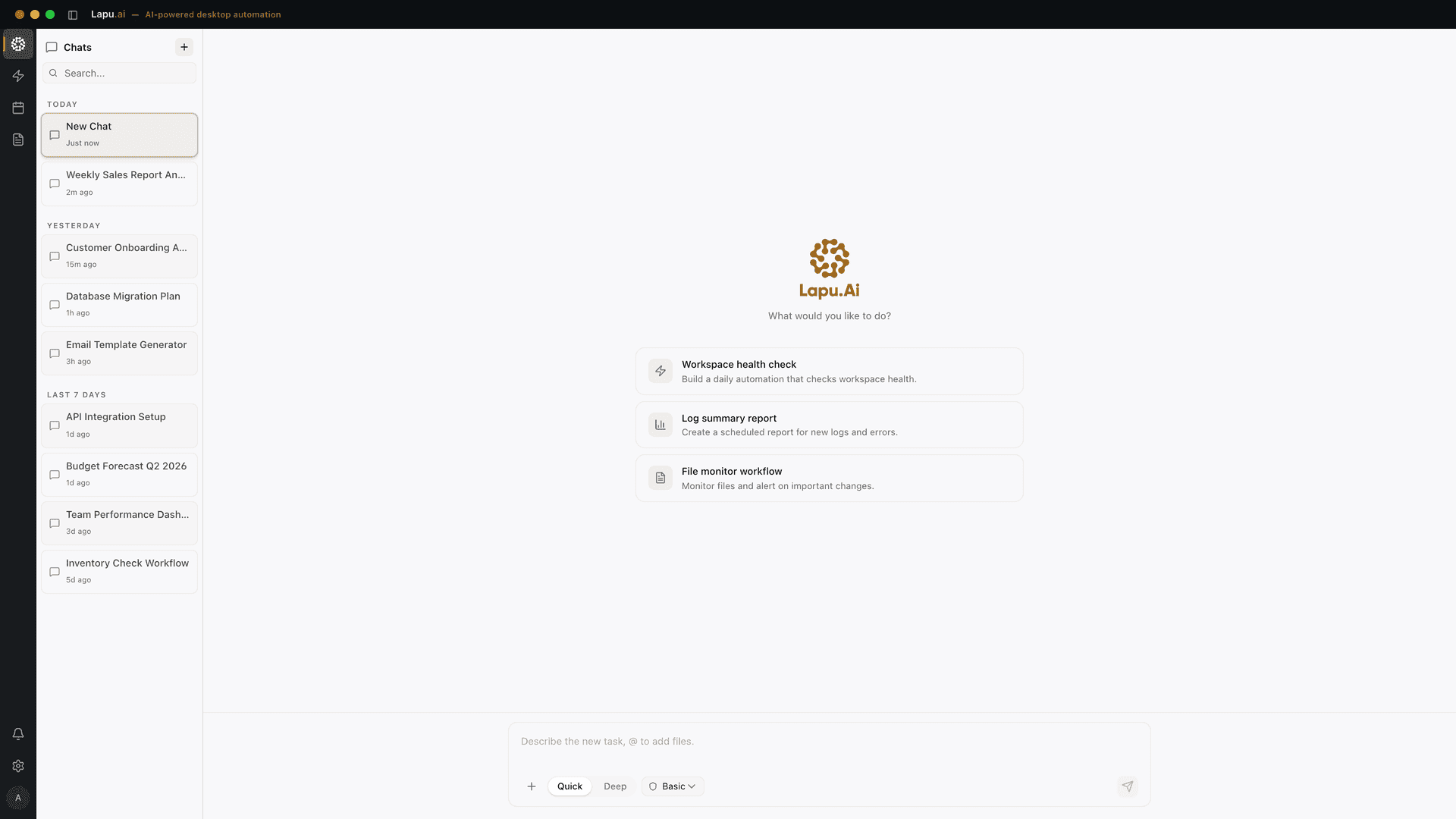
Automate the work between you and outcomes
Lapu AI handles the repetitive work between you and outcomes. One desktop agent, zero tab-switching. Available now on macOS and Windows.
- 1-click uninstall
- Cancel anytime
- Files never leave your computer
Free to start. Cancel in 1 click. Files stay on your machine.