
The best AI agent for Desktop Task Automation in 2026
Opens your apps, clicks, types, and runs commands on macOS and Windows with permission, not in a cloud sandbox.
- 1-click uninstall
- Cancel anytime
- Files never leave your computer
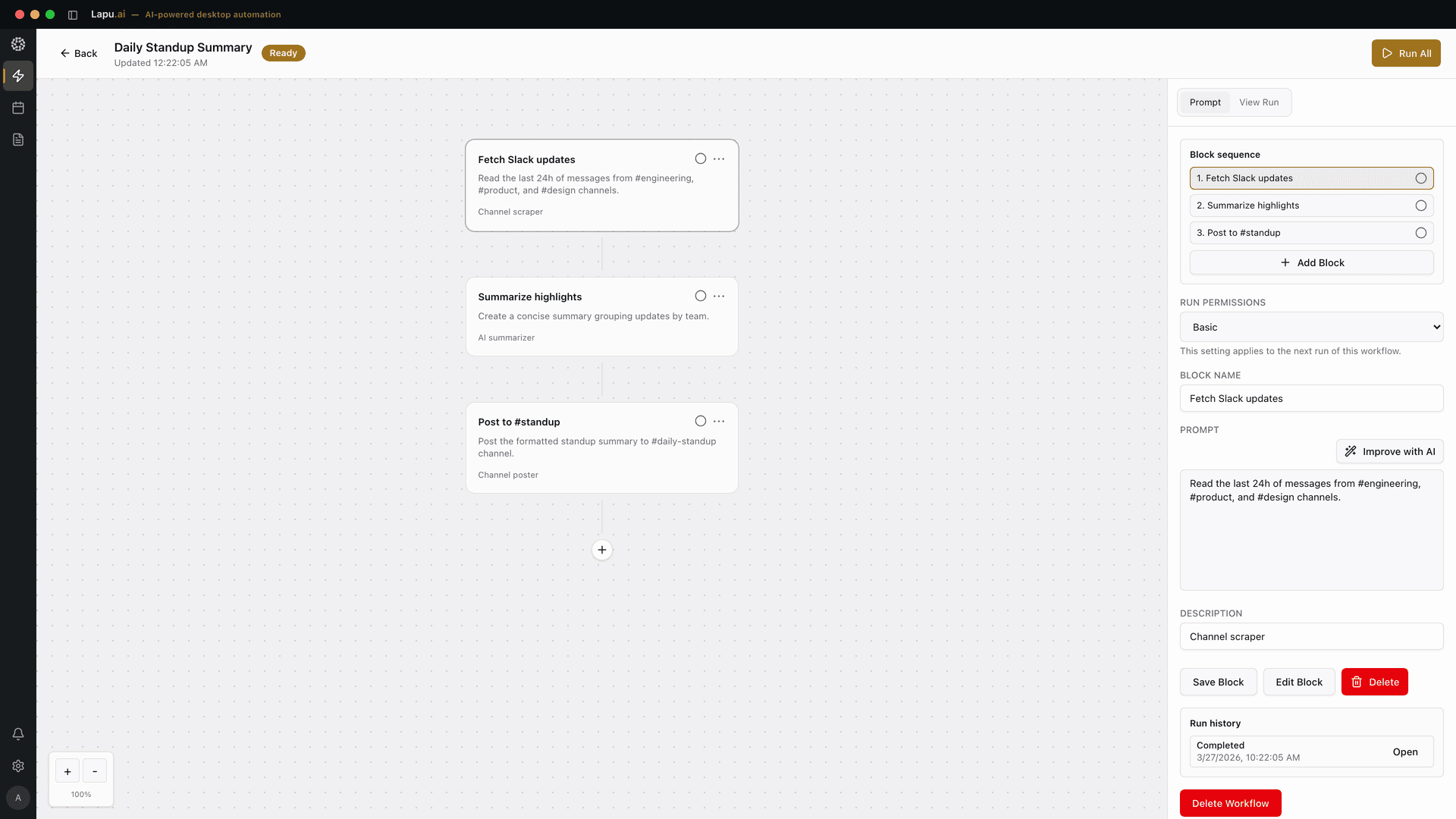

What Desktop Task Automation means
Desktop task automation is about handing off the repetitive, multi-step jobs you do at the keyboard every day, the everyday tasks a person would otherwise click through by hand: open an application, work through a menu, copy a value from one window into another, run a terminal command, fill a form, drag a file. This guide owns that category on both macOS and Windows, including legacy .NET, WinForms, WPF, and Win32 line-of-business apps that have no API. The classic RPA shape (record a script, replay it on a schedule) covers stable workflows but breaks the moment a button moves or a dialog changes. A modern desktop AI agent does the same job by reading what is actually on screen, deciding the next action, and asking for permission before anything sensitive (writing a file, sending a message, hitting submit). Concrete examples a good desktop task-automation agent should handle: open the same five tabs every morning, log in to a CRM and post a daily standup note, copy the values from a fresh CSV into an internal admin tool, run a build script across three repos and post the result in Slack, take a screenshot of a chart and paste it into a Notion page with a caption, fill out a vendor onboarding form with values from a spreadsheet (see the best AI agent for form filling for the dedicated breakdown), or re-key each row of an order file into a legacy line-of-business app that has no API (see the best AI agent for data entry automation for the swivel-chair job specifically), or pull structured fields out of every PDF invoice in a folder and write them into a spreadsheet row-by-row (see how to extract data from PDF with AI on the desktop for the dedicated breakdown). When those individual desktop tasks chain into an end-to-end document workflow (capture, extraction, validation, routing), the buyer-level guide sits on the best AI agent for document automation. The non-negotiables for this category are reliability on real (not synthetic) apps, visibility into what the agent is about to do, the ability to stop it mid-flight, and an audit trail you can replay or hand to security.
| Classic RPA | Lapu AIRecommended | |
|---|---|---|
| Finds controls by | Recorded selectors & coordinates | Live accessibility tree |
| Survives UI / version changes | ||
| Setup | Build & maintain a bot | Describe the task |
| Approval before risky steps | ||
| Runs on legacy no-API apps |
What to look for
- Runs as a native desktop app on macOS or Windows and uses OS-level accessibility APIs for reliable element targeting, not just screenshot-and-pixel-click, which breaks on resolution and theme changes. These are documented, first-party interfaces: Microsoft describes UI Automation as providing programmatic access to most UI elements on the desktop, both for screen readers and for automated test scripts, and Apple's Accessibility API is an abstraction layer that lets one application manipulate the UI of another
- Permission-gated: every action that writes a file, runs a command, sends a message, or clicks Submit requires explicit approval until a workflow is explicitly trusted, no silent background execution on the first run
- Shows the plan before it acts (a readable list of steps, the apps it will touch, and the inputs it will use), so you can correct it before any side effect happens, not after
- Records a full audit trail of every step (action, target element, screenshot at the moment of action, success or failure) so a workflow can be replayed, debugged, or shown to security after the fact
- Works across the apps you actually use without per-app integration setup (same agent drives the browser, the terminal, Excel, Slack, your CRM), instead of needing a different connector or plugin for each
- Runs on your machine, not in a cloud VM: for desktop automation the apps, files, and credentials live locally, so a cloud-sandbox agent either cannot reach them or forces you to mirror sensitive state into a third-party environment
Top tools compared
1. Lapu AI
High fitBuilt as a native desktop AI agent for macOS and Windows. Drives apps the way a person would, through OS accessibility APIs and on-screen actions, so the same agent handles your browser, Excel, your CRM, the terminal, and any app you can open, without per-app connectors. Every action is gated by explicit permissions: the first time a workflow wants to send a Slack message, post a form, or delete a file, the agent shows you the exact step and waits for approval; you can promote that step to auto-approve once you trust it. The full audit trail records every click, keystroke, command, and the screenshot at the moment of action so a workflow can be replayed, debugged, or handed to security. Where it shines: the messy, cross-app desktop work that does not fit a recorded RPA script and is too sensitive for a cloud-sandbox agent. Opening files on your disk, logging into internal tools with your real session, posting to your real Slack workspace. Where it is weaker: it is not a 24/7 unattended-bot platform with centralized scheduling and orchestrator dashboards; for that scale of RPA, UiPath or Power Automate are the right shape.
Learn more →2. Anthropic Computer Use (Claude API)
Medium fitAnthropic's computer-use beta gives the Claude API a screenshot-mouse-keyboard tool: the model sees the screen, decides the next action, and the action runs in your environment. The current documentation gates it behind the `computer-use-2025-11-24` beta header for Claude Opus 5, Sonnet 5, Opus 4.8, Opus 4.7, Opus 4.6, Sonnet 4.6 and Opus 4.5, with an older `computer-use-2025-01-24` header for the 4.5-generation models. Anthropic's docs also state plainly that computer use is a client-side tool: screenshots, mouse actions, keyboard inputs and any files in a session are captured and stored in your environment, not by Anthropic. Where it shines: developers building their own desktop-automation product who want the strongest computer-use model and full control of the harness. Where it falls short for this task: it is an API tool, not an end-user app. You bring the agent loop, the permission UI, the audit trail, the sandbox, and the cost management yourself. For the buyer who wants a desktop app they can install and run today on their own files, it is the engine, not the car.
Learn more →3. OpenAI Operator
Medium fitOpenAI's Operator is an agent that uses its own browser, in a cloud sandbox, to perform tasks for you. It is powered by the Computer-Using Agent (CUA) model. MIT Technology Review's January 2025 launch report is the clearest public account of what it can do: at launch it ran only in a browser, and it was available at operator.chatgpt.com to US users on the $200-a-month ChatGPT Pro tier. That report also carries the only head-to-head numbers anyone has published for this class of tool. On the OSWorld desktop benchmark CUA scored 38.1% against Anthropic Computer Use's 22.0%, with humans at 72.4%; on the web benchmark WebVoyager, CUA scored 87%, Google's Mariner 83.5%, and Computer Use 56%. Read the OSWorld line carefully: the best screenshot-driven agent measured was still less than half as good as a person at desktop tasks. Where it shines: web-only tasks that benefit from an isolated browser running in the cloud (booking, research, form-filling on public sites), without touching your local machine. Where it falls short for this task: it controls a cloud browser, not your desktop. Opening a file on your disk, driving a native Excel workbook, running a terminal command, or using your real desktop session credentials are all out of scope. IEEE Spectrum's February 2025 survey of the category adds the shared limits: these agents hand control back to the user to log in, accept terms of service, solve CAPTCHAs, and enter payment details. Availability has moved since launch, so confirm the current plan and surface with OpenAI before you buy.
Learn more →4. UiPath
Medium fitEnterprise RPA platform with a long history of automating desktop apps in banking, healthcare, insurance, and manufacturing. The 2026 product line layers agentic AI on top of the deterministic robot layer: UiPath Autopilot lets a business user describe an automation in plain English; Maestro and Agent Builder orchestrate AI agents that decide what the robots should do. Where it shines: high-volume, 24/7 unattended automation on Citrix, mainframes, and legacy desktop apps where reliability, governance, and audit are non-negotiable; deep document-processing pipelines; large IT-led deployments. Where it falls short for this task: UiPath does not publish a per-robot price. Its pricing page lists Automation Cloud Basic starting at $25 per month and puts Standard and Enterprise behind Contact Sales, noting across all tiers that "Users and Robots may require additional license purchases", so the number that matters for unattended work is the one you have to ask for. The platform is also built around an admin-orchestrator model rather than a single-user desktop app, and the learning curve targets RPA developers, not end users. For an individual or a small team that wants AI on their own desktop today, it is much heavier than the job.
Learn more →5. Microsoft Power Automate Desktop
Medium fitMicrosoft's desktop RPA tool, and the cheapest honest entry point on this list. Lets you record or build desktop flows that click through apps, parse Excel, scrape browser data, and integrate with the rest of the Power Platform; Copilot can generate flows from a natural-language description. Where it shines: Microsoft-centric organizations that already pay for Microsoft 365, strong Excel and Outlook hooks, deep integration with Dataverse and Teams, governance through Power Platform admin center. The free-on-Windows-11 story is real but narrower than it sounds: Microsoft's licensing FAQ says Windows 11 users can run attended RPA for personal productivity in the default environment only, cannot share those desktop flows or build them in another environment, and get no cloud flows at all. Where it falls short for this task: Windows-only for desktop flows (macOS need not apply), Copilot's plain-English generation produces flows that still need hand-fixing on real apps, and the pricing page puts the per-user Premium plan at $15/user/month while unattended RPA jumps to Power Automate Process at $150/bot/month, or $215/bot/month for Hosted Process. For users outside the Microsoft stack, or on Mac, it is the wrong shape.
Learn more →
How it controls your apps
Most agents that use a computer take a screenshot, guess where the button is, and click those coordinates. Mature RPA does not: UiPath and Power Automate Desktop address named controls through selectors, and they are deterministic on replay, which is a real advantage at volume. Their cost is the recording step and the selector library someone has to maintain afterwards. Lapu talks to the application's own automation layer with no recording step: it addresses the Save button, not the pixel at 412,283, and it does not occupy your mouse and keyboard while it works.
| Behavior | Lapu AI | Anthropic Computer Use | OpenAI Operator | UiPath | Power Automate Desktop |
|---|---|---|---|---|---|
| How it finds a button | By name, through the app's own automation layer: AXUIElement on macOS, UI Automation on Windows | Screenshot, then mouse and keyboard at pixel coordinates | Screenshots of a cloud browser, driven with mouse and keyboard | Recorded selectors against the app's UI tree | Recorded selectors captured by the desktop recorder |
| Leaves your mouse and keyboard free | Only against a separate VM or container | Yes: it drives a cloud browser, so it cannot reach your apps either | Attended robots use your desktop session; unattended need their own | Attended flows use your Windows session; unattended need a licence | |
| Survives a moved window or a resolution change | Re-reads the screen each step; a mid-step move misplaces the click | Same screenshot loop, inside its own cloud browser | |||
| On the fiftieth repeat run | Addresses the same named element it did on the first | Fresh screen reading each run | Fresh model run each time | Deterministic replay: same selectors, same order | Deterministic replay of the recorded flow |
| Setup before the first run | None: describe the task in plain language | You build the harness: loop, permissions, sandbox | None, but it only reaches public websites | Build the workflow in Studio, then maintain its selector library | Record the flow, then repair selectors as apps change |
This works where an application exposes an automation surface, most macOS and Windows software does, including Microsoft 365 and older line-of-business apps that never got an API. Lapu also supports driving real keyboard and mouse input and uses it where that is the better tool: SAP GUI is the clearest case, since it means the customer never has to enable sapgui/user_scripting. Sending input is the second choice, not the only one.
Windows automation for legacy apps with no API
A legacy Windows application can still be automated when it has no REST API, connector, supported export, or database access. Lapu AI treats the visible application as the interface: it reads controls exposed through Windows UI Automation, chooses the matching action from a plain-language request, and asks for approval before a sensitive write or submit step. This covers many .NET, WinForms, WPF, and Win32 line-of-business tools while keeping files and application data on the operator's machine.
- Named controls first
- Standard Windows controls expose a role and an accessible name through UI Automation. Lapu AI can address the edit box labeled Customer ID or the button labeled Post instead of relying on a screen coordinate. A moved window, different DPI setting, or theme change does not move that identity. Microsoft's UI Automation overview documents the same operating-system interface used by screen readers and automated test tools.
- Real input when it fits
- Lapu AI can also drive real keyboard and mouse input. SAP GUI is the clearest case: this route lets a team automate the visible client without asking IT to enable sapgui/user_scripting. In that mode the agent occupies the desktop session while it runs. Input is a supported second route, not a hidden claim that every app exposes a complete automation tree.
- OCR and vision for thin trees
- Owner-drawn grids, canvas interfaces, Citrix sessions, and some old controls expose little useful accessibility metadata. Lapu AI can read those pixels with OCR and vision, but that route carries the same sensitivity to layout changes as other screen-driven systems. The page states this limit because the automation surface, not the product label, determines reliability.
Legacy Windows workflows that fit
Re-key between two line-of-business apps
Read a record from a legacy WinForms ERP with no export, then create the matching entry in a second desktop app with no import.
Extract a Win32 list into Excel
Walk the rows exposed by an old desktop tool and write the labeled values into a normal spreadsheet on the same machine.
Fill a desktop form from a CSV
Read each source row, focus the matching WPF or WinForms fields, and pause for approval before submitting the record.
Reconcile a local file against a portal
Compare values from a desktop app with a spreadsheet and flag mismatches instead of moving the full dataset into a cloud automation service.
What changes
Without Lapu AI
An ops manager spends 2 hours copying 50 client records from a spreadsheet into a CRM, switching between windows, clicking through form fields, and double-checking each entry.
With Lapu AI
Lapu AI reads the spreadsheet, focuses the CRM window, and fills each record into the form. The manager approves each entry and handles the exceptions the agent flags.
1-3 hours of manual data entry saved on every run.
Why Lapu AI is built for Desktop Task Automation
Lapu AI is built specifically for the case the other tools in this list either dodge or charge enterprise prices for: a single user on macOS or Windows who wants an AI agent that drives their actual desktop apps, on their actual machine, with explicit permission for anything that matters. The agent uses OS-level accessibility APIs to see and interact with real UI elements (not raw pixels), so it is reliable across theme, resolution, and DPI changes. That is not a proprietary trick. It is the interface the operating system vendors already publish for screen readers. Microsoft's own documentation describes UI Automation as providing programmatic access to most UI elements on the desktop, so assistive technology can both read the UI and manipulate it "by means other than standard input", and Apple's Accessibility API is documented as an abstraction layer that lets one application manipulate the UI of another. The contrast matters: IEEE Spectrum's February 2025 survey describes the screenshot-driven agents as navigating by viewing screenshots and counting the pixels needed to move the cursor to a spot for a click. Every action is gated by an explicit permission prompt the first time a workflow runs (you see the exact step, the app it will touch, the value it will type), and you can promote a step to auto-approve once you trust it. Every click, keystroke, command, and screenshot is recorded in an audit trail you can replay, hand to security, or use to debug a failed run. A practical decision framework: if your need is 24/7 unattended automation across an enterprise on Citrix and mainframes with admin orchestration, pay for UiPath. If your need is web-only automation in a cloud sandbox you do not want touching your machine, OpenAI Operator is reasonable. If you are an API developer building your own desktop agent, use Claude's computer use directly. If you are a Microsoft-shop Windows user with simple Excel-and-Outlook flows, Power Automate Desktop is free with Windows 11 and a fine fit. If you want an AI agent on your own desktop today, that handles cross-app work on your real files with permissioned execution and an audit trail, without an admin team, a cloud sandbox, or per-bot pricing: Lapu AI is the right shape.
Say it in plain words
No commands to learn. Tell Lapu AI what you want the way you would tell a coworker.
You
Open the spreadsheet at ~/clients.xlsx, then for each row enter the company name and email into the HubSpot new contact form.
You
Take a screenshot of the current app, read the error message, and search for a fix in the browser.
You
Fill out the expense report form in SAP using the data from this CSV file.
FAQ
- Can I automate a Windows app that has no API?
- Yes, when the app exposes usable controls through Windows UI Automation or can be operated through real input. Lapu AI reads the live interface, identifies controls by role and label, and carries out the task under your approval. Standard .NET, WinForms, WPF, and Win32 controls often expose this information without an API or connector. Owner-drawn and remote interfaces may require OCR or vision and are less predictable.
- How does Windows UI Automation find controls?
- Windows UI Automation exposes a tree of interface elements. A control can publish a role, such as button, edit box, list item, or tab, plus an accessible name such as Save or Customer ID. Lapu AI reads that tree and invokes the named control instead of guessing a pixel coordinate. This is the same operating-system layer Microsoft documents for assistive technology and automated testing.
- Does Lapu AI run desktop automation locally or in the cloud?
- Locally. The agent is a native desktop app for macOS and Windows; it drives the apps already installed on your machine using OS-level accessibility APIs, runs commands in your real terminal, and reads files on your disk. Nothing is mirrored into a cloud sandbox. When the agent needs to reason about a step, minimal context (the visible UI elements, your prompt, the relevant snippet of file content) is sent to the AI model provider for the response; files and screenshots are not stored by Lapu AI. The audit trail of what was done lives on your machine.
- How is desktop automation with Lapu AI different from recording a UiPath or Power Automate flow?
- RPA tools like UiPath and Power Automate are deterministic: you record or build a script, and it replays the same clicks in the same order. They are excellent for stable, high-volume workflows but break when a button moves or a dialog changes. Lapu AI uses an AI agent loop: it reads what is actually on screen each step, decides the next action, and adapts when the UI shifts. The trade-off is the inverse: Lapu is the right shape for messy or one-off desktop work where a recorded script would not survive, while RPA platforms remain better for high-volume 24/7 unattended automation with an admin orchestrator.
- What permissions does the agent need to control my desktop?
- On macOS, the agent requires Accessibility and Screen Recording permission so it can see UI elements and click them; on Windows it uses the UI Automation framework. Beyond those OS-level grants, every action the agent wants to take (write a file, run a command, send a message, click Submit on a form) is gated by an in-app permission prompt the first time it runs. You can promote a specific step in a specific workflow to auto-approve once you trust it. There is no silent background execution: the audit trail records every action, including which ones were auto-approved and which ones you confirmed manually.
- Can the agent automate apps it has never seen before?
- Yes. There is no per-app connector or plugin to set up: the agent drives whatever desktop or web app is in front of it, the same way a person would, by reading the UI and clicking, typing, or running keyboard shortcuts. The first run on an unfamiliar app is slower because the agent is exploring; once a working sequence is found, you can save it as a reusable workflow and the next run is fast. This is the main reason a single AI agent can cover desktop work that would otherwise need a dozen different RPA connectors.
- Can I schedule desktop automation workflows to run unattended?
- Yes, with caveats. Lapu AI lets you save any conversation as a reusable workflow that can be re-run on a schedule. For workflows whose every step is explicitly trusted, the unattended run executes end-to-end on your machine. For steps that have not been promoted to auto-approve, the agent pauses and waits for you. This is intentional: 24/7 unattended automation across many bots is the RPA-platform shape, not the desktop-agent shape; Lapu is built for one user's machine, not a server farm.
- Does desktop automation work on both macOS and Windows?
- Yes. Lapu AI runs on macOS 12+ and Windows 10+ with the same permission model, the same audit trail, and the same workflow editor on both. The underlying APIs differ (AXUIElement on macOS, UI Automation on Windows), but the agent presents one interface, and most workflows port across platforms unchanged. The exceptions are platform-specific automation (AppleScript-driven macOS shortcuts, Windows COM automation for Office) which only run on their native OS; the agent flags these when a workflow includes them so you know up front. Per-platform requirements and setup notes live on the Lapu AI for macOS and Lapu AI for Windows pages.
- How does the agent know what is on screen?
- It reads each app through the native accessibility APIs (AXUIElement on macOS, UI Automation on Windows), the same interface a screen reader uses. It lists open windows, walks the UI element tree, and takes an annotated screenshot in which every interactive control gets a numbered reference. That is why it acts on the Save button rather than on the pixel at 412,283: the perception pass scores and ranks the real controls, so a theme change, a DPI change, or a window that moved mid-run does not misplace the click.
- What happened to OpenAI Operator, and what does it cost?
- Operator launched as a research preview limited to ChatGPT Pro at $200 per month, and was later folded into ChatGPT Agent, which is accessible to Plus, Pro, Business, and Enterprise subscribers in supported regions. Either way it drives OpenAI's own browser in the cloud, so it can complete a booking or a public web form but cannot open a file on your disk, drive a native Excel workbook, or run a terminal command. That is the dividing line for desktop task automation, and it is a cost difference too: Lapu AI has a free tier and runs on the machine you already own.
- How does Lapu AI compare to Claude's computer use tool directly?
- Claude's computer use is an API tool: it gives a developer the screenshot-mouse-keyboard primitives and the model to reason over them, and you build the rest, the desktop app, the permission UI, the audit trail, the workflow store, the sandbox, the cost limits. Lapu AI is the end-user product built on top of that class of capability: an installable desktop app with the permission model, audit trail, workflow library, and cross-platform packaging already wired up. The trade-off is the usual one: build vs. buy. If you are a developer who wants to ship your own desktop agent, the API is the right starting point; if you want an agent on your machine today, Lapu is the right shape. The full head-to-head is on the Anthropic computer use alternatives page.
- What happens if the agent does something I did not want?
- First, most destructive actions never run silently on the first attempt; the permission prompt is the gate. If something does go wrong (the agent typed the wrong value, clicked the wrong button, sent the wrong message), the audit trail records every action with the screenshot at the moment of action and the result. You can stop a running workflow at any time, review what already ran, and either undo it manually or, for file operations, ask the agent to revert using the same log. The combination of explicit permissions, visible plans before action, and a full audit trail is the answer to 'is letting AI use my computer safe?' that the cloud-chatbot category does not offer.
Sources
- Anthropic: Computer use tool documentation: `computer-use-2025-11-24` beta header for Claude Opus 5, Sonnet 5, Opus 4.8/4.7/4.6, Sonnet 4.6 and Opus 4.5; computer use is a client-side tool and session screenshots, inputs and files are stored in your environment, not by Anthropic
- MIT Technology Review: "OpenAI launches Operator" (Will Douglas Heaven, January 23, 2025): OSWorld scores of 38.1% for CUA, 22.0% for Anthropic Computer Use and 72.4% for humans; WebVoyager scores of 87% for CUA, 83.5% for Mariner and 56% for Computer Use
- IEEE Spectrum: "Are You Ready to Let an AI Agent Use Your Computer?" (Eliza Strickland, February 13, 2025): screenshot-driven agents navigate by counting pixels, and hand control back to the user to log in, accept terms of service, solve CAPTCHAs and enter payment details
- Microsoft Learn: UI Automation Overview: provides programmatic access to most user interface elements on the desktop, for screen readers and automated test scripts
- Apple Developer: UIElementInspector: the Accessibility API is an abstraction layer that lets accessibility applications manipulate the UI of other applications, reading AXUIElement information and performing its actions
- Microsoft Learn: Power Automate licensing FAQ: Power Automate Process is priced at $150 per bot/month; Windows 11 users get attended RPA for personal productivity in the default environment only, cannot share those desktop flows, and have no access to cloud flows
- Microsoft Power Automate pricing: Premium $15/user/month, Process $150/bot/month, Hosted Process $215/bot/month
- UiPath pricing: Automation Cloud Basic from $25/month; Standard and Enterprise are Contact Sales, and "Users and Robots may require additional license purchases"
Related
- Best AI agent for Data Entry Automation →
- Best AI agent for Document Automation →
- Best AI agent for Excel Automation →
- Best AI agent for File Organization →
- Best AI agent for Form Filling →
- Best AI agent for Invoice Automation →
- More best-for guides →
- See Lapu AI use cases →
- Compare with alternatives →
- Pricing →
Try Lapu AI free
Built for Desktop Task Automation. Free download: see exactly what the app looks like first.
- 1-click uninstall
- Cancel anytime
- Files never leave your computer
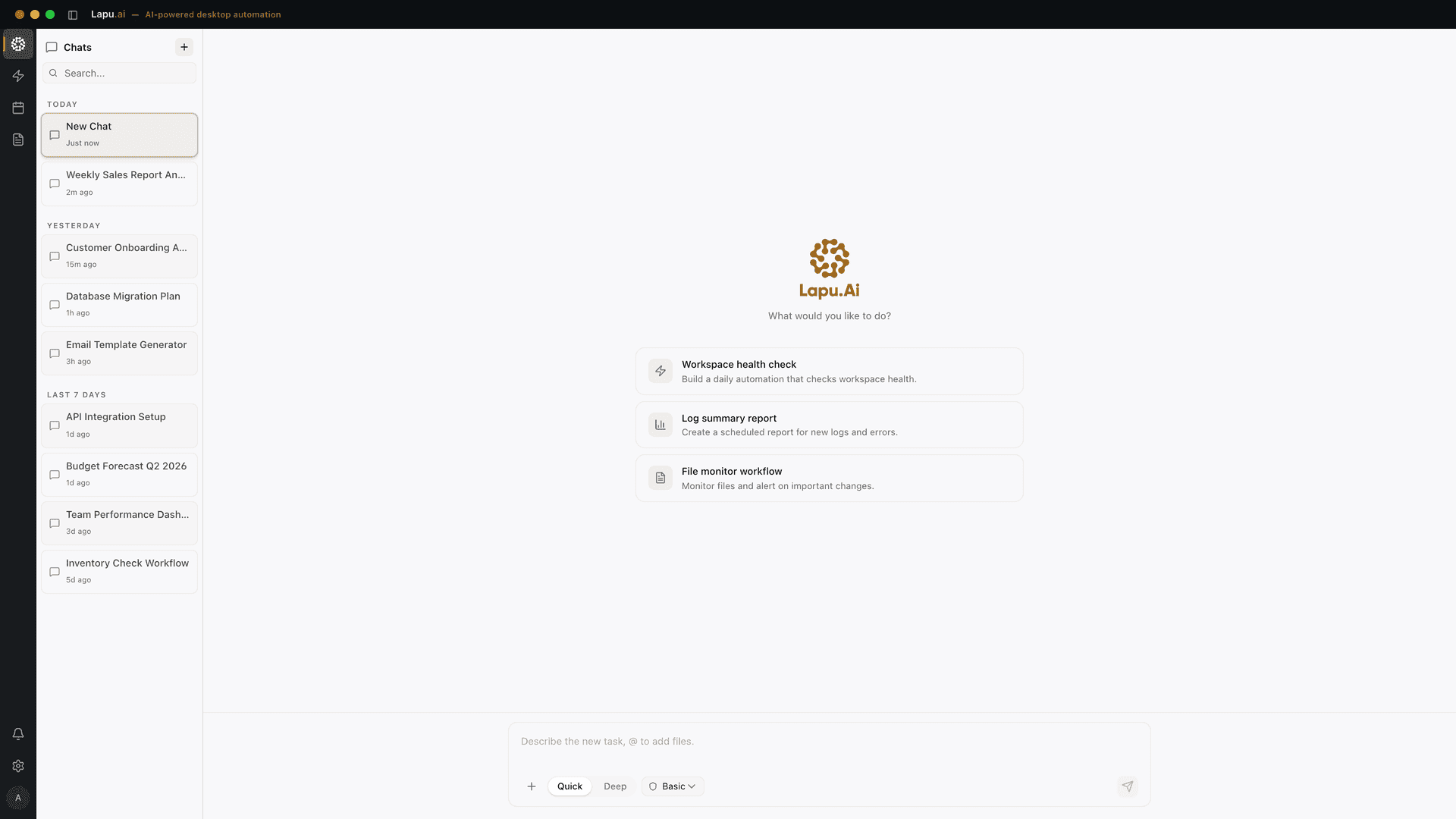
Automate the work between you and outcomes
Lapu AI handles the repetitive work between you and outcomes. One desktop agent, zero tab-switching. Available now on macOS and Windows.
- 1-click uninstall
- Cancel anytime
- Files never leave your computer
Free to start. Cancel in 1 click. Files stay on your machine.