
Automate Slack with Lapu AI
Slack is the messaging hub most knowledge work runs through. Lapu AI automates Slack from your macOS or Windows desktop the same way you do — driving the Slack desktop app or web client through permission-based control — so you can triage channels, post updates, route action items into other tools, and summarize long threads without installing a custom bot, registering a Slack app, or pasting bot tokens into Zapier.
- 1-click uninstall
- Cancel anytime
- Files never leave your computer
Top Slack workflows
1. Triage unreads across channels and DMs
You open Slack to dozens of unread channels and DMs. Lapu AI walks every unread thread, classifies each as 'needs reply', 'FYI', or 'noise', drafts replies for the ones that need them, and shows you a single review pane before sending anything.
"Open Slack, walk every unread channel and DM, and produce a single list: who pinged me, what they want, suggested reply, and the link to the message. Draft replies for items you classify as 'needs reply' and pause for me to approve each send."Tools used: browser:control
2. Post a weekly status update generated from local files
Your Friday status update is the same shape every week: what shipped, what's blocked, what's next. Lapu AI inspects file activity on your machine, reads git logs, and posts the formatted update to a chosen channel with bold headings and code blocks.
"Look at git logs in ~/projects/* for the last 7 days, summarize what shipped, and post a status update to #eng-weekly in Slack with bold section headings (Shipped, In flight, Blocked) and a code block for the commit list."Tools used: shell:exec, file:read, browser:control
3. Convert Slack action items into Linear or Jira issues
Action items get buried in long Slack threads. Lapu AI reads a thread, extracts every 'someone-should-do-X' statement, and creates issues in your tracker with the Slack permalink for context.
"Open the linked Slack thread, find every action item, and for each one create a Linear issue in the 'Eng' project with the assignee, a short title, the full context as description, and the Slack permalink in a 'Source' field. Pause before creating so I can edit the list."Tools used: browser:control
4. Summarize a long thread or channel into a doc
A 200-message thread or a noisy channel needs a written summary for someone who wasn't there. Lapu AI scrolls the thread, extracts decisions and open questions, and writes a Markdown summary to disk or pastes it into a Slack Canvas.
"Open the #incident-2026-05-21 channel, summarize the timeline, decisions made, and unresolved questions into a Markdown file at ~/incidents/2026-05-21.md. Then create a Slack Canvas in the channel with the same content for teammates who weren't there."Tools used: browser:control, file:write
5. Schedule and send a recurring digest of recent activity
You want a daily morning digest of what happened in key channels overnight so you don't scroll. Lapu AI runs on a schedule, reads the channels, and posts a private summary DM to you.
"Every weekday at 8am, scan #product, #eng, and #customer-issues for messages posted since 6pm yesterday, summarize each channel in 3 bullets, and DM me the digest with permalinks to the top thread per channel."Tools used: browser:control
6. Bulk-archive stale channels you no longer use
Workspaces accumulate dead channels. Lapu AI inspects the channel list, finds channels with no activity in the last N days that you're a member of, and walks you through archiving them one by one.
"List every Slack channel I'm in that has had no messages in the last 90 days. For each one, ask me whether to leave, archive (if I'm an admin), or keep. Show me the last message date and member count before I decide."Tools used: browser:control
7. Forward a customer report from Slack into a CRM record
A customer pings #support with a bug or feature request. Lapu AI extracts the customer, the issue, and any attachments, then files the record in HubSpot, Salesforce, or a Notion CRM database.
"Open the highlighted Slack message in #support, identify the customer from their email or workspace, and create a 'Feedback' record in HubSpot with the message text, the Slack permalink, and the customer's company. Attach any screenshots from the thread."Tools used: browser:control, file:read
How it works
- 1
Open Slack in the desktop app or browser
Lapu AI uses your existing signed-in Slack session in the desktop app or a browser tab. No bot token, no Slack App registration in api.slack.com, no OAuth scopes to request from an admin.
- 2
Read your local context
When a workflow needs local input (git logs, a Markdown file, a CSV of customers), the agent reads it from your filesystem first. Local data stays on your machine until you confirm sending it to Slack.
- 3
Respect Slack's formatting conventions
Slack supports bold, italic, strikethrough, inline code, code blocks, block quotes, and ordered/bulleted lists via its message composer. Lapu AI uses the same formatting toolbar a human would so messages render correctly across desktop, mobile, and notifications.
- 4
Ask permission before every send
Sending a Slack message is irreversible in spirit — even though you can edit or delete, people get a notification. Lapu AI surfaces every outbound message for approval. You can pre-approve a class of actions for the session (e.g. 'draft replies in this thread') or confirm each one individually. Every action is logged in the audit trail.
- 5
Pace actions so Slack doesn't throttle the UI
Slack's Web API enforces rate limits per method (Tier 1: 1+/min through Tier 4: 100+/min, with chat.postMessage capped around 1 message per second per channel — see docs.slack.dev/apis/web-api/rate-limits). Because Lapu AI drives the UI rather than the API, it does not consume your team's API quota — but the agent still paces clicks and waits for confirmation so long bulk runs stay stable.
Permissions required
- browser:control — to navigate Slack in the desktop or web app, including channels, threads, DMs, the composer, and Canvas
- file:read — optional, to read local source files (CSVs, Markdown, status notes) used to compose messages
- shell:exec — optional, for git log inspection or batch file operations that feed status updates
- file:write — optional, to save summaries of threads or channels back to your filesystem as Markdown
FAQ
- Do I need to register a Slack App or generate a bot token?
- No. Lapu AI uses Slack the same way you do — through the Slack desktop app or your browser, signed into your existing account. There is no bot token to manage, no Slack App to register at api.slack.com, and no OAuth scopes to request from a workspace admin.
- Will Lapu AI hit Slack's API rate limits?
- No, because Lapu AI does not call Slack's Web API. Slack's documented per-method limits range from Tier 1 (1+/min) through Tier 4 (100+/min), with chat.postMessage allowing roughly one message per second per channel, and HTTP 429 responses when exceeded (docs.slack.dev/apis/web-api/rate-limits). Lapu AI drives the UI instead, so bulk work is paced by UI response time and does not eat your workspace's API quota.
- Why use Lapu AI instead of Slack's own AI features?
- Slack AI summarizes channels and threads inside Slack, but it cannot read your local files, run shell commands, or post results into other desktop apps. Lapu AI works across Slack and the rest of your desktop — pulling from git logs, your filesystem, or your CRM, and posting back into Slack — which Slack AI is not designed to do.
- Why use Lapu AI instead of a Zapier or Make workflow?
- Zapier and Make are good for cloud-to-cloud automations you can set up once and forget. Lapu AI fits a different shape of work: ad-hoc, multi-step desktop tasks that mix Slack with your local files and other apps, where you want to review each step rather than ship-and-forget. No webhook setup, no per-task pricing.
- Will Lapu AI accidentally post to the wrong channel?
- Every send is shown to you for approval, including the destination channel or DM. You can pre-approve a category of actions for the session (e.g. 'post drafts in #eng-weekly') or confirm one by one. Every action is recorded in the Lapu AI audit trail so you can see exactly what was sent, where, and when.
- Can Lapu AI work with Slack Canvas, huddles, or other newer features?
- Lapu AI can create and edit Canvas documents because they render in the same Slack client it controls. Huddles (audio/video) are interactive media; the agent can start or join them on your behalf but cannot speak in them. New Slack features generally work as soon as they ship in the desktop or web client.
- Is my Slack message content sent to Lapu AI's servers?
- No. Slack content flows between your machine and Slack. Lapu AI sends only the context the model needs for reasoning to AI model providers — for example, the text of a thread you asked it to summarize — never your full workspace as bulk storage.
- When should I NOT use Lapu AI for Slack work?
- Use Slack's official API directly if you need a hosted bot that responds 24/7 without a user session, a slash command installed for the whole workspace, or a multi-tenant integration distributed to other people's workspaces. Lapu AI is built for your desktop workflows — interactive, permissioned, local-first — not for production server pipelines.
Related
Use Slack faster with Lapu AI
Free download for macOS and Windows. See how Lapu AI drives Slack before you install.
- 1-click uninstall
- Cancel anytime
- Files never leave your computer
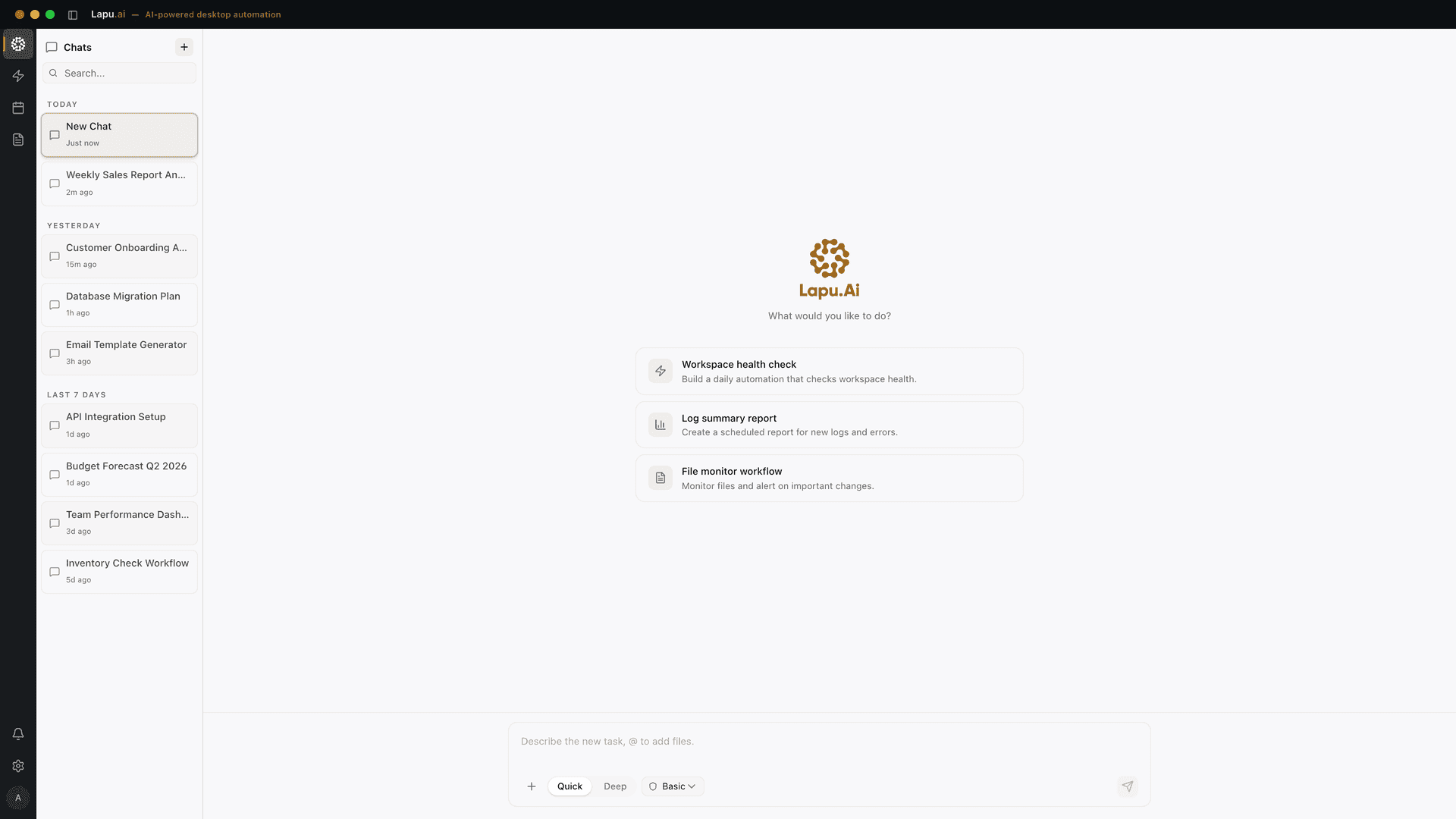
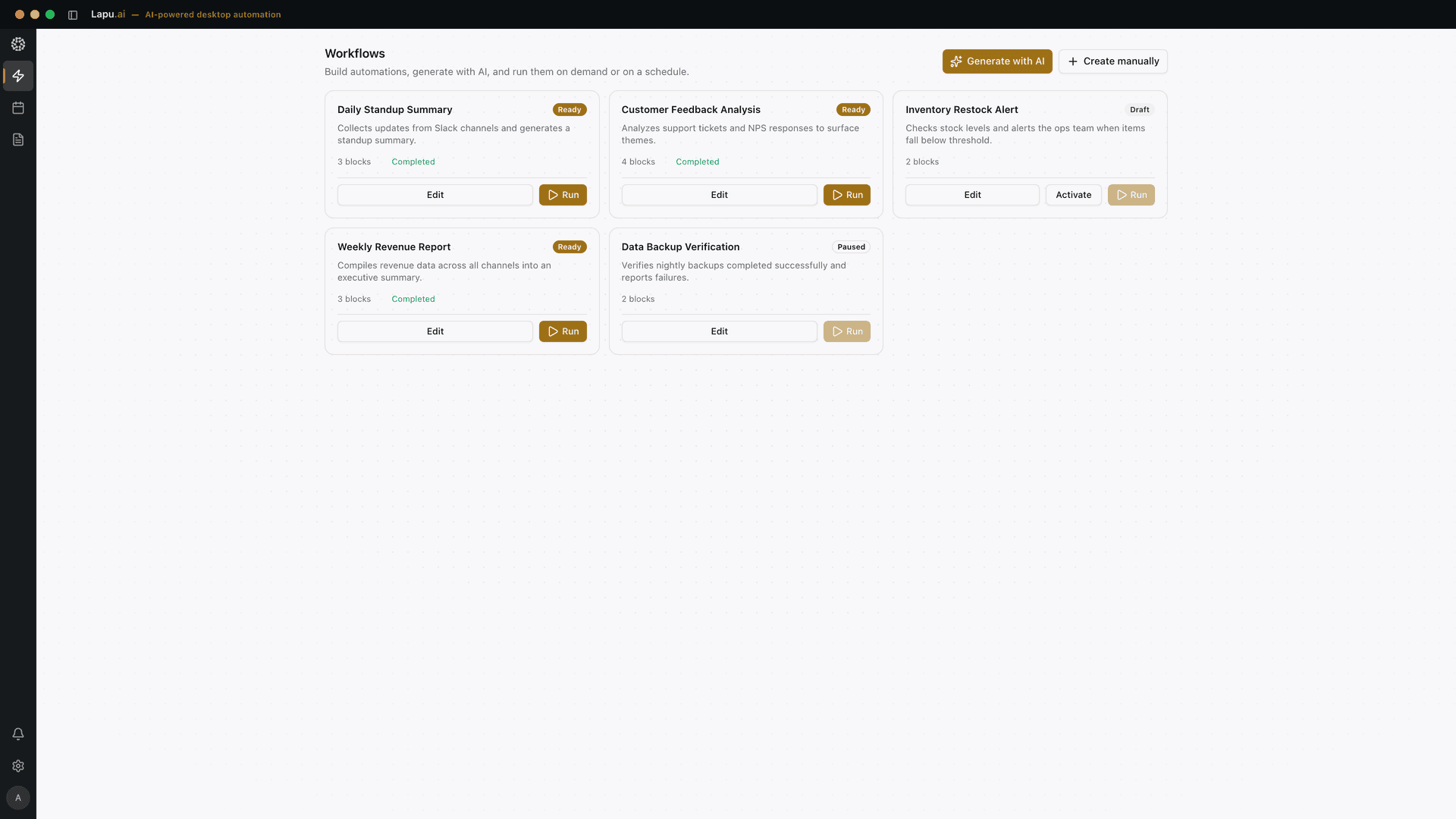
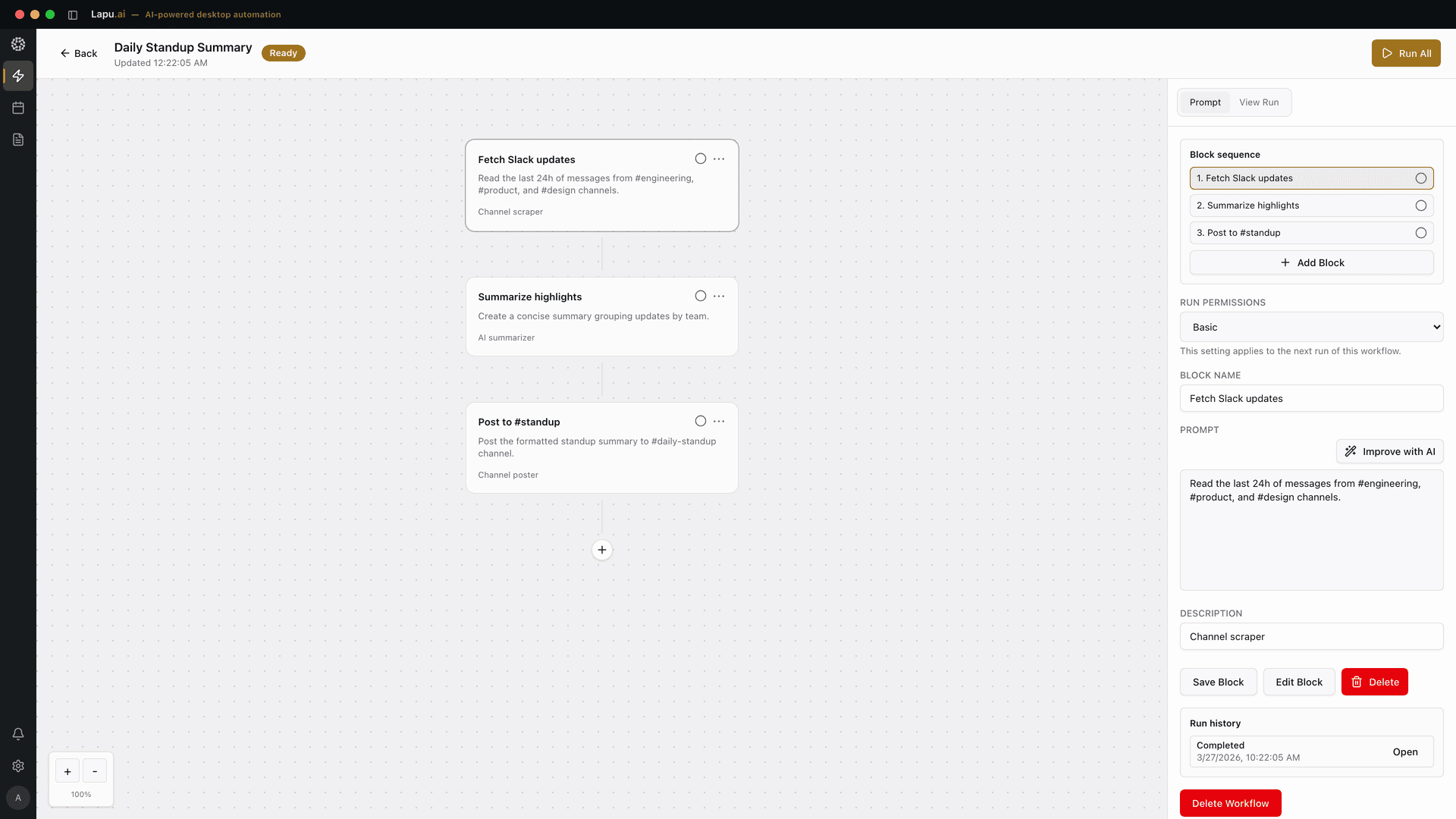
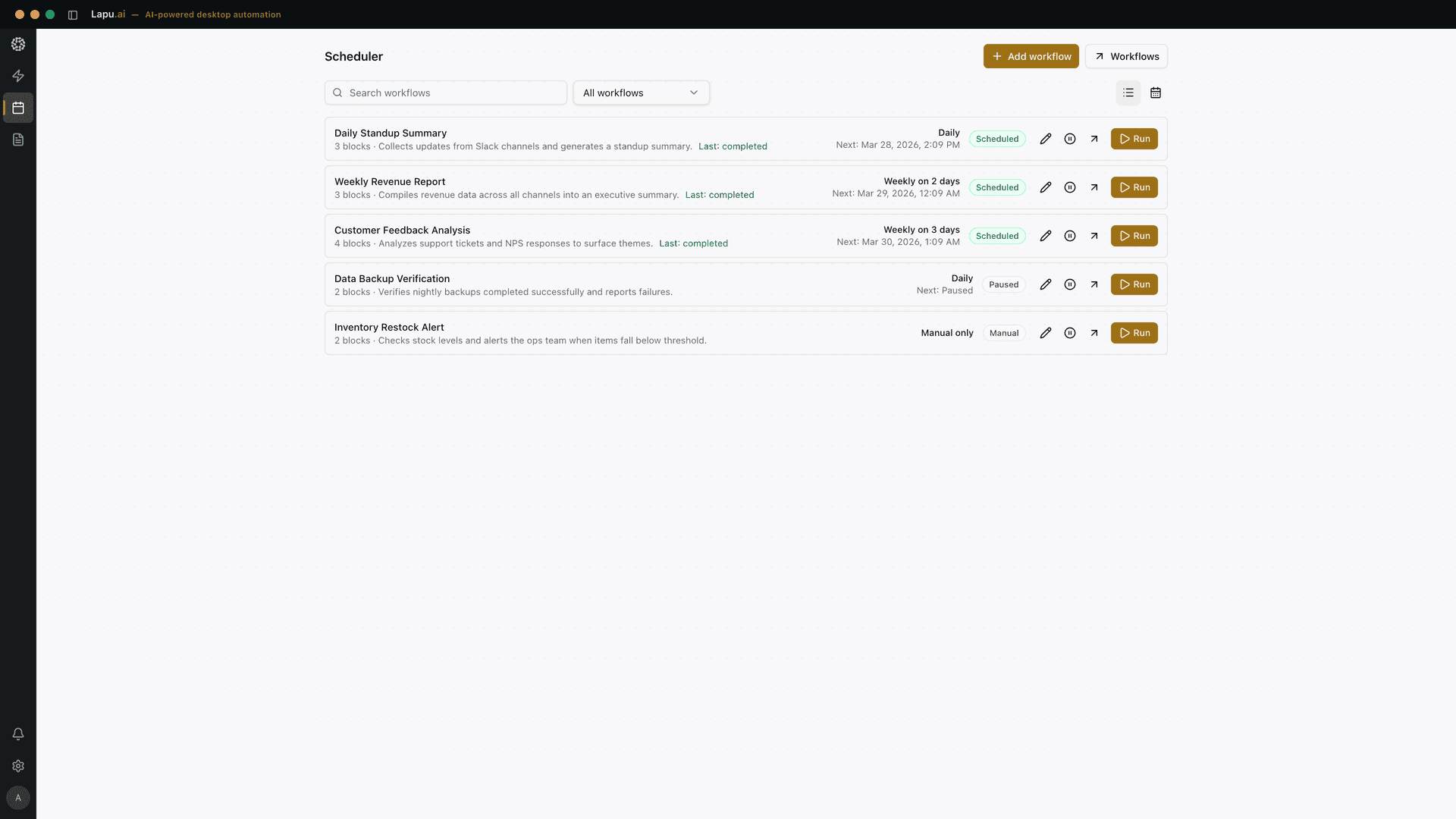
Automate the work between you and outcomes
Lapu AI handles the repetitive work between you and outcomes. One desktop agent, zero tab-switching. Available now on macOS and Windows.
- 1-click uninstall
- Cancel anytime
- Files never leave your computer
Free to start. Cancel in 1 click. Files stay on your machine.