
Automate Google Workspace with Lapu AI
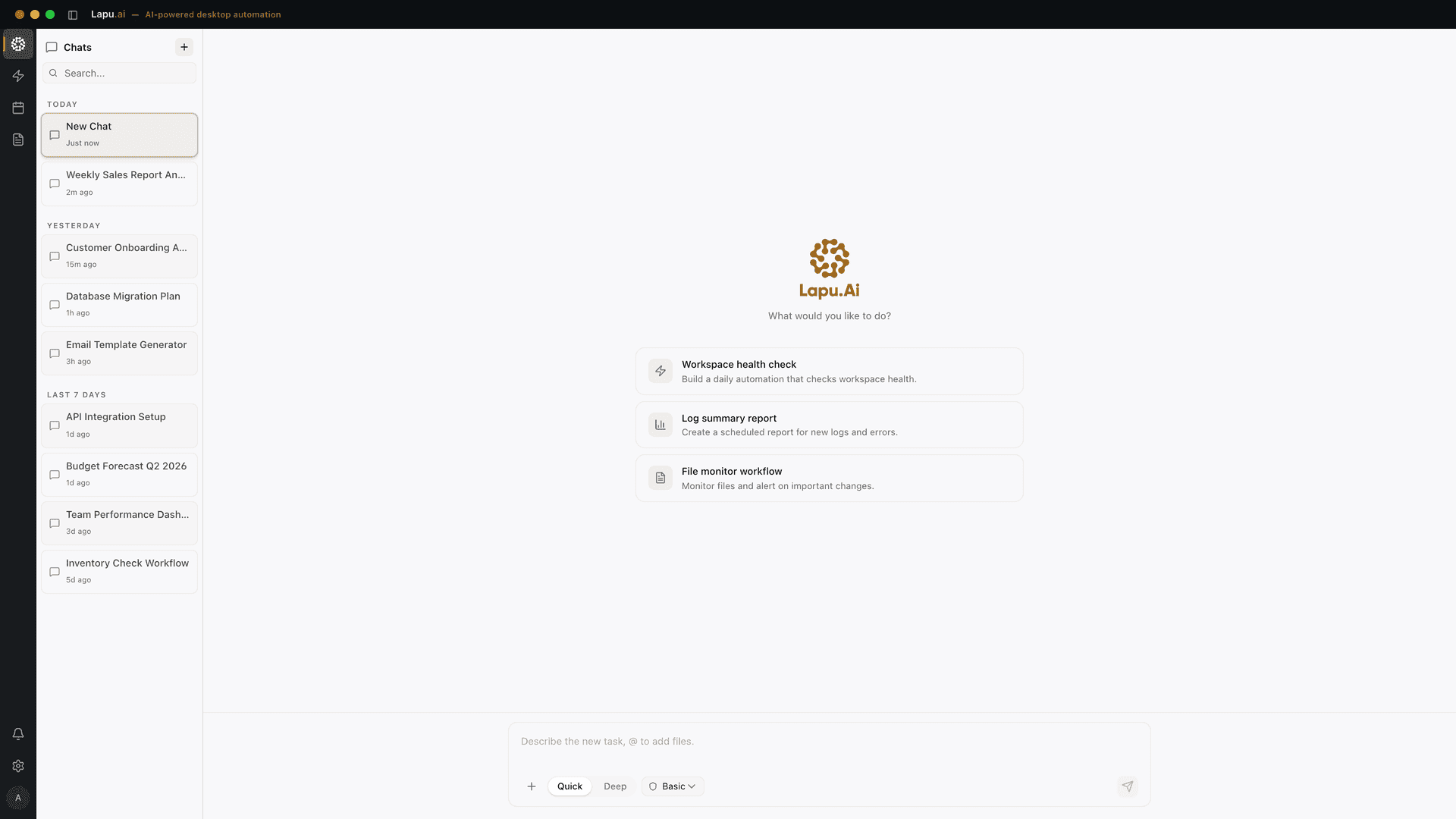
Google Workspace is web-first — Gmail, Docs, Sheets, Drive, Calendar, and Meet all live in the browser, and the official desktop touchpoints are limited to Drive for Desktop and Meet. Lapu AI is a desktop agent that runs on macOS and Windows and drives all of Google Workspace the way you already do: in your signed-in browser tab, with your local files at hand. No Google Cloud project, no OAuth consent screen, no Apps Script quota — the agent reads documents, fills sheets from a CSV, files attachments from Gmail to disk, and links them back into Docs in a single permissioned workflow.
- 1-click uninstall
- Cancel anytime
- Files never leave your computer
Top Google Workspace workflows
1. Fill a Google Sheet from a local CSV and reconcile
Finance lands you a CSV of vendor invoices and asks for them in a shared Google Sheet with a 'Status' column reconciled against an internal ledger. Lapu AI reads the local CSV, opens the target Sheet in your browser, pastes the rows into the matching range, and looks up each invoice number in a second tab against ~/finance/ledger.csv — marking each row Paid, Open, or Mismatch. You approve the first three rows, then the agent runs the rest unattended.
"Open the Google Sheet 'Vendor Invoices Q3' in my browser. Read ~/finance/vendor-invoices-q3.csv and paste each row into the first empty range. For each invoice number, look it up in ~/finance/ledger.csv and write Paid, Open, or Mismatch in the Status column. Pause after the first three rows."Tools used: file:read, browser:control
2. Draft a Google Doc from a local research folder
You have a folder of Markdown notes and PDF research that needs to become a structured Google Doc with cited sections. Lapu AI reads each file from disk, summarizes by theme, opens a new Google Doc, and writes H1/H2 structure with a Sources section that links back to the local file paths.
"Read every file in ~/research/2026-market-scan/, group findings by theme, then open a new Google Doc titled 'Market Scan — 2026 Q3' and write an H1 plus four H2 sections (Trends, Competitors, Risks, Recommendations). End with a Sources section listing each local file path."Tools used: file:read, doc:pdf, browser:control
3. File Gmail attachments into Drive folders by sender
Your Drive is a mess of unsorted attachments. Lapu AI scans recent Gmail threads, downloads PDF and image attachments to a local staging folder, and then uploads each one to a Google Drive folder named after the sender's domain. The agent renames each file with the sent date and message subject before upload.
"Open Gmail in my browser. For unread threads in the last 14 days with attachments, download each file to ~/Downloads/staging/, rename it <YYYY-MM-DD>-<short-subject>.<ext>, then upload it to Google Drive under /Vendors/<sender-domain>/. Archive each thread after the upload completes."Tools used: browser:control, file:write
4. Run a Google Calendar weekly review from local notes
Every Friday you reconcile what shipped against what you committed to in 1:1s. Lapu AI opens Google Calendar, lists this week's meetings, opens each event's notes link, and cross-references against your local notes folder — producing a Markdown digest on disk and a follow-up Google Doc with action items per attendee.
"Open Google Calendar in my browser, list every event I attended this week, and for each one open the linked notes and compare against ~/notes/meetings/. Write ~/notes/weekly/<date>.md with sections per attendee, then create a Google Doc titled 'Weekly Review — <date>' with the same content."Tools used: browser:control, file:read, file:write
5. Convert a Google Sheet into a local pivot report
Marketing keeps a campaign tracker in Google Sheets and you want a monthly local report without exporting by hand. Lapu AI opens the Sheet, copies the relevant range, writes a CSV to disk, runs a local Python pivot script, and writes a Markdown report back to your notes — without ever sending the Sheet to a third-party service.
"Open the Google Sheet 'Campaign Tracker 2026'. Copy the 'Spend' tab range A1:F500 and save it to ~/reports/campaign-tracker-<YYYY-MM>.csv. Run ~/scripts/pivot-by-channel.py against the CSV and write the output as ~/reports/campaign-tracker-<YYYY-MM>.md."Tools used: browser:control, file:write, shell:exec
6. Sync Google Drive files to a local project folder
A client drops design files into a shared Drive folder and you want them mirrored into your local project directory with consistent naming. Lapu AI opens the Drive folder, downloads new files since the last sync timestamp recorded on disk, renames them to match your project convention, and writes a manifest entry to the project README.
"Open the Google Drive folder /Clients/Acme/Designs/. Compare against ~/projects/acme/designs/.last-sync and download anything newer. Rename each file <YYYY-MM-DD>-<original>.<ext>, place it in ~/projects/acme/designs/incoming/, and append a row to ~/projects/acme/README.md under 'Design Drops'."Tools used: browser:control, file:write
7. Generate a Google Slides deck from a Markdown outline
You wrote a talk in Markdown and want a Google Slides deck without copy-pasting. Lapu AI reads the outline, opens a new Slides deck, and creates one slide per H2 with the H2 as the slide title and the bullet list as slide body. The agent pauses on the first slide so you can confirm the template.
"Read ~/talks/local-first-ai.md and create a new Google Slides deck titled 'Local-First AI on the Desktop'. For each H2 heading, add a slide using its title and the bullet list under it. Pause after the first slide so I can adjust the template."Tools used: file:read, browser:control
8. Triage Google Forms responses into local tickets
Support intake comes through a Google Form linked to a Sheet. Lapu AI reads new responses from the linked Sheet, categorizes each by intent, creates a Markdown ticket file in your local issue tracker folder, and writes a back-reference to the Sheet so a human can audit the assignment later.
"Open the 'Support Intake' Google Sheet. For every row with status empty, classify the issue as Bug, Question, or Feature, create ~/support/tickets/<ticket-id>.md with the response details, and write the ticket-id back into the Sheet's Status column. Stop after 20 rows so I can review."Tools used: browser:control, file:write
How it works
- 1
Use your signed-in Workspace session — no API project
Lapu AI drives Gmail, Docs, Sheets, Drive, Slides, Calendar, and Forms through the browser tab you already have signed in to your Google account. There is no Google Cloud project to create, no OAuth consent screen to publish, no Workspace Marketplace app to verify, and no Apps Script editor to maintain. If you also use Drive for Desktop, the agent can read those synced files directly from disk as a faster fallback.
- 2
Bring local files and the Workspace tabs into one workflow
The agent can read a Markdown outline from ~/research, open a Google Doc, paste structured content, then pull data from a Google Sheet and write a CSV back to disk — in one permissioned run. Local files never leave your machine unless you ask the agent to upload them to Drive or paste them into a Doc. Browser pages are read on screen, not via a server-side scrape.
- 3
Permission gates separate read, write, and share
Lapu AI treats reading a Doc, editing a Doc, uploading to Drive, and sharing a Doc externally as four separate actions. You can pre-approve reads and edits for a session while keeping 'Share with anyone with the link' as a single-shot confirm. The agent never silently changes a sharing setting.
- 4
Avoid Workspace API quotas because there's no API call
Driving the UI means the agent does not consume the Sheets API's 300-requests-per-minute project limit or 60-per-user-per-minute limit, and it does not draw from the Drive API's 1,000,000 quota units per minute per project (developers.google.com/workspace/sheets/api/limits and developers.google.com/workspace/drive/api/guides/limits). It is paced by UI response and your session, so bulk runs do not trip the same throttles that Apps Script and third-party connectors hit.
- 5
Log every action to a local audit trail
Every Doc opened, Sheet edited, Drive upload, Gmail draft, Calendar event read, and external share is recorded locally with timestamp, target URL, and the model's reasoning. The audit trail stays on your machine — you can grep it, export it for SOC 2 evidence, or replay the workflow against a different folder of source files.
Permissions required
- browser:control — to drive Gmail, Docs, Sheets, Drive, Slides, Calendar, and Forms in your signed-in browser tab
- file:read — to read local CSVs, Markdown notes, and source documents used as inputs
- file:write — to save downloads, write generated reports, and append rows to local ledgers
- doc:pdf — optional, to extract text from PDF attachments before filing them into Drive or quoting them in a Doc
- shell:exec — optional, for scheduled runs or to pipe a Sheet export through a local script before writing the final report
FAQ
- Do I need to enable the Google Workspace APIs or create a Cloud project?
- No. Lapu AI uses Gmail, Docs, Sheets, Drive, Slides, and Calendar through the same browser session you do. There is no Google Cloud project to create, no API to enable in the Cloud console, no OAuth consent screen to publish, and no Workspace Marketplace listing required. If your admin has locked down third-party Marketplace apps, Lapu AI is unaffected because it is not one — it is software running on your own machine, using your own session.
- How does this avoid Google Workspace API rate limits and quotas?
- Lapu AI doesn't call the APIs at all — it drives the UI. The Sheets API's documented limit of 300 read or write requests per minute per project and 60 per user per minute, and the Drive API's 1,000,000 quota units per minute per project, only apply to applications using API credentials. Driving the UI means the agent is paced by your browser and the page's response time, not by a quota counter. You also avoid the 750 GB per day per user upload limit that affects Drive API uploads beyond what you upload by hand.
- How is this different from Google Workspace Studio or Gemini in Workspace?
- Workspace Studio (launched December 2025 for Rapid Release, March 2026 for Scheduled Release) is Google's own no-code platform for building AI agents that operate inside Workspace using Gemini and Google's infrastructure. It is a great fit if your data stays in Workspace and you want admin-managed agents shared across the org. Lapu AI is a desktop agent that runs on your machine, works across Workspace plus your local files and terminal plus any other desktop or web app, and routes model calls through Lapu's infrastructure. The two are complementary — Studio for Workspace-native automations, Lapu AI for cross-app desktop workflows that touch Workspace alongside local data.
- Does Lapu AI store my Google Docs or Drive files?
- No. Document content flows between your machine and Google. Lapu AI sends only the specific context the model needs for a step (a paragraph, a range of cells, a file name) to the AI model provider it routes through, and that context is not retained on Lapu AI infrastructure. Files you download to disk stay on disk; files you upload to Drive go directly from your browser to Google.
- Will my Workspace admin block Lapu AI as a third-party app?
- Lapu AI does not register as a Workspace third-party app, OAuth client, Marketplace app, or Apps Script add-on. It is desktop software that uses your signed-in browser session the same way you do, so it falls under your endpoint policy, not your Workspace third-party-access policy. If your admin policy prohibits unmanaged desktop software on company machines, that policy applies as it would to any other app.
- Can the agent share a Doc or Drive file externally without my approval?
- Only if you explicitly grant unattended-share permission for the session, which is off by default. Changing sharing settings, adding an external collaborator, or generating a public link is treated as a single-shot confirm — the agent opens the share dialog and waits for your click. Read and edit can be pre-approved; share-externally cannot, unless you opt in.
- Does Lapu AI work with Drive for Desktop and Apple Mail or Outlook Gmail accounts?
- Yes. If Drive for Desktop syncs your Drive to a local folder, the agent can read those files directly from disk, which is faster than opening them in the browser. If your Gmail account is configured in Apple Mail or Outlook for Mac, Lapu AI can read messages and save drafts in those native clients the same way it does in the browser — though Workspace-specific features like Sheets formulas still require the browser tab.
- Does this support Google Workspace Enterprise plans and shared drives?
- Yes. The agent uses your existing browser session, so whatever access your Google account has — personal, Business Starter at $7 per user per month, Business Standard at $14, Business Plus at $22, or Enterprise — flows through unchanged. Shared drives, Vault retention, and DLP rules all keep applying because the actions are performed by your account in your session.
- When should I NOT use Lapu AI for Google Workspace?
- If you need scheduled, headless, multi-tenant automation that runs on a server without a signed-in user — for example, processing thousands of Forms responses overnight without anyone logged in — use the Google Workspace APIs, Apps Script, or Workspace Studio. Lapu AI is built for interactive, permissioned, desktop workflows where you are the user. It is the better choice when the workflow combines Workspace with local files, terminal commands, or other desktop apps; it is not a server-side automation platform.
Related
Use Google Workspace faster with Lapu AI
Free download for macOS and Windows. See how Lapu AI drives Google Workspace before you install.
- 1-click uninstall
- Cancel anytime
- Files never leave your computer
Automate the work between you and outcomes
Lapu AI handles the repetitive work between you and outcomes. One desktop agent, zero tab-switching. Available now on macOS and Windows.
- 1-click uninstall
- Cancel anytime
- Files never leave your computer
Free to start. Cancel in 1 click. Files stay on your machine.