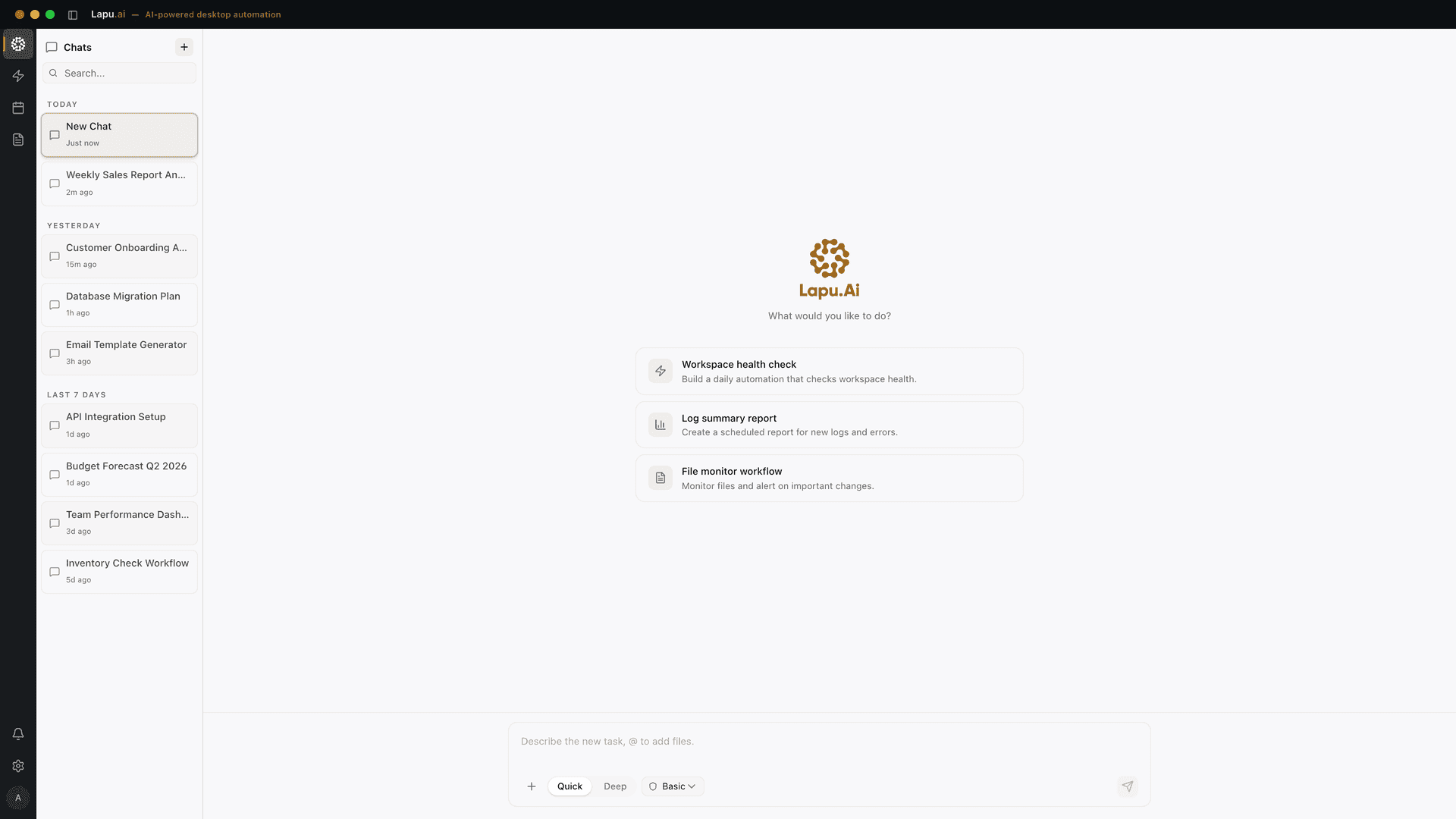
Legacy application automation starts where the vendor stopped. To automate a legacy Windows app without API access, you stop waiting for an endpoint that will never ship and drive the app's own interface instead. Some of the most important software in a business has no API: the 2007 .NET inventory system, the vendor ERP client no one can recompile, the Win32 tool that runs the warehouse — all of them hold data you need and expose no way to reach it programmatically. A desktop AI agent closes that gap the way a person does: it reads the Windows accessibility tree, finds each control by role and label, and acts on it — with your permission and a full audit trail.
What 'no-API automation' actually means
No-API automation means controlling software through its user interface rather than through a published integration point. Instead of calling a REST endpoint or a vendor SDK, the automation reads the screen's structured element list and drives the buttons, fields, and menus a human would use.
On Windows, that structured element list is UI Automation (UIA), the accessibility framework built into the operating system. Microsoft's documentation describes UIA as exposing "every piece of the UI to client applications" through a tree whose root element represents the desktop, with child elements for each application window and, below them, the menus, buttons, and text fields inside (Microsoft Learn, UI Automation Tree Overview). Screen readers use this tree to describe an app to a blind user. An automation agent uses the same tree to act on the app.
- Desktop — root element
- Application window — one child per app
- Menu item — role: menu item
- Button — role: button
- Text field — role: edit
- List item — role: list item
- Application window — one child per app
Each element in the tree carries three things an agent cares about:
- A role —
button,edit(a text field),list item,checkbox,menu item,tab. This is the control's type. - A name or label — the visible text or accessible name, like Save, Customer ID, or Post Invoice.
- A set of control patterns — the interfaces that say what you can do to the control.
Control patterns are the mechanism that makes acting possible. Microsoft's docs define a control pattern as "an interface implementation that exposes a particular aspect of a control's functionality," and the current implementation defines more than twenty of them (Microsoft Learn, Control Patterns Overview). The ones that matter most for driving a legacy app:
| Goal | Control pattern | What it does |
|---|---|---|
| Click a button | Invoke | Invokes a control that has a single, unambiguous action |
| Type into a field | Value | Sets the value of an editable control |
| Check a box | Toggle | Flips a control between on and off states |
| Pick a list row | Selection / SelectionItem | Selects an item in a list box or combo box |
| Read a table cell | Grid / Table | Retrieves items from a tabular control by row and column |
| Read field text | Text | Exposes textual content of edit controls and documents |
The agent does not compute pixel coordinates and hope. It asks the OS "where is the control with role button and name Post Invoice?", gets a precise element back, and calls Invoke on it. That is why role-and-label targeting survives a moved window or a changed screen resolution — the query is about what the control is, not where it sits.
Why legacy Windows apps have no API — and won't get one
The apps that most need automation are exactly the ones least likely to get an API. This is not an accident; it is the economics of legacy software.
- The vendor is gone or disengaged. The company that shipped your 2006 line-of-business tool was acquired, wound down, or moved on to a cloud product it wants you to migrate to. There is no team left to build an API for the old client.
- The code cannot be safely changed. A .NET WinForms or Win32 app compiled fifteen years ago runs in production because it works. Recompiling it to add an integration layer means finding the source, the original toolchain, and someone brave enough to ship a new build into a system the business depends on.
- The contract forbids modification. Many vendor ERP and industry-specific applications are licensed as sealed binaries. Touching them — plugins, injected DLLs, database-level access — voids support or breaches the agreement.
- An API was never in scope. Plenty of internal tools were built to be operated by a human at a desk, full stop. The idea that another program would need to drive them never entered the design.
The traditional answer to this gap is robotic process automation (RPA), which industry practitioners frankly describe as "API-less integration" — bots that log into the legacy UI to pull data because building a real integration "can take months" while a bot "can be deployed in days" (ModLogix, RPA for Legacy Systems). No-API automation with a desktop AI agent is the same idea with a better perception layer and a planning model on top: it reads the accessibility tree first, falls back to vision, and decides the next step instead of replaying a fixed recording.
How to automate a desktop application that has no API
Here is the concrete path to automate a desktop application that has no API, on a Windows machine, step by step. This is the workflow whether you are extracting data or driving a full task.
- Inspect the accessibility tree. Before automating, see what the app exposes. Microsoft ships Inspect.exe in the Windows SDK — it lets you "select any UI element and view its accessibility data," including UI Automation properties and control patterns, and test the tree's navigational structure (Microsoft Learn, Inspect). Hover over the Post Invoice button and Inspect tells you its role, its name, and whether it supports
Invoke. This is the reconnaissance step that tells you whether the app is well-behaved or thin. - Target elements by role and label, not coordinates. Write the automation to find controls the way Inspect showed them: role
editnamed Customer ID, rolebuttonnamed Search. A desktop AI agent does this from a plain-English instruction — you say "type the customer number into the Customer ID field and click Search," and the agent resolves those to tree elements. - Act through control patterns. For each control, the agent calls the right pattern:
Valueto set the Customer ID text,Invoketo press Search,Selectionto pick the matching row from the results list,TextorGridto read the fields that come back. - Read the data out. To get data out of legacy software, the agent walks the result screen, extracts the values you named, and writes them somewhere useful — a CSV, an Excel sheet, another app. Because reading does not change the source app, it is the safest place to start. The same parser-plus-model recipe lets a desktop agent extract data from invoice PDFs that never touched the legacy tool at all. Once the values land in a workbook, the best AI agent for Excel automation covers the pivot, dedupe and formula work that usually follows. For the AP-side end-to-end walkthrough — capture, extraction, two- and three-way match, posting — see how AI automates invoice processing end-to-end.
- Handle the exceptions. A record with no results, an unexpected dialog, a field that is greyed out — the agent describes what it saw and, for anything sensitive, pauses for you. A recorded macro would crash here; a model-driven agent reasons about the new screen.
Prompt: "In the Acme ERP window, for each customer number in
~/Desktop/accounts.csv: type it into the Customer ID field,
click Search, read the Balance and Last Order Date from the
result screen, and append them to ~/Desktop/balances.csv.
Ask me before overwriting any existing file."

Agent plan (per row):
  find(role=edit,  name="Customer ID")   -> ValuePattern.SetValue(number)
  find(role=button, name="Search")        -> InvokePattern.Invoke()
  find(role=text,  name="Balance")        -> read value
  find(role=text,  name="Last Order Date")-> read value
  append -> balances.csv
That prompt is the whole configuration. There is no integration to build, no field mapping in a vendor console, no API key to provision — because there is no API. The agent uses the same window you use.
When the accessibility tree is too thin: vision and OCR
Not every legacy app is well-behaved. Some old WinForms and Win32 apps expose a shallow accessibility tree: a window with a few unlabeled panels and controls that report role pane and no useful name. Custom-drawn (owner-drawn) grids, terminal emulators, and canvas UIs are the usual offenders — the app paints pixels itself and never tells UIA what they mean.
When the tree is too thin, the agent falls back to screen vision and OCR. It captures the window, runs optical character recognition to read the visible text, and uses a vision model to locate controls by their shape and position — reading the screen the way a person does when the underlying structure is invisible. This is the same technique dedicated visual-automation tools rely on: OCR "scans the UI and recognizes visible text, much like a human eye," letting automation interact with elements by their labels even when there is no clean element structure to query (AskUI, Demystifying Smart Selectors).
The right architecture uses both signals in order:
- Accessibility tree first — precise, resolution-independent, cheap. Use it wherever the app exposes real elements.
- Vision and OCR as fallback — universal coverage for the panels UIA cannot see. Slower and less exact, but it works on anything with pixels.
A tool that only does one of these is limited. Pure accessibility-tree automation goes blind on a custom-drawn grid. Pure visual automation ignores clean structured data the app is handing it for free and re-reads everything off pixels. Combining them — tree where it exists, vision where it does not — is what lets a single agent drive both a tidy modern dialog and a 2006 terminal panel in the same task.
Permission and audit: the part that makes it safe
Driving a legacy business app is not a toy workflow — it touches real records, and it runs on the same machine as everything else you do. That raises an obvious question: what stops the agent from doing something you did not intend? The answer is permissioned execution plus an audit trail, not blind trust.
A well-built desktop agent gates actions by risk. Reading a field or walking the tree runs quietly. Writing a file asks once. Anything that changes a record in the legacy app, deletes data, or sends information off the machine waits for an explicit confirmation. The model proposes each action; the runtime decides what executes; you approve the sensitive ones. This is the same permission-tier model that makes any desktop AI safe to run on work data — it is more important, not less, when the target is a system of record.
The second half is the AI agent audit trail: a local, append-only log of every control the agent read, every value it typed, every button it invoked, and every permission you granted. For a legacy ERP or inventory system, that log is what turns "the agent updated 400 records overnight" from a leap of faith into a reviewable event. The design of a defensible log — its fields, retention, and tamper resistance — is the subject of Lapu AI's approach to agent security and permissions.
Honest limits of no-API automation
No-API automation is the right tool for a real problem, but it is not magic. The honest limits:
- It is slower than a real API would be. Driving a UI — find control, act, wait for the screen to update, verify — takes seconds per step. If the vendor ever ships a proper endpoint, use it; it will be faster and more reliable. No-API automation is for when that endpoint does not exist.
- Thin trees mean vision, and vision is less exact. On a custom-drawn grid read by OCR, a mis-recognized character or a low-contrast field can produce a wrong value. Verify extracted data on the apps that need vision, and prefer the accessibility tree wherever the app exposes it.
- Major UI redesigns still cost maintenance. Role-and-label targeting survives moved windows and resized screens; it does not survive a renamed field or a re-architected screen. Legacy apps change rarely, which limits this, but the cost is not zero.
- Some apps actively resist it. A remote session rendered as a single video stream, a Citrix-published app, or a kiosk that blocks input injection can defeat both the accessibility tree and reliable input. These are the genuine hard cases where UI automation may not reach.
- It runs where the app runs. The agent has to be on the same Windows machine as the legacy app, running while the task runs. It is not a server-side integration that fires while everyone is asleep.
Within those limits, the pattern is durable and honest. When the software has no API and never will, driving its interface by role and label — with vision as a backstop, permission on every sensitive step, and a log of what happened — is the practical way to get work done and get data out. For the broader picture of automating without integration platforms, see AI automation without Zapier; for the Windows-specific hub, see the Windows automation overview; for the read-side of the same pattern — pulling values off screens the vendor never wanted queried — see the best AI agent for screen scraping; and for how a purpose-built agent compares to the alternatives, see Lapu AI vs AskUI, UiPath alternatives, Power Automate Desktop alternatives, and the best AI agent for desktop automation.
To try no-API automation on your own legacy Windows app, download Lapu AI and point it at the window that has been stuck in manual work for years. The first thing it does is read the accessibility tree. The second is ask permission. Then it goes to work.
FAQ
- How do I automate a legacy Windows app that has no API?
- You drive its user interface instead of calling code it never exposed. A desktop AI agent reads the Windows UI Automation tree — the structured element list the OS already maintains for screen readers — locates each control by its role and label, and acts through the matching control pattern: Invoke to click, Value to type, Toggle to check a box, Selection to pick a row. If the app's accessibility tree is missing or unlabeled, the agent falls back to screen vision and OCR to read text and controls off the pixels. Nothing about the target app changes — no plugin, no export, no vendor cooperation.
- What is Windows UI Automation?
- Windows UI Automation (UIA) is the accessibility framework built into Windows that exposes every on-screen element to assistive technology and automation tools. Microsoft's documentation describes a tree whose root element represents the desktop, with child elements for each application window, and below them the menus, buttons, and fields inside. Each element carries a role, a name or label, and a set of control patterns — 20-plus defined interfaces such as Invoke, Value, Toggle, and Selection — that let a client read state and act on the control. It is the same channel screen readers use, so most apps already support at least part of it.
- Is UI-based automation the same as screen scraping?
- It overlaps but is more precise. Old screen scraping read fixed pixel coordinates or raw text off the screen and broke the moment a window moved. UI Automation reads structured elements by role and label, so it survives most layout shifts and resolution changes. When an element is not exposed in the accessibility tree — common in canvas-drawn or very old apps — a modern agent falls back to vision and OCR, which is closer to classic scraping but guided by a model that understands the layout rather than hard-coded coordinates. The two techniques are complementary, not rivals.
- Can I get data out of legacy software this way?
- Yes — reading is often easier than writing. The agent walks the accessibility tree or reads the screen, extracts the values you point it at (an order total, a customer record, a table of line items), and writes them to a CSV, a spreadsheet, or another app. This is how teams get data out of legacy software that has no export button and no API: the data is on screen, so it is reachable. The agent can page through records, copy each screen's values, and assemble a structured file — a job that would otherwise be manual retyping.
- Will this break when the legacy app updates?
- Less often than coordinate-based macros, but not never. Because the agent targets controls by role and label rather than fixed pixel positions, a moved button or a resized window usually does not break it. A renamed field or a restructured screen can. The honest expectation: role-and-label targeting is far more durable than screen-coordinate scripting, and a model-driven agent can re-find a control that shifted, but any UI automation carries some maintenance cost when the underlying app changes. Legacy apps update rarely, which works in your favor here.
- How is this different from AskUI or Power Automate Desktop?
- AskUI leans on visual selectors and OCR to find elements by appearance, which is resilient on canvas UIs but does not read the accessibility tree first. Power Automate Desktop is a record-and-replay RPA tool with UI Automation selectors, strong for fixed, repeatable flows but reliant on pre-built recorded steps. A desktop AI agent like Lapu AI combines both signals — accessibility tree first, vision and OCR as fallback — and plans each step with a frontier model instead of a recorded script, so it adapts when a screen it has not seen before appears. Lapu also runs locally with per-action permission prompts and a full audit trail.
- Do I need to install anything inside the legacy app?
- No. That is the point of UI-based automation. You install the desktop agent on the same Windows machine that runs the legacy app, and it drives the app through the operating system's accessibility APIs and input events — the same layer a screen reader or your own mouse uses. The target application is untouched: no plugin, no add-in, no configuration change, no vendor sign-off. This matters when the app is a locked-down vendor build, a compliance-frozen system, or a .NET binary from 2008 that no one is allowed to modify.
Sources
- UI Automation Overview — Win32 apps — Microsoft Learn (2025-07-14) · accessed 2026-07-03
- UI Automation Control Patterns Overview — Win32 apps — Microsoft Learn (2025-07-14) · accessed 2026-07-03
- UI Automation Tree Overview — Win32 apps — Microsoft Learn (2025-07-14) · accessed 2026-07-03
- Accessibility tools — Inspect — Microsoft Learn (2025-07-14) · accessed 2026-07-03