
Turn invoices and PDF statements into clean Excel
Extract line items from invoices, statements, and receipts straight into a normalized .xlsx — on your own machine, with a permission gate on every file write. No upload to a third-party converter.
- 1-click uninstall
- Cancel anytime
- Files never leave your computer
At a glance
| A | B | C | D | E | |
|---|---|---|---|---|---|
| 1 | date | invoice_no | vendor | amount | category |
| 2 | 2026-05-02 | INV-1041 | Acme Supplies | 1240 | Office |
| 3 | 2026-05-04 | INV-1042 | Northwind Telco | 389.5 | Utilities |
| 4 | 2026-05-09 | INV-1043 | Globex Hosting | 120 | SaaS |
| 5 | 2026-05-15 | INV-1044 | Acme Supplies | 2008.74 | Office |
| 6 | 2026-05-22 | INV-1045 | Initech Couriers | 75.2 | Shipping |
| 7 | =SUM(D2:D6) |
Impact
What changes
The same task, two ways — how it plays out by hand today, and what changes once Lapu AI runs it for you.
Without Lapu AI
An AP clerk opens each vendor PDF, re-types line items into Excel, fixes the number formatting, and deletes the footer total by hand — or uploads sensitive invoices to a web converter and hopes the columns come back clean.
With Lapu AI
Lapu AI extracts every line item, recovers the columns, replaces the printed total with a live SUM, and writes a clean workbook locally — with a review step before the file is saved and nothing uploaded.
The challenge
Finance and AP teams live with data trapped in PDFs — vendor invoices, bank and card statements, remittance advices, expense receipts. Getting it into Excel usually means re-keying line items by hand or uploading the document to a hosted converter. For a file that carries vendor banking details, account numbers, or the customers you serve, the upload is the privacy decision, not the conversion.
How Lapu AI solves this
Point Lapu AI at the PDFs and tell it what you need: pull every line-item table, drop the printed footer total, combine the pages, and save it as a workbook. The agent recovers the column structure, coerces amounts to real numbers and dates to real dates, and writes a clean .xlsx that opens in Excel with no warnings. The document never leaves your disk, and the file write waits for your approval. For the full mechanics of a good conversion — page classification, column recovery, page-stitching — see the PDF-to-Excel conversion walkthrough.
Extraction runs locally through built-in skills. The document body is not uploaded; only minimal context (column names, a sample of rows, ambiguous values) is sent to the model for reasoning, and you approve the write.
Workflow
How it works
Point the agent at your invoices or statements
Tell Lapu AI which PDFs to process — a single vendor statement, a folder of supplier invoices, a month of receipts. The agent opens each file where it lives on your disk.
Describe the table you want back
Ask in plain language: extract the line items, drop the printed total, combine the pages, use lower_snake_case column names, and put a SUM formula on the amount column. The agent detects the table region and recovers the columns across pages.
Review the schema before anything is written
The agent shows the proposed schema — column names, types, row count, rows it plans to drop, formulas it plans to insert — and waits. You can rename a column, change a type, or keep the totals row before the write happens.
Save the workbook to your machine
On approval the agent writes the .xlsx to the folder you choose. It flags any rows where an amount could not be parsed as a number, so you review those rather than silently trusting a wrong value.
Under the hood — for the technically curious
Lapu AI runs the pipeline natively: a built-in PDF skill reads the file locally (and runs a local OCR pass for scanned pages), AI judgment classifies each page, recovers wrapped headers, and flags printed totals and other non-data rows, then a built-in Excel skill writes the workbook in Office Open XML — the same format Excel has shipped since 2007. Every step is recorded in a local audit trail. No third-party service, no upload, no API key.
Permissions it asks for
- Skill — to activate the PDF and Excel document skills
- Skill Operation — to run extraction, OCR, and workbook-write operations
- File Read — to open the source PDFs
- File Edit — to write the .xlsx output (requires permission)
Each is permission-gated — Lapu AI asks before it runs.
Just ask
Say it in plain words
No commands to learn. Tell Lapu AI what you want the way you would tell a coworker.
You
Open ~/Downloads/vendor-statement-may.pdf, extract every line-item table, drop the printed footer total, combine pages into one sheet, and save as ~/finance/vendor-statement-may.xlsx with lower_snake_case columns and a SUM on the amount column.
You
Extract the line items from all invoices in ~/invoices/2026-05/ into a single spreadsheet, one row per line, with a column for the source filename.
You
Read these three bank statements and produce one normalized .xlsx with date, description, and amount as real numbers — flag anything you could not parse.
Ready to try this workflow?
Download Lapu AI and run it on your own machine. Free to start — see exactly what it looks like first.
- 1-click uninstall
- Cancel anytime
- Files never leave your computer
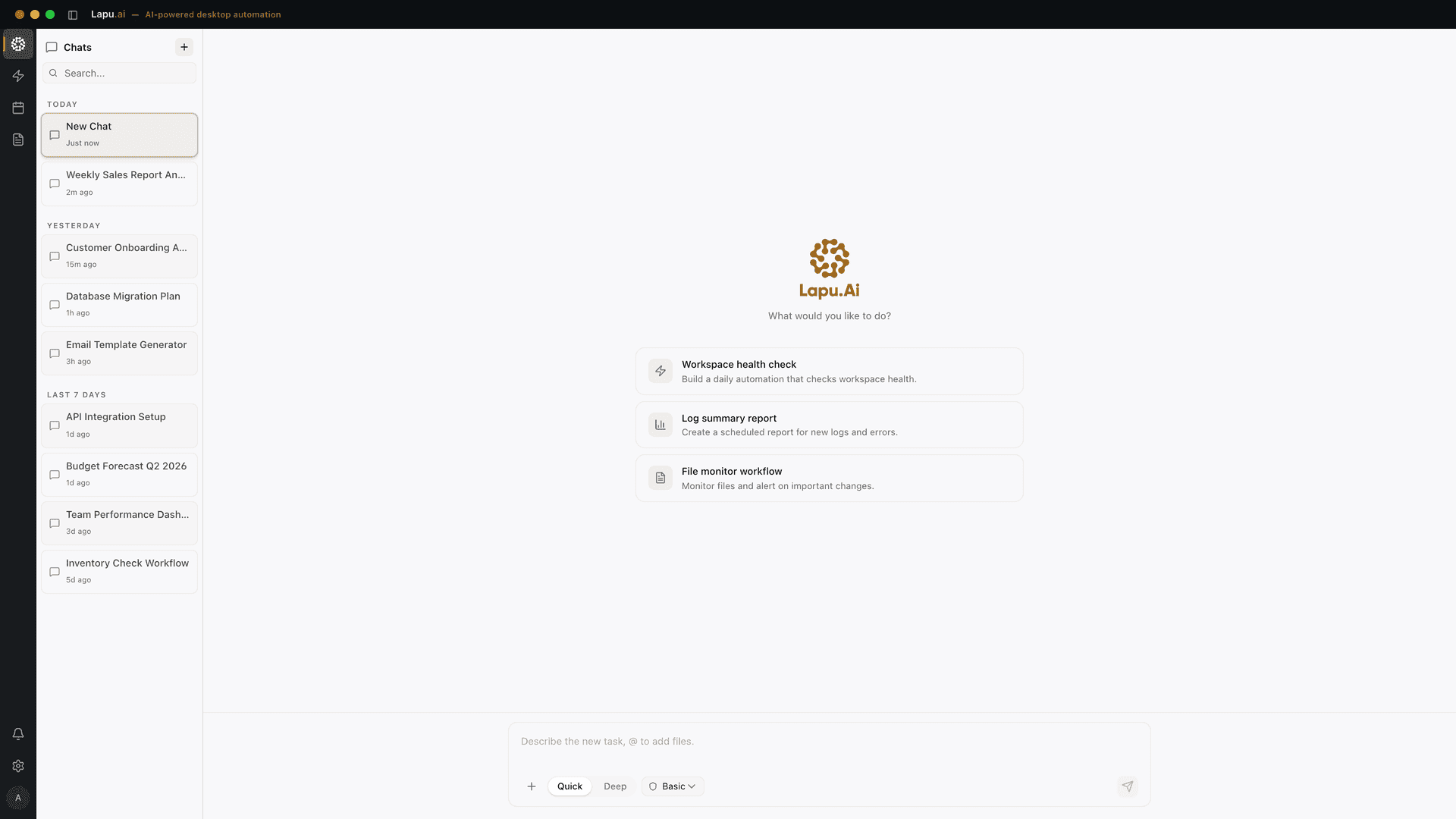
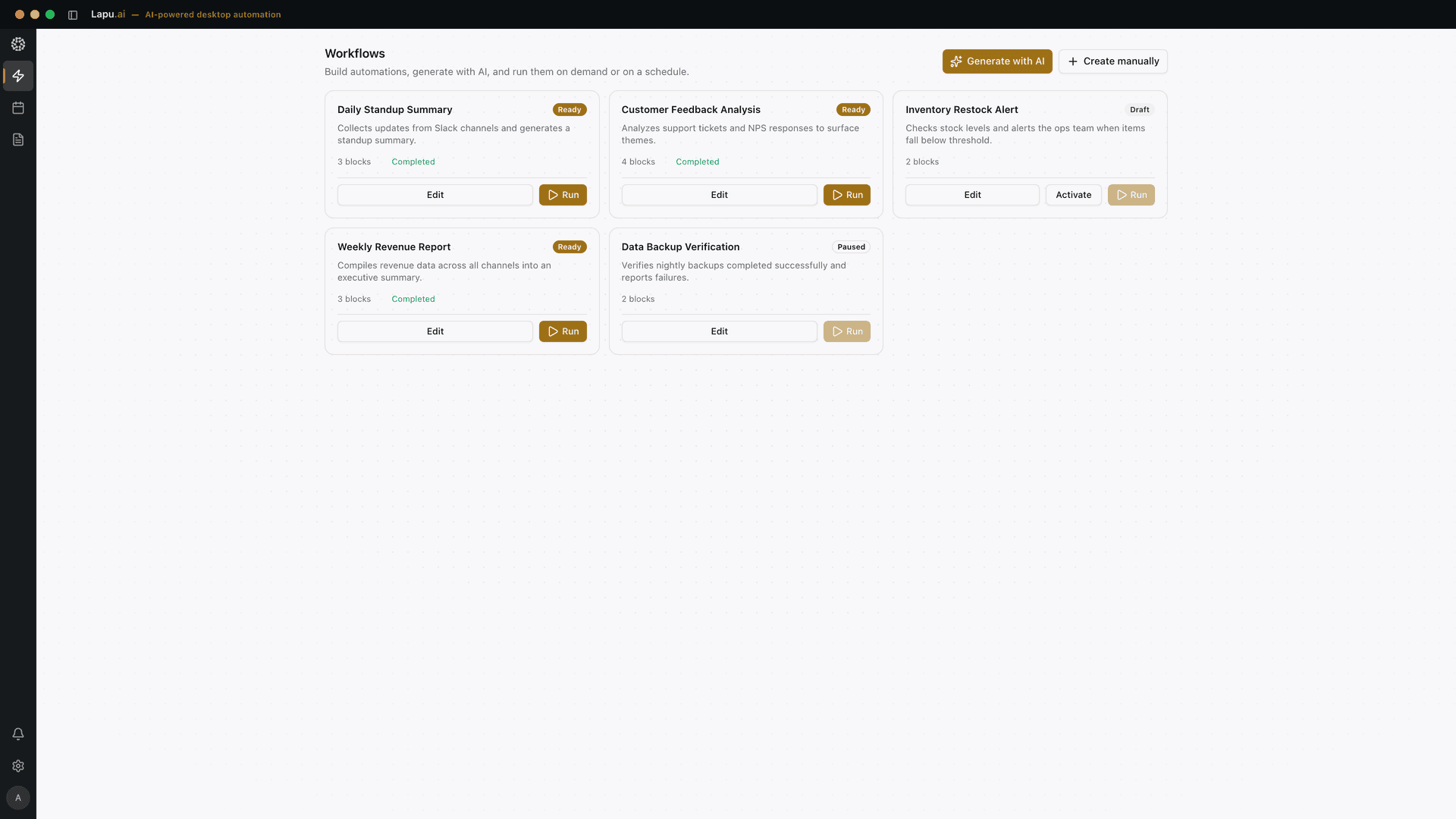
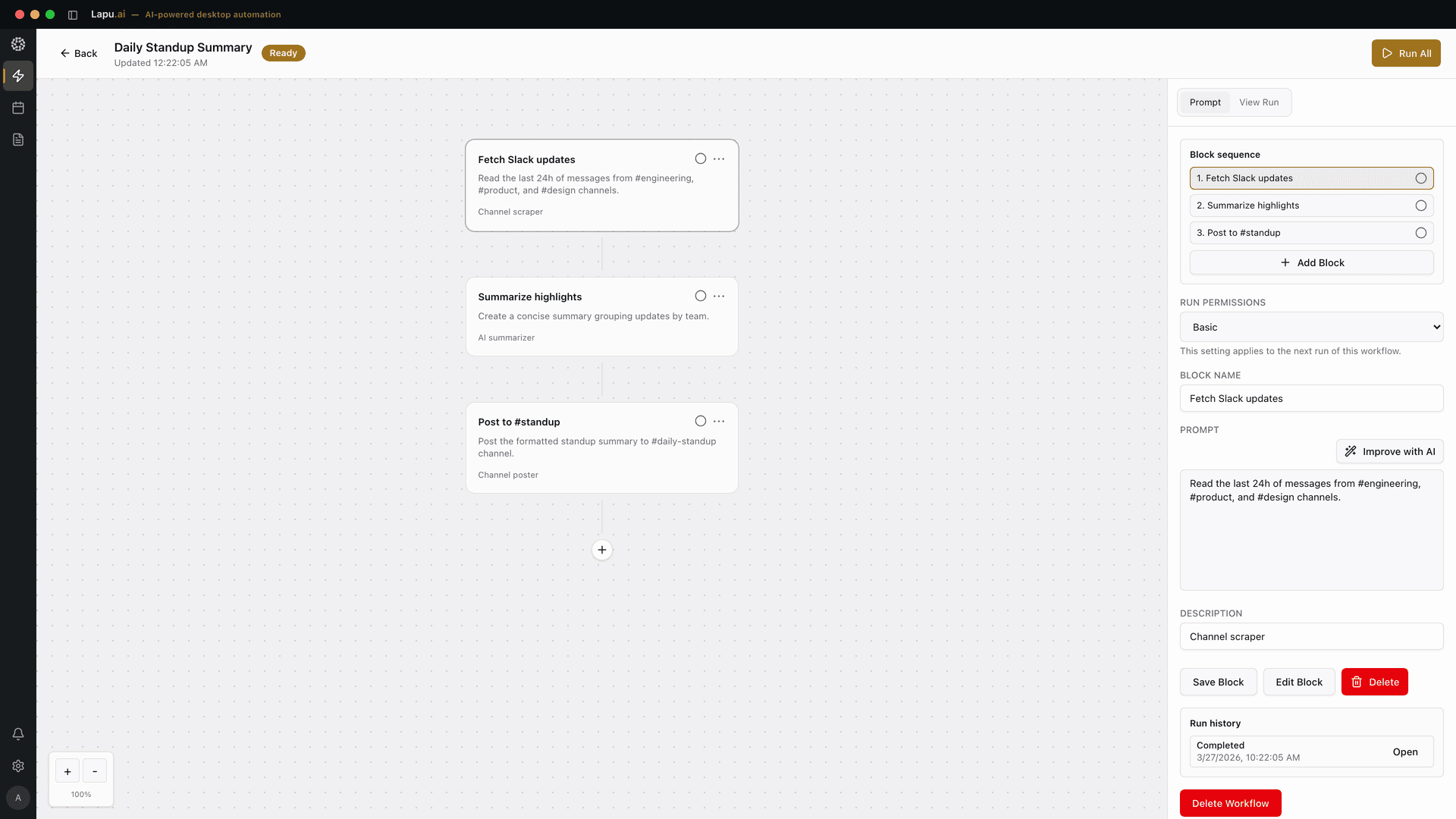
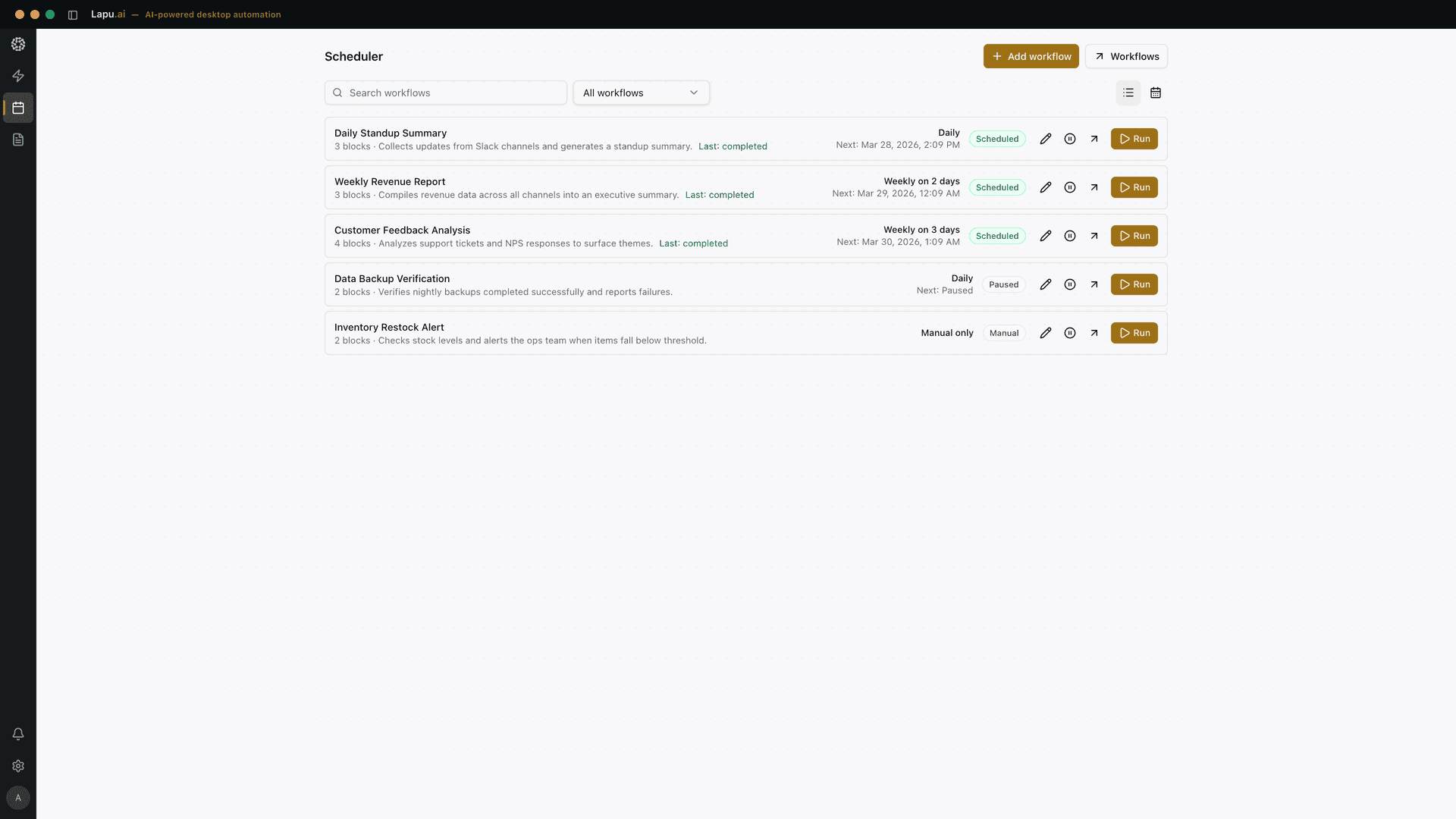
FAQ
Common questions
Can Lapu AI convert an invoice PDF to Excel without uploading it?
Yes. The PDF is read where it lives on your disk and the workbook is written back to your disk. The file body is not uploaded for storage. Only minimal context — column names, a small sample of rows, ambiguous values where a type has to be chosen — is sent to the AI model for reasoning, and the agent's plan shows exactly what was used.
What happens to the printed total at the bottom of a statement?
The agent removes it from the row set and writes a real Excel SUM formula in its place, treating the printed total as a check value. If the formula's result does not match what was printed, it flags the mismatch rather than silently overwriting the discrepancy.
Does it handle scanned invoices and multi-page statements?
Scanned pages get a local OCR pass before extraction, and low-confidence cells are flagged for review. Multi-page tables are stitched into one logical table — the agent detects repeated headers on each page and de-duplicates them instead of writing the header row N times.
Can I review the extraction before any file is written?
Yes — that is the default, not a setting. The agent generates a proposed schema (column names, types, row count, rows it plans to drop, formulas it plans to insert) and waits for your approval. Nothing touches your disk until you confirm.
Explore more
Related use cases
Document Processing
Process contracts, invoices, and reports without uploading them anywhere. Built-in skills extract, merge, and convert PDF, Word, Excel, and PowerPoint files on your machine.
See how it worksDataData Processing
Describe the transformation you need in plain English. The agent writes and runs the Python script, shell pipeline, or Node job — you just approve and get clean output.
See how it worksAutomationScheduled Automation
Set it once, let it run. Turn any conversation into a reusable workflow that fires on a schedule — daily reports, recurring cleanups, and routine data pulls happen without you.
See how it works